Note
This section is not applicable to Sensors running on subscription based licenses. It is applicable only for Sensors running with perpetual licenses.
To upgrade an existing capacity license, perform the following steps:
Steps:
Go to Manager → <Admin Domain Name> → Setup → Licenses.
Click the System tab.
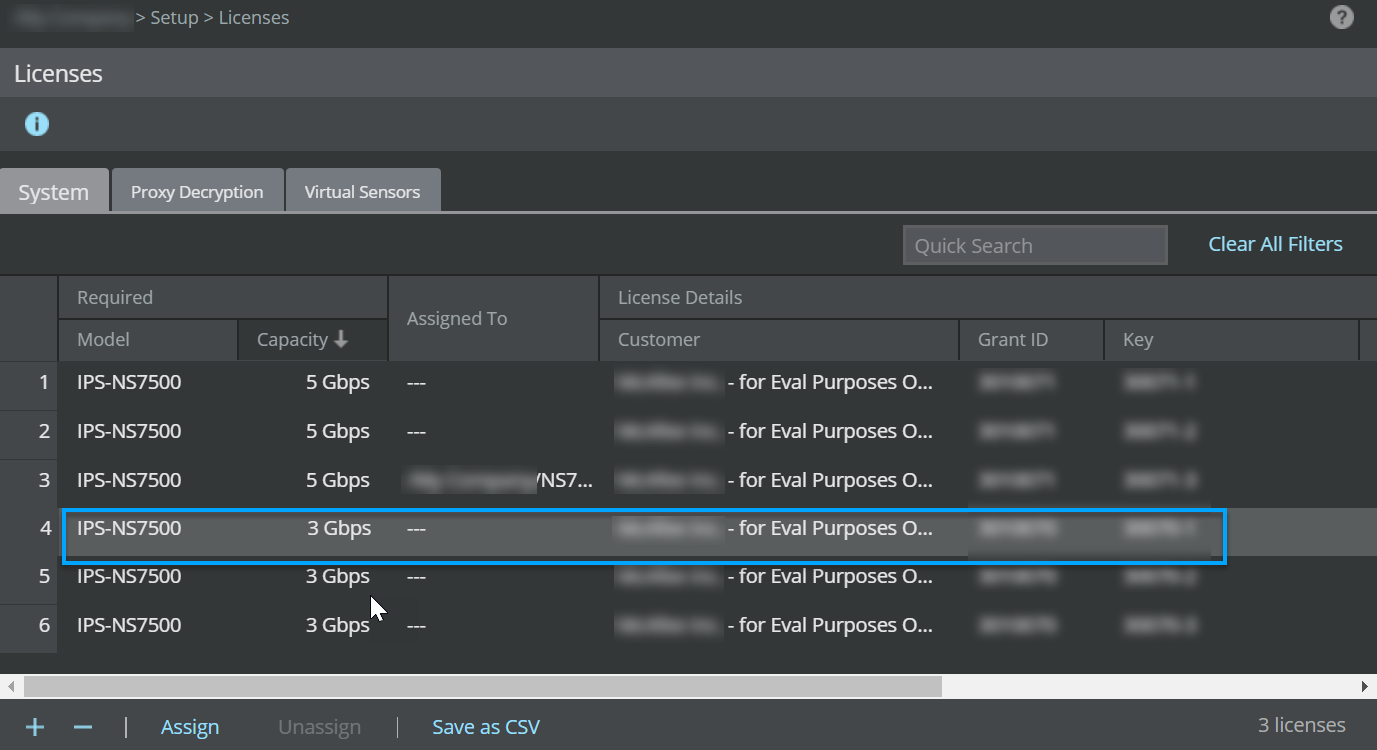
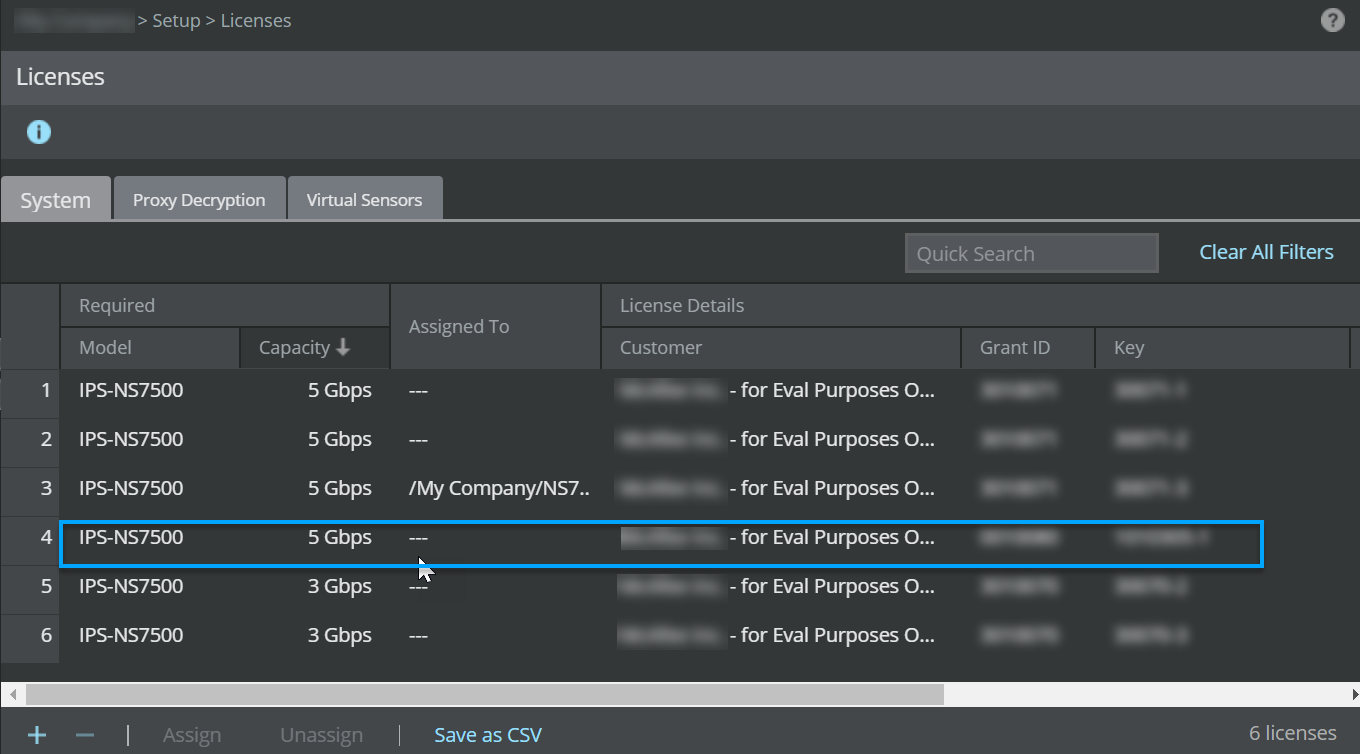
The system tab with existing licenses:
Click
.png) .
.The Add License pop-up window opens.
Click Browse.
Navigate to the location where the upgrade license is saved. Select the license and click Open.
Note
The supported license formats are .zip and .jar.
Upload license to the Manager.png "GUID-236A0E66-68BF-4783-975F-C3EF9C92624A-low.png")
Click Add.
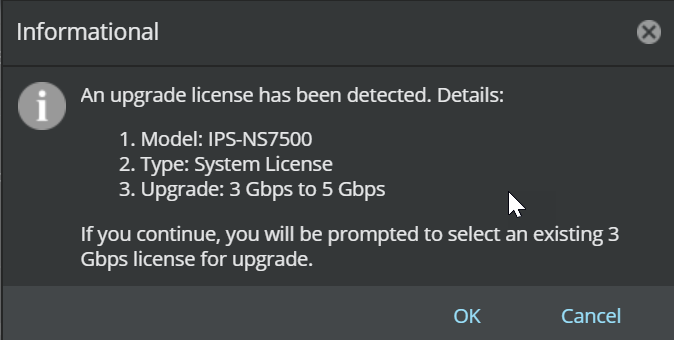
An informational message window appears. Click OK.
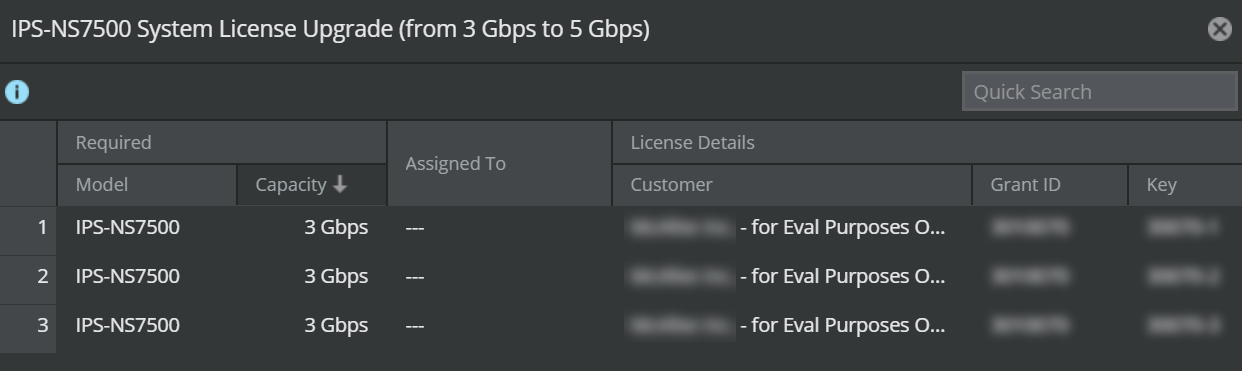
<Sensor name> System license upgrade (from x Gbps to x+y Gbps) window appears which displays all the licenses present in the Manager for that particular capacity. Double-click on the license you wish to upgrade the capacity license for.
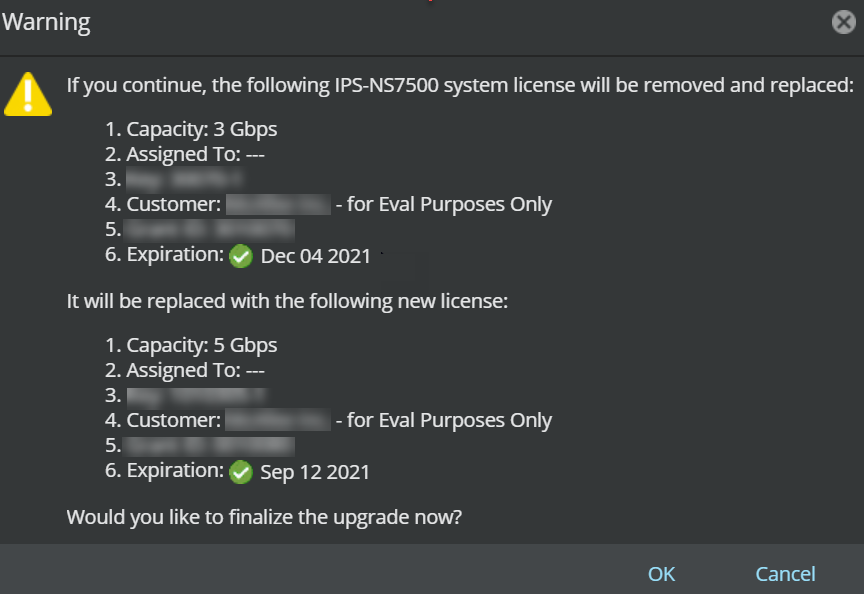
A warning message that the existing system license will be removed and replaced with a new license appears. Click OK.
The existing system capacity license is replaced with the new capacity license.
(Optional) Click Save as CSV to export the license usage details as .csv file.