Steps:
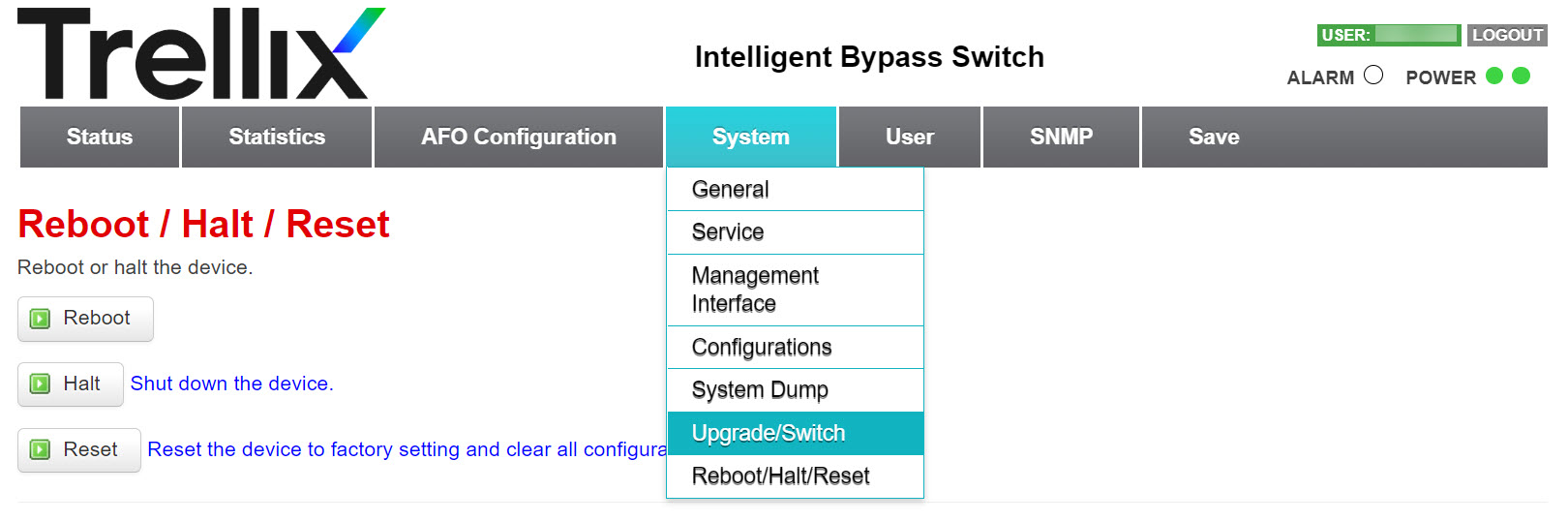
Go to the System tab and select Upgrade/Switch from the drop-down list.
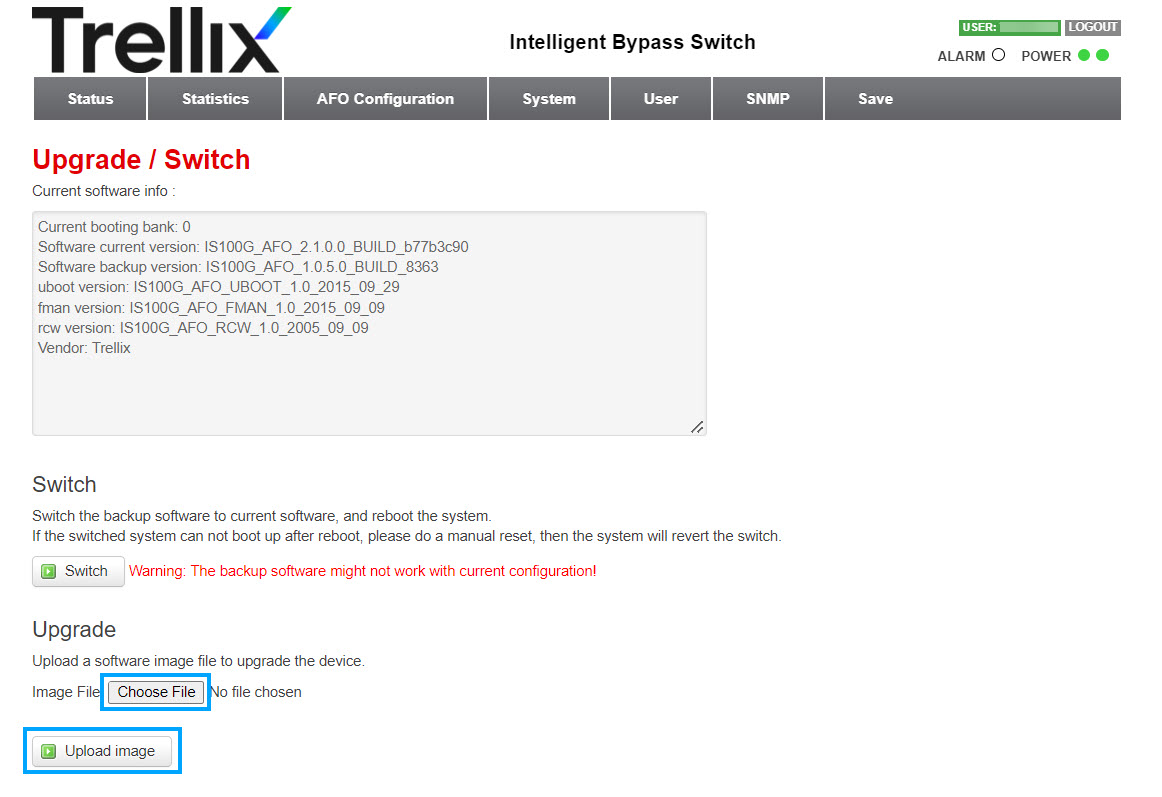
Click Choose File to choose the latest .img file obtained from the download server.
Click Upload Image to start upgrading.
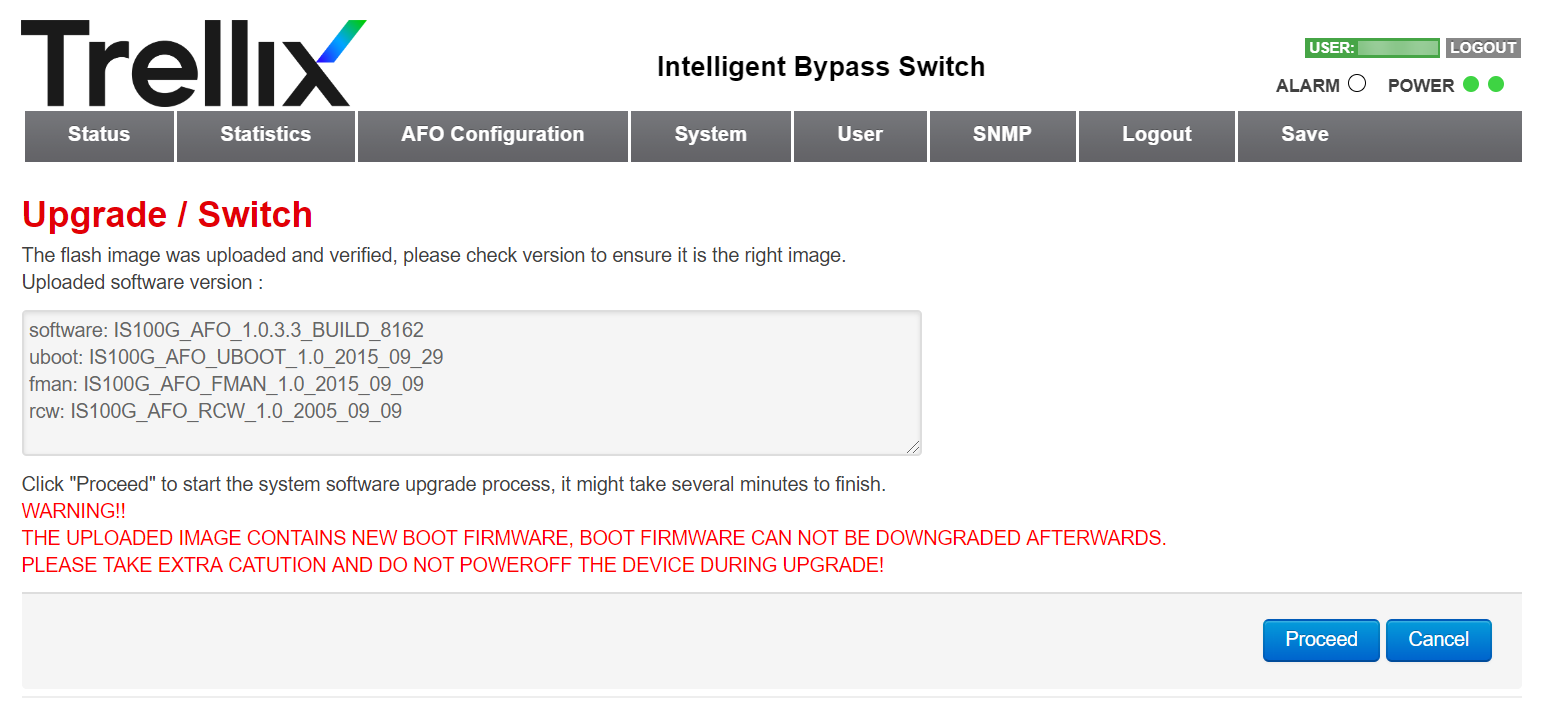
After uploading the image, a new window displaying the latest software version appears.
Click Proceed.
The upgrade process begins to update the files for approximately 1-2 minutes.
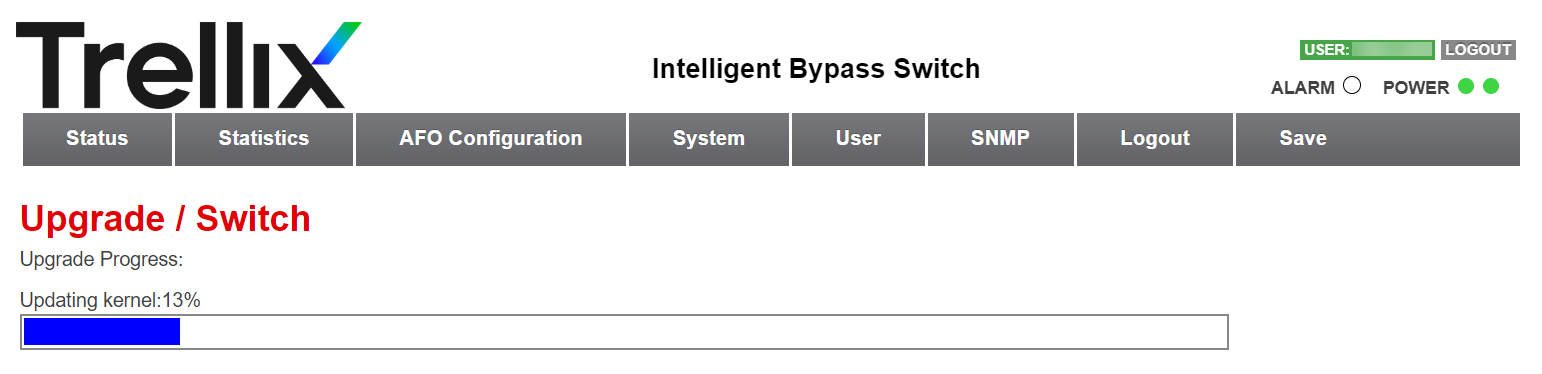
Once the system software upgrade is done, click Reboot.
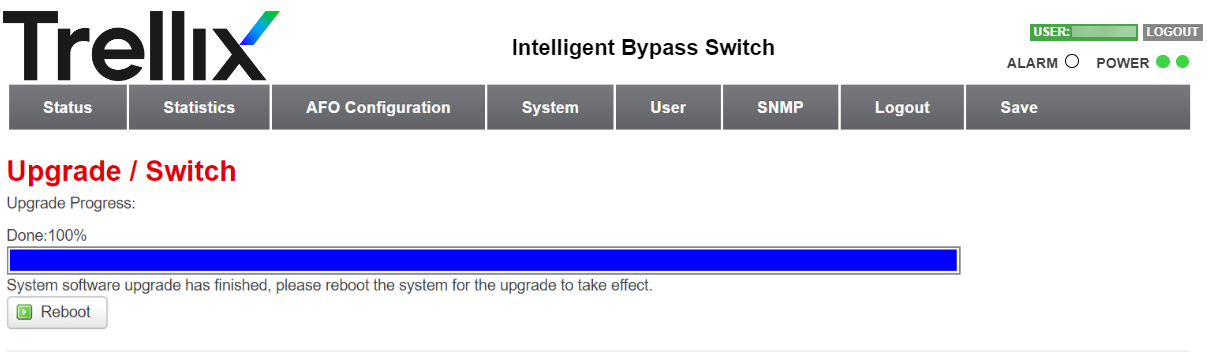
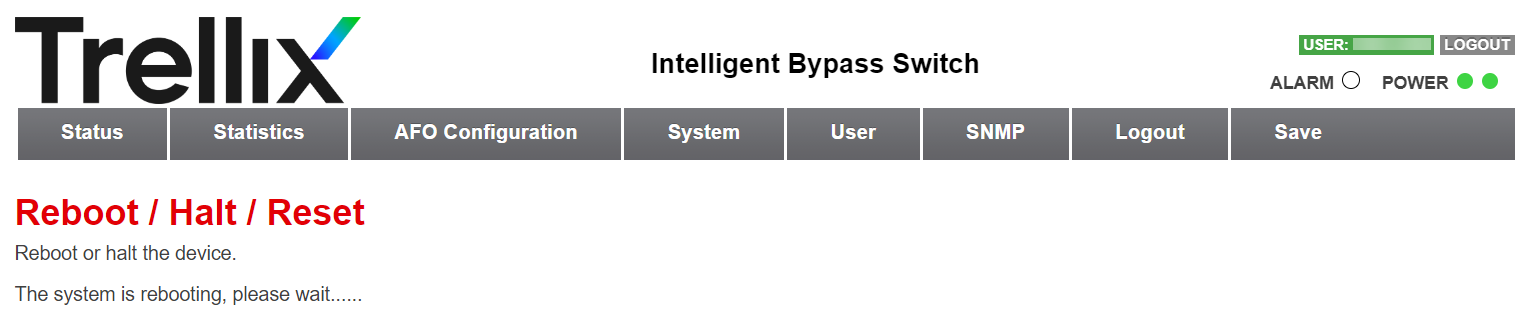
Click Reboot again and the following window appears.
It will approximately take 2-3 minutes before the system goes back to the Login prompt window.
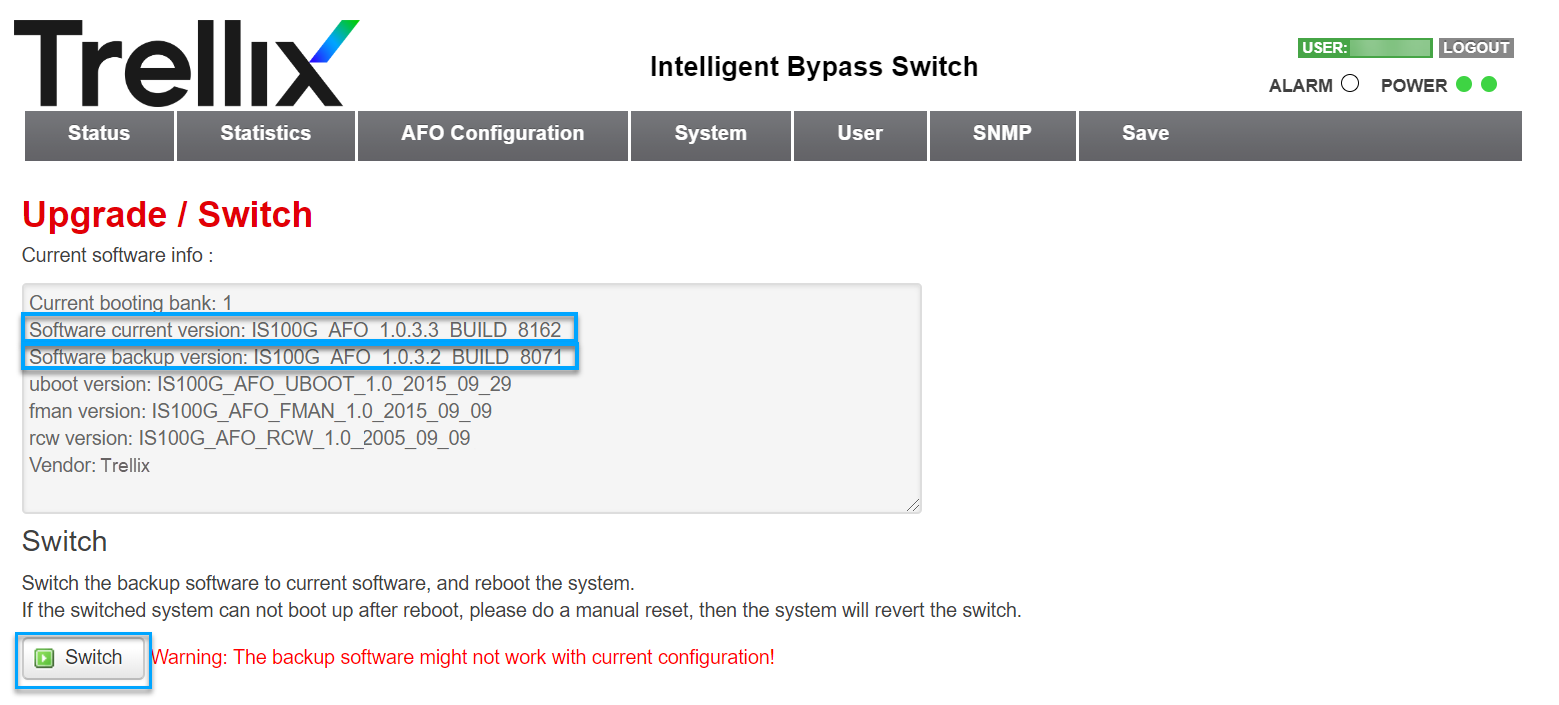
Once logged in, go to the System tab, select Upgrade/Switch from the drop-down list, and confirm the installed software version under Current software info.
In case the present software version is faulty, you can click Switch to go back to the previous software version.