View details about the status of custom IOC feeds, the total number of custom IOC feeds, and the total number of all the custom blacklist entries that you configured on a standalone Network Security appliance.
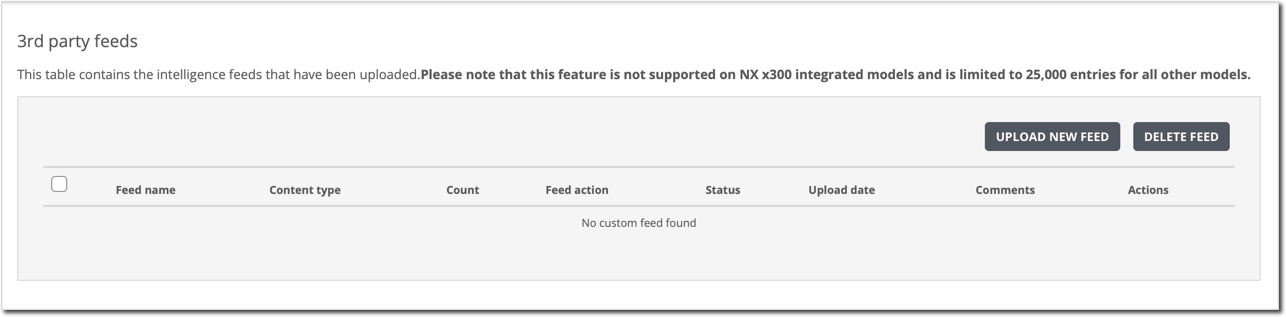
In the following example of the Settings >Third Party Feeds page, the Network Security appliance does not yet contain third-party feeds.
A Network Security appliance deployed in TAP mode or inline mode.
Admin access to the Network Security appliance.
A connection from the appliance to the Dynamic Threat Intelligence (DTI) Cloud.
A flat file or an XML-based file in STIX 1.2 format that contains custom blacklist entries. The file must be accessible from the local desktop from which you access the appliance Web UI. For details, see Creating a custom blacklist from third-party feeds.
One or more third-party feeds uploaded to the appliance from a flat file or an XML-based file in STIX 1.2 format. For details, see Uploading a third-party feed using the Web UI.
Choose Settings > 3rd Party Feeds.
The page lists the custom feeds that are uploaded.
In the table, view the details of each type of custom blacklist entry that was configured for a custom feed.