To view the details of an interface, select an interface node under IPS Interfaces:
- Click the Devices tab.
- Select the domain from the Domain drop-down list.
- On the left pane, click the Devices tab.
- Select the device from the Device drop-down list.
- For a standalone Sensor, select
IPS Interfaces
→ <interface name> → Properties.
For Sensors in a stack, select IPS Interfaces → <Stackname-node id> → <interface name> → Properties.
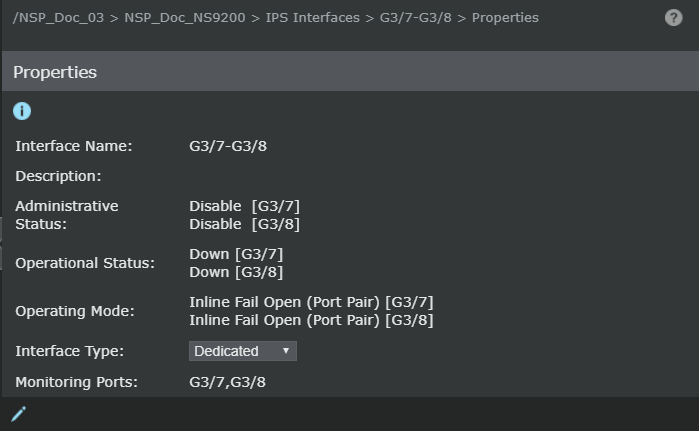
The dialog details are as follows:
- Interface Name — Identification of ports that make up the interface. For peer ports, format is xA-xB. If this is an interface group, multiple Sensor ports are listed. This name is user-configurable if the traffic type is changed to VLAN or CIDR; a unique name enables easy recognition.
- Description — Description of the interface
- Administrative Status — State defined by user. Enable is up, Disable is down.
- Operational Status — State defined by Sensor (functional) operation. Up is working and user-enabled, Down is user-disabled or a malfunction has occurred.
- Operating Mode — The monitoring configuration of the interface
- Interface Type — Traffic type; Dedicated by default and can be changed to VLAN or CIDR
- Monitoring Ports — The physical Sensor ports which comprise the interface
Click
.png) to edit the interface level settings.
to edit the interface level settings.