The Delivery Test tab allows you to test your email delivery configuration for:
Inbound delivery test
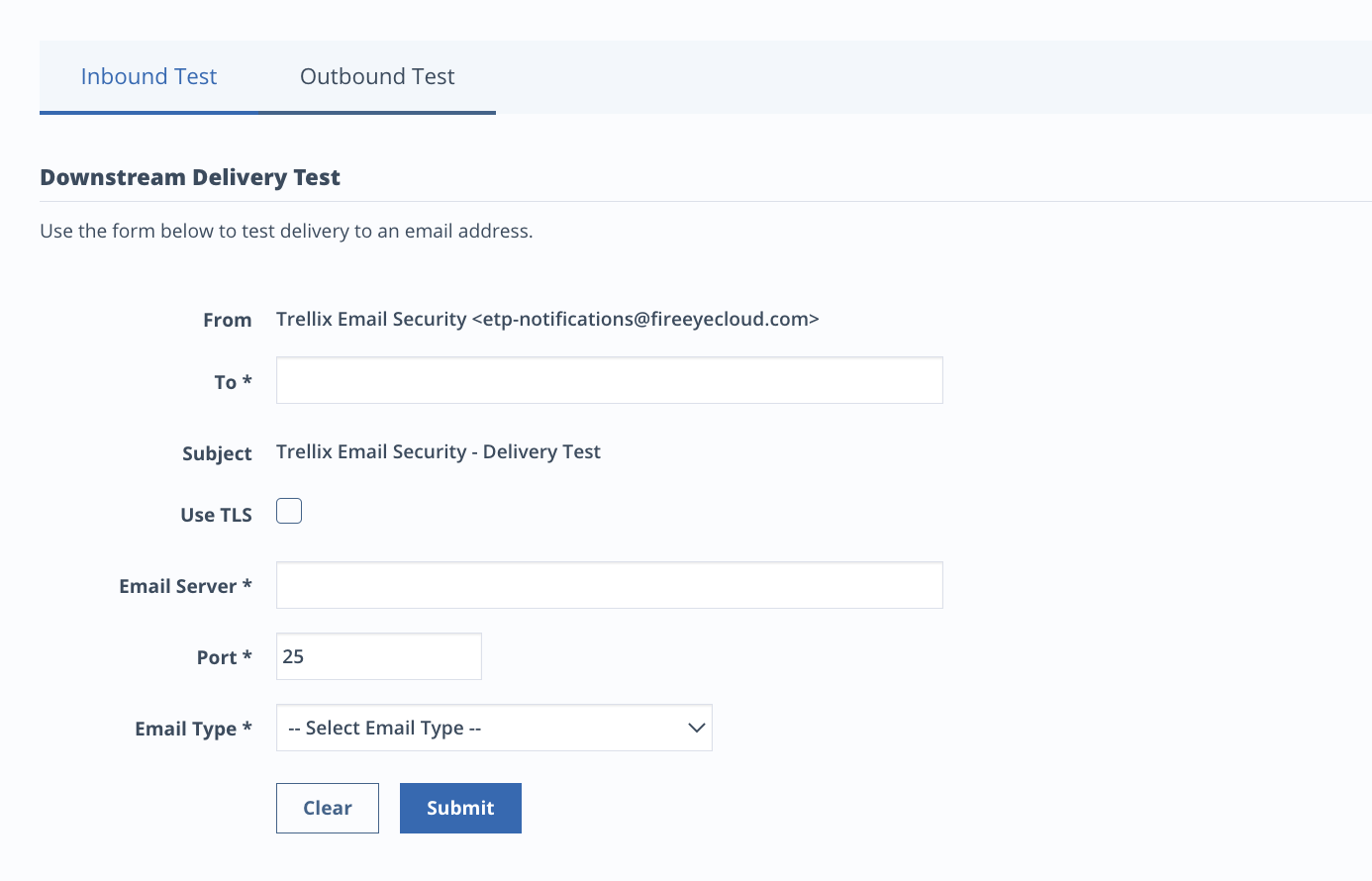
To test delivery to an email address:
Go to Additional Settings > Delivery Test.
Enter a domain.
Check Use TLS (optional).
Enter an email server.
Enter a port (default 25).
Select an email type from the drop-down menu.
Click Submit.
Outbound delivery test
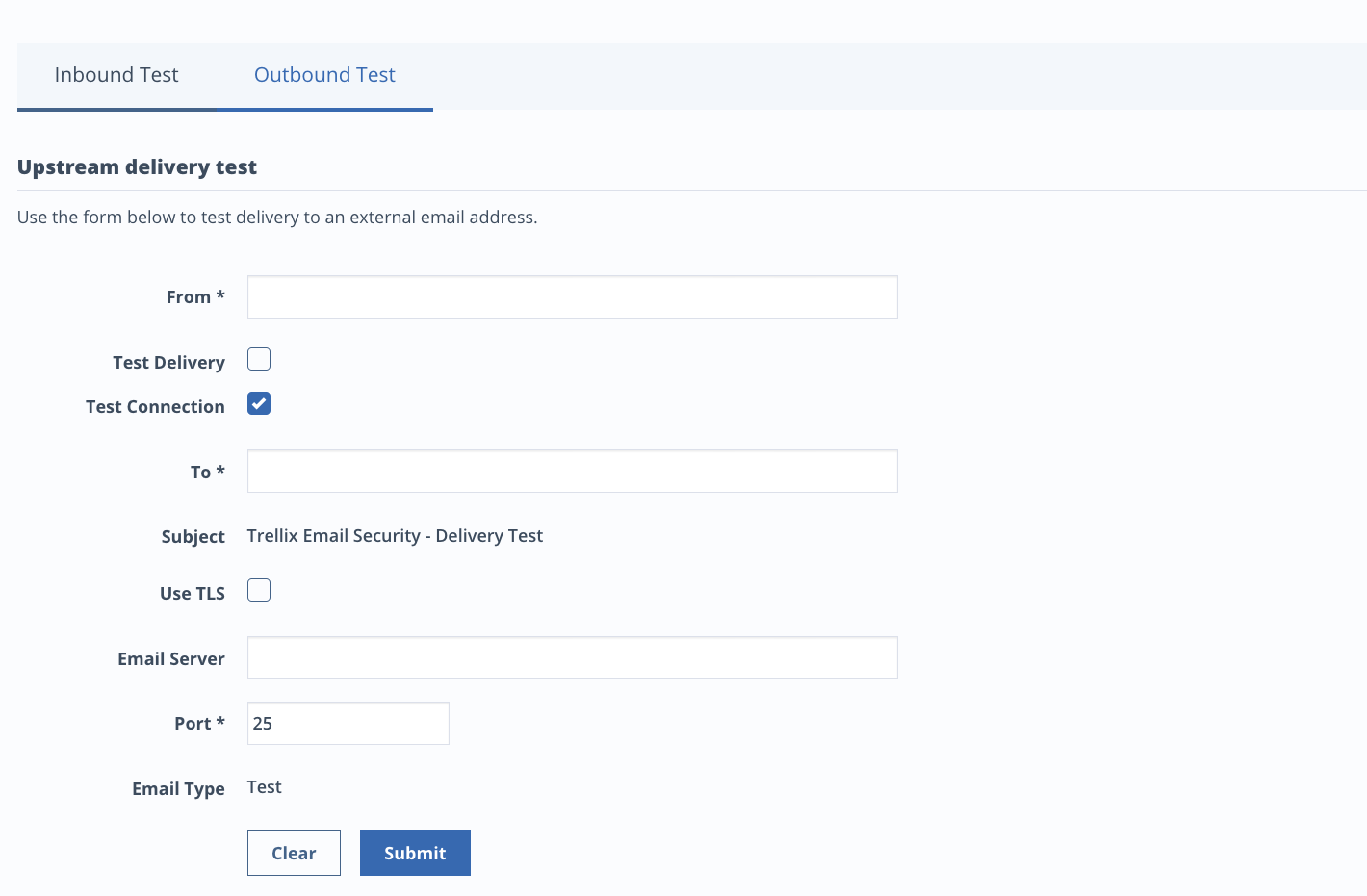
To test delivery from an email address:
Go to Additional Settings > Delivery Test.
Enter a From address (must be a registered domain).
Select Test Delivery to send a test email (optional).
You must select either Test Delivery or Test Connection.
Select Test Connection to test connectivity with the domain (optional).
Enter a To address.
Select Use TLS (optional).
If there is a custom email server, enter the server (optional).
If entered, the connectivity test will be performed for this server only.
Enter a port (default 25).
Click Submit.