Agents attempt to connect to the first Endpoint Security (HX) server listed in the server address list. If the first server is unavailable, the agent then attempts to reach the second server, and so on.
The cloud Endpoint Security (HX) server must be the first server listed in the server address list. The on-premises Endpoint Security (HX) appliance must be the second server listed in the server address list.
Log in to the Web UI of the Endpoint Security (HX) server.
Select Policies on the Admin menu. The Policies page appears.
Select Agent Default policy in the list.
Select the Server Addresses tab on the Agent Default policy page.
In the Enter server address of the appliance(s) text box, enter the host name or IP address of the cloud Endpoint Security (HX) server you identified in Recording the server address list settings of the Cloud Endpoint Security (HX) ecosystem .
Click Add.
The IP address or DNS host name of the cloud Endpoint Security (HX) server should be listed first in the server address list.
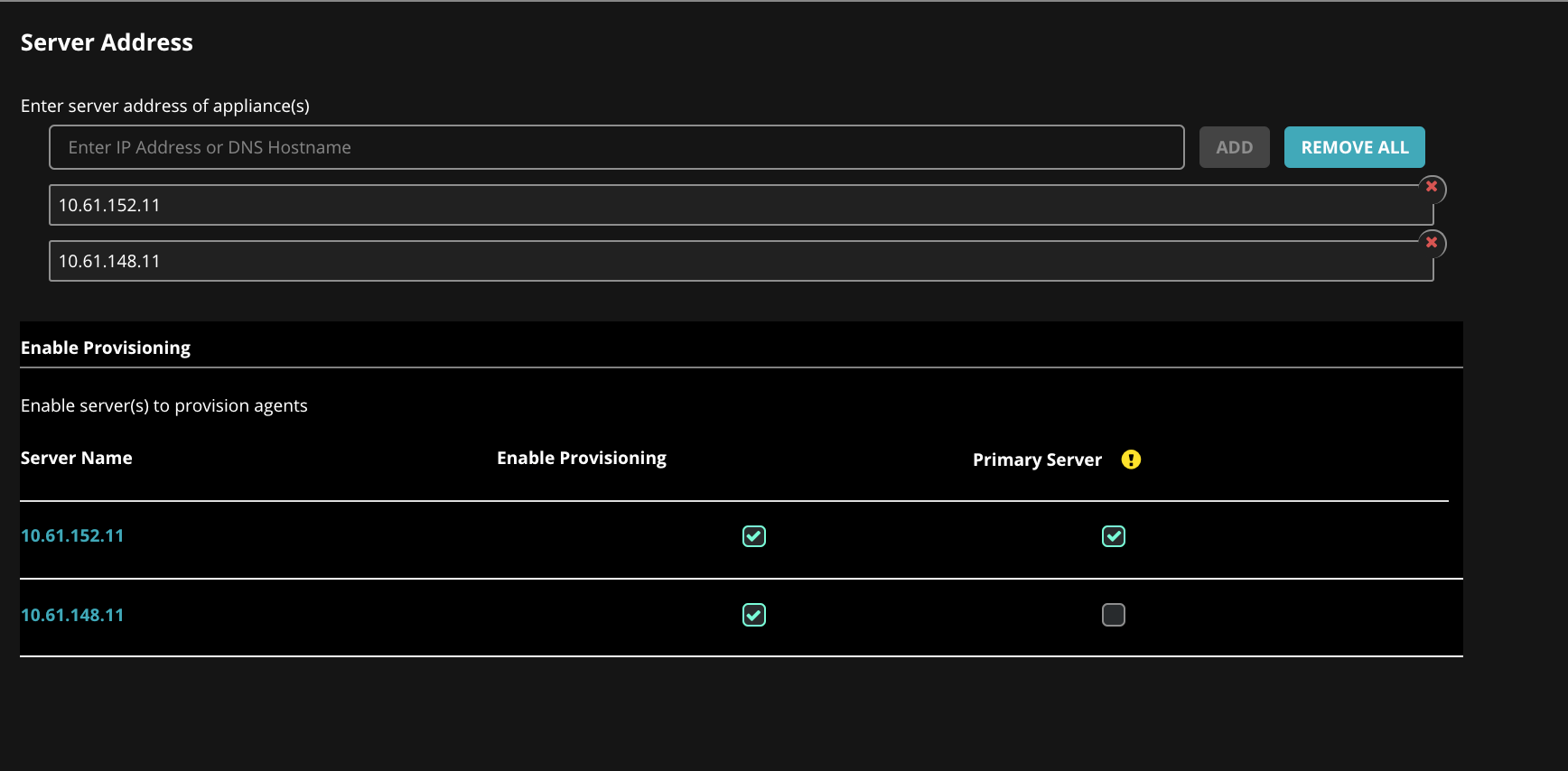
In the Enable Provisioning section, indicate your provisioning servers and your primary server by selecting the checkbox.
Click Save in the upper right corner to save the policy changes.