The steps to add IPv4 Address Range and IPv6 Address Range rule objects are identical. Follow these steps to add IPv4 Address Range or IPv6 Address Range rule objects:
-
Upon specifying the options in the Properties tab and selecting IPv4 Address Range or IPv6 Address Range from the rule object Type drop-down, click Next.
Create an IPv4 Endpoint or IPv6 Endpoint rule object 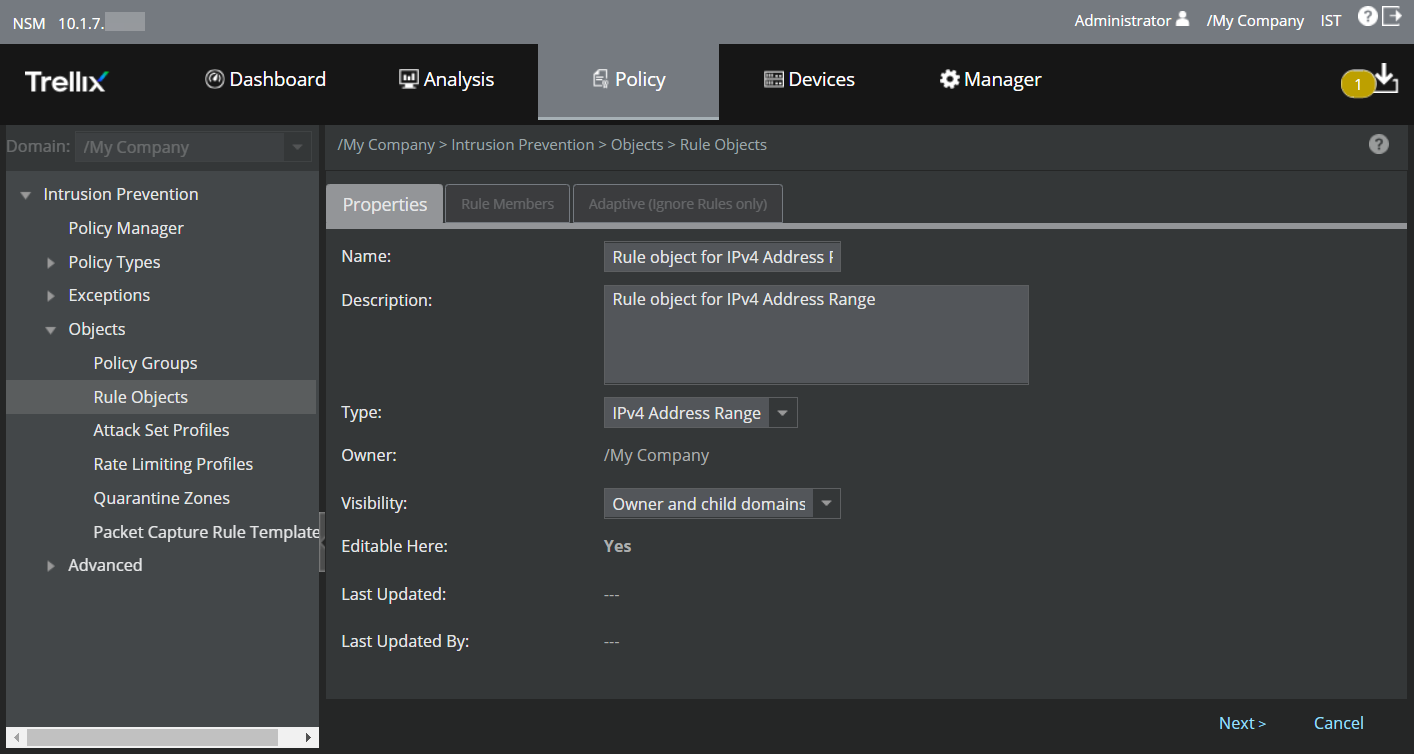
The Rule Members tab is displayed.
Add Rule Members 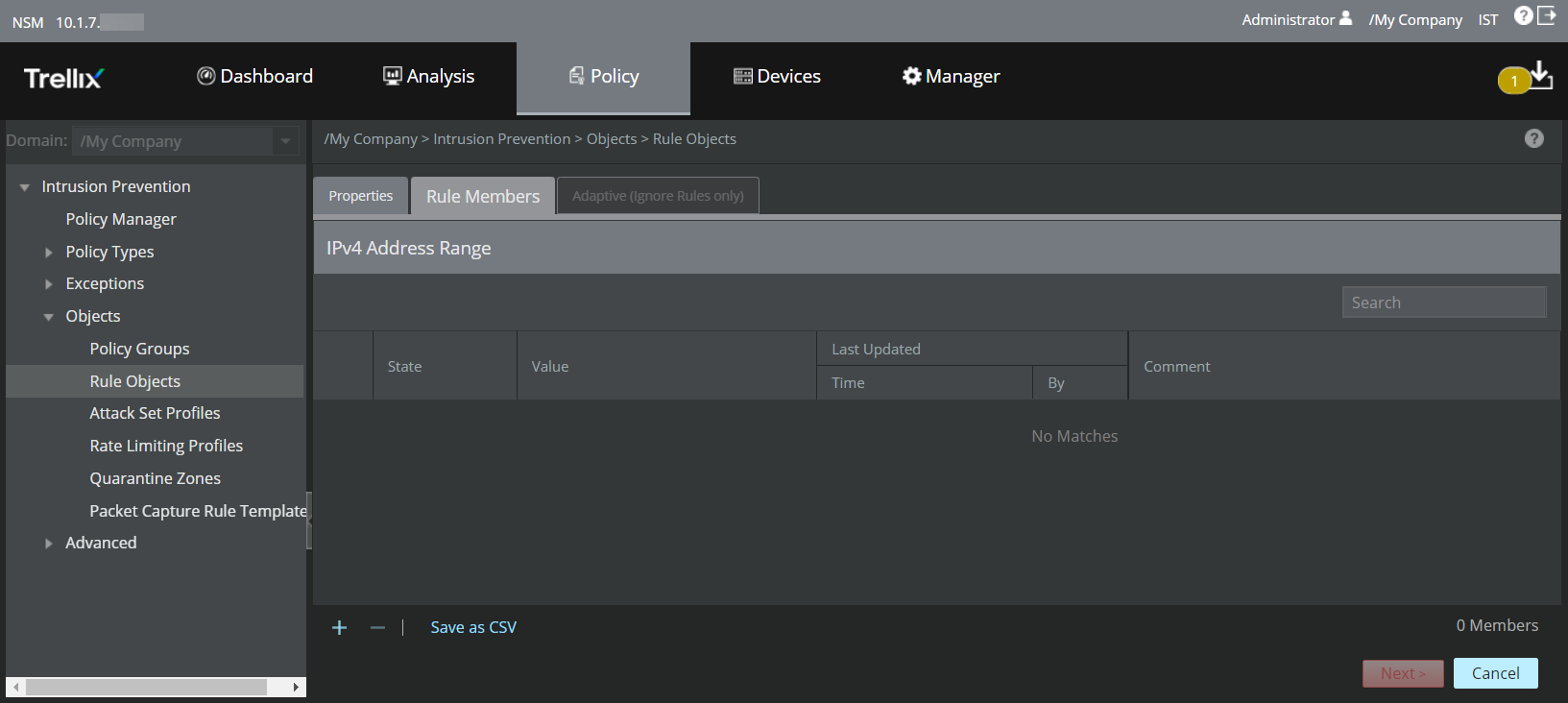
Following are the details of the columns displayed in the Rule Members tab:
Column details in the Rule Members tab - IP Address Range rule object Column Description State Specifies whether a rule member (in this case, IPv4 or IPv6 address range based on the rule object selected) is Enabled or Disabled Value Displays the IPv4 or IPv6 address range Last Updated - Time — Specifies the time when the rule member was last modified
- By — Displays the user who modified the rule member
Comment Displays any additional comment specified for the rule member You can rearrange/resize the columns to view the details according to your preference.
The following table explains the options in the Rule Members tab.
Option Definition .png)
Click this icon to add an IPv4 or IPv6 address range.
.png)
Click this icon to delete single or multiple IPv4 or IPv6 address ranges Save as CSV Click this icon to remove a rule object from the list - To add an IPv4 or IPv6 address range:
- Click the
icon.
- A
Details window is displayed on the right-hand side of the
Rule Members tab.
For details of the options displayed in the window, refer the table Column details in the Rule Members tab - IP Address Range rule object.
Select the State, enter a valid IPv4 or IPv6 starting and ending address range in the Value field, enter a Comment if required and click Add.
Note
- Make sure to enter a hyphen between the starting and ending range (example: 10.1.1.1-10.1.1.25).
- You can enter up to 20000 IPv4 or 20000 IPv6 address ranges in a single rule object.
- The above rule member count is applicable only for Firewall policy. For QoS policy, Ignore Rules, Outbound SSL Decryption Exclusions, and NTBA Communication Rules, the maximum rule member count applicable for each rule object type is 10. For Quarantine Zones, only one rule member should be assigned per rule object. So, you need to add rule members to a rule object accordingly.
- If the Manager is on or before version 10.1.7.55 and the Sensor is on or before 10.1.5.153, you can add a maximum of 10 IPv4/IPv6 address ranges in any rule object.
Add individual IP addresses 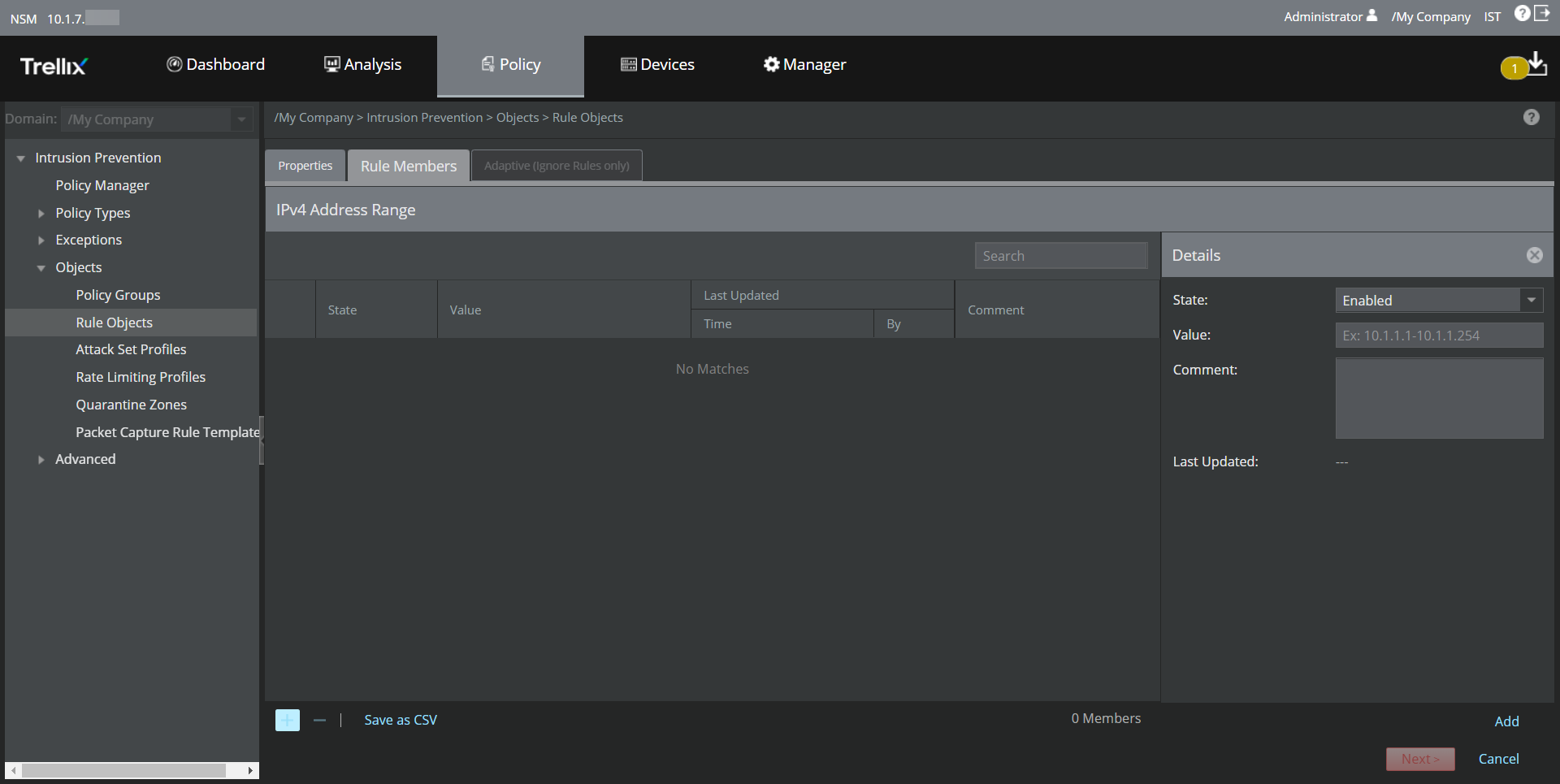
- Click the
- Upon adding all the required IP addresses, click
Next.
Adaptive (Ignore Rules only) tab is displayed. This is an optional tab.
The following table explains the options in the Rule Members tab.
Option Definition Customization Select Disabled to disable customization or select Use custom values per resource to customize values. Resource to Customize Select the resource to customize from the drop-down list. Note
This option is displayed only if you select the customization option as Use custom values per resource.
Add Click this button to add the IP address range to the Customizations list. Search Type the search criteria to search for a resource. .png)
Click this icon to remove an address range from the list. - Based on the above options, make any configuration changes if required, and click Save. The rule object will be created.