You can add an individual custom IPS rule to the IPS rules database on your IPS-enabled platform. To add a custom IPS rule, use the Custom Rules page. When you add a custom IPS rule, the system adds the new rule to the appliance IPS rules database. The database stores both standard, Trellix-provided IPS rules and any custom IPS rules that you create.
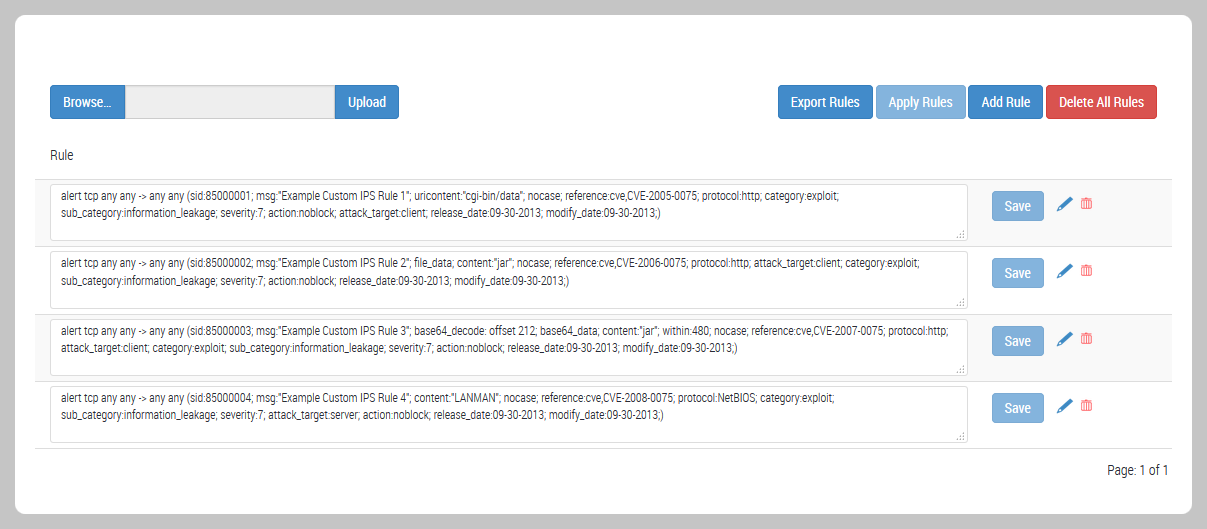
In the following example of the IPS Custom Rules page, the appliance IPS rules database contains four custom IPS rules.
Important
If you add a custom IPS rule identified by a signature ID that is also used to identify a custom IPS rule already in the appliance rules database, the new rule overwrites the existing rule.
If an IPS policy that includes a new rule is already active on a monitoring interface, the rule does not go into effect on that interface until you click and confirm Apply Rules.
Prerequisites
You are logged in to the Web UI as Operator or Admin.
Procedure
To add a custom IPS rule to the appliance database:
Choose IPS > Custom Rules.
The page lists the custom IPS rules in the appliance IPS rules database.
Click Add Rule.
Enter a single custom IPS rule. For details, see Syntax for custom IPS rules.
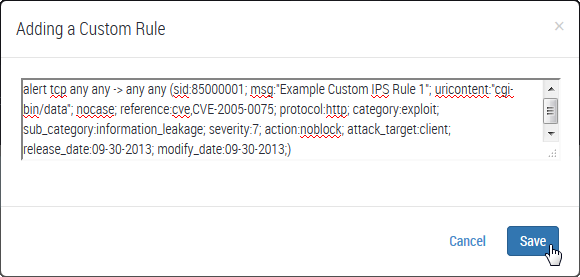
Click Save.
The new rule is saved to the database of IPS rules, and the following message appears. The page refreshes to include the new rule in the list.

If the new rule contains a syntax error, an error message similar to the following appears. You must edit the rule to correct the error before you can save the new rule to the database of IPS rules.

Close the green message bar.
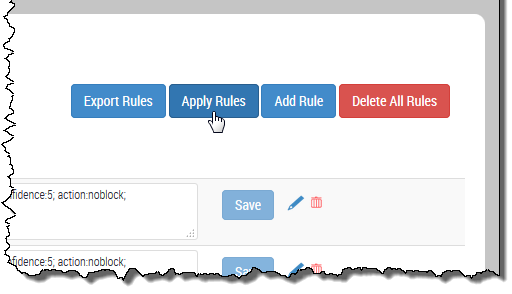
When you are ready to apply all updated custom IPS rules, click Apply Rules.
Note
Trellix recommends that you click Apply Rules immediately after the new rule has been successfully saved to the database.
Click OK.
The IPS-enabled rules engine re-evaluates active IPS policies against the updated database of IPS rules. The following message appears:

Close the green message bar.