Use the Add Custom Filters window to add your own custom filter rules to an event filter list or reset the rules to the default rules that Trellix provides.
In the following example, the Network Security appliance does not yet contain custom filter rules for the Evidence Collector module.
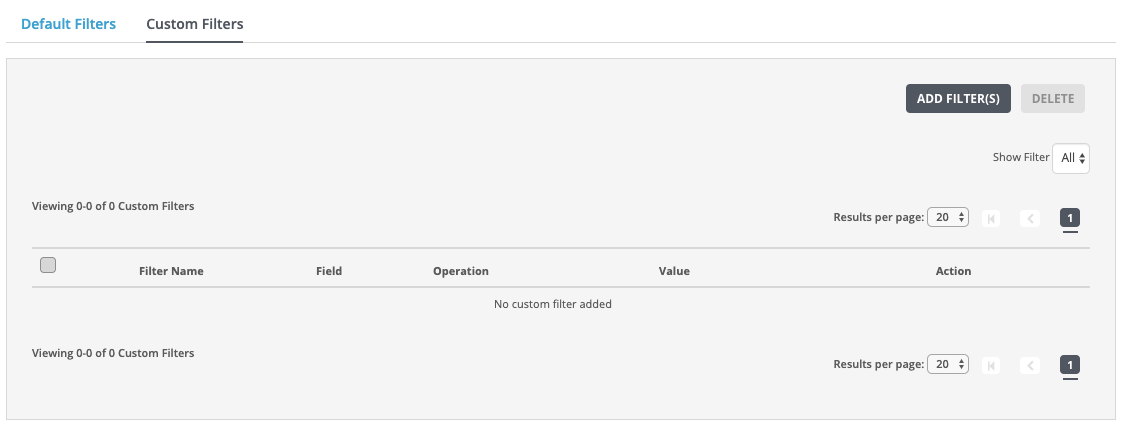
You specify the following in a custom filter rule for the Evidence Collector module.
Field | Description |
|---|---|
Filter Name | The name for the rule that is based on the event you want to filter. |
Field | The supported JSON event field that is associated with the event type (HTTP, SMTP, DNS, TLS, and so forth). |
Operation | Type of operation to filter out the corresponding field. |
Value | The JSON value you want to associate with the corresponding field. |
For details about the event types and some of the associated filter field examples, see Configuring event filter rules.
Important
Your event filter configuration changes will not take effect until you apply them. Use the
event-filter tapsender config applycommand. The statuspendingappears in theshow event-filter tapsender configurationcommand output if you did not apply the changes.
In the Web UI, choose Settings > Evidence Collector.
Click Event Filters.
Click Custom Filters.
Click Add Filters. The Add Custom Filters window opens.
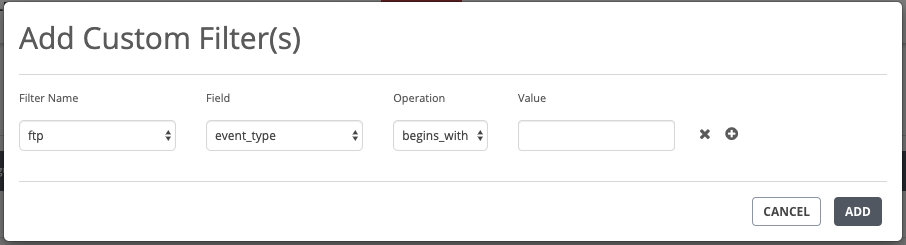
In the Filter Name drop-down list, choose a filter rule for the event type you want to filter.
For details about the valid event types, see Configuring event filter Rrles.
In the Field drop-down list, choose the supported JSON event field that is associated with the event type you want to filter.
In the Operation drop-down list, choose begins_with, ends_with, contains, equals, regex, or cidr as the operation to filter out the JSON value and the event type. for the corresponding field.
In the Value field, enter the JSON value that you want to associate with the corresponding field.
Click the plus sign to add the rule entry. You can add multiple entries at one time.
Click X next to the rule entry you want to delete.
Click Add.
The rule entry is added to the configuration.