You can assign license(s) for the Sensor from either the Device Manager page or the Licenses page in the Manager.
You can assign/unassign licenses through the following nodes in the Manager:
VM600 Sensors - License column of Device Manager, Device Details section of <Device_Name> panel, Summary, and Licenses.
VM5000 Sensors - License column of Device Manager, Device Details section of <Device_Name> panel, and Summary.
Assign a license to the Sensor from the Device Manager
To assign a license from the Device Manager page in the Manager, perform the following steps:
Go to Devices → <Admin Domain Name> → Global → Device Manager.
Select the required Sensor and go to License from the System column.
Note
By default, the Running Capacity and License columns are not displayed under System. You can enable them from the Device Details drop-down.
Select the tooltip icon to assign a license to the Sensors.
Device Manager
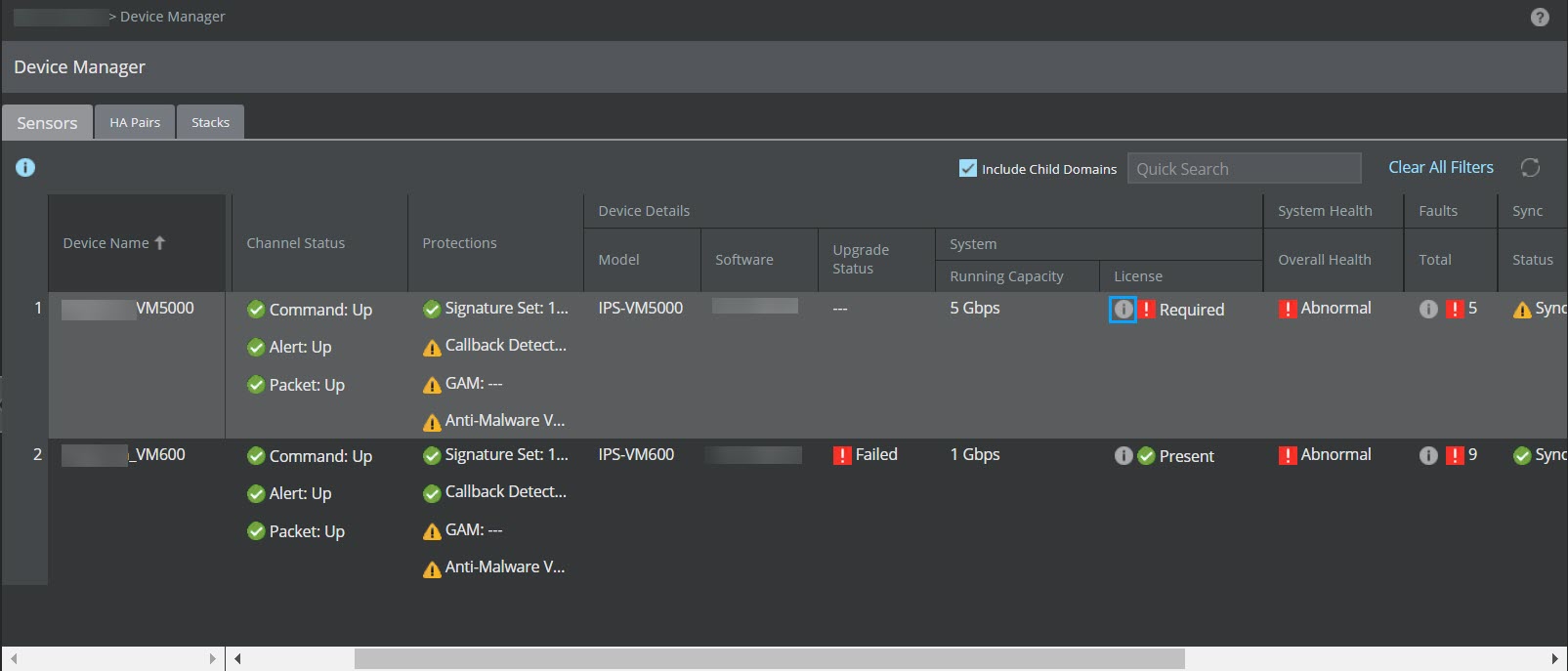
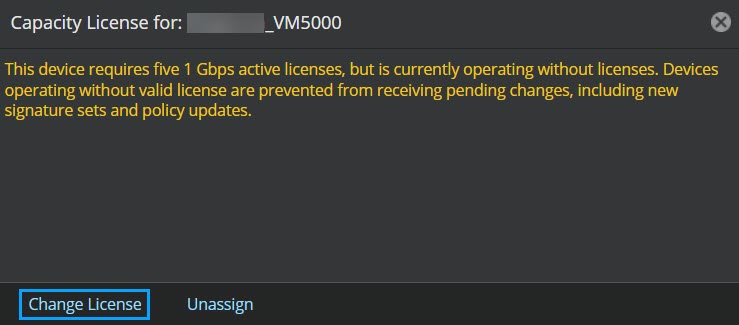
The Capacity License for: <Device Name> window is displayed.
Click Change License to assign license(s).
Capacity License for: <Device Name> window
Note
For VM5000 Sensors, a total of 5 active licenses each of 1 Gbps are required to receive signature sets and policy updates. Multiple selections of licenses are also allowed for these Sensors in the Manager.
The Assign or Change license for <Device Name> window is displayed.
Assign or Change license for <Device Name> window
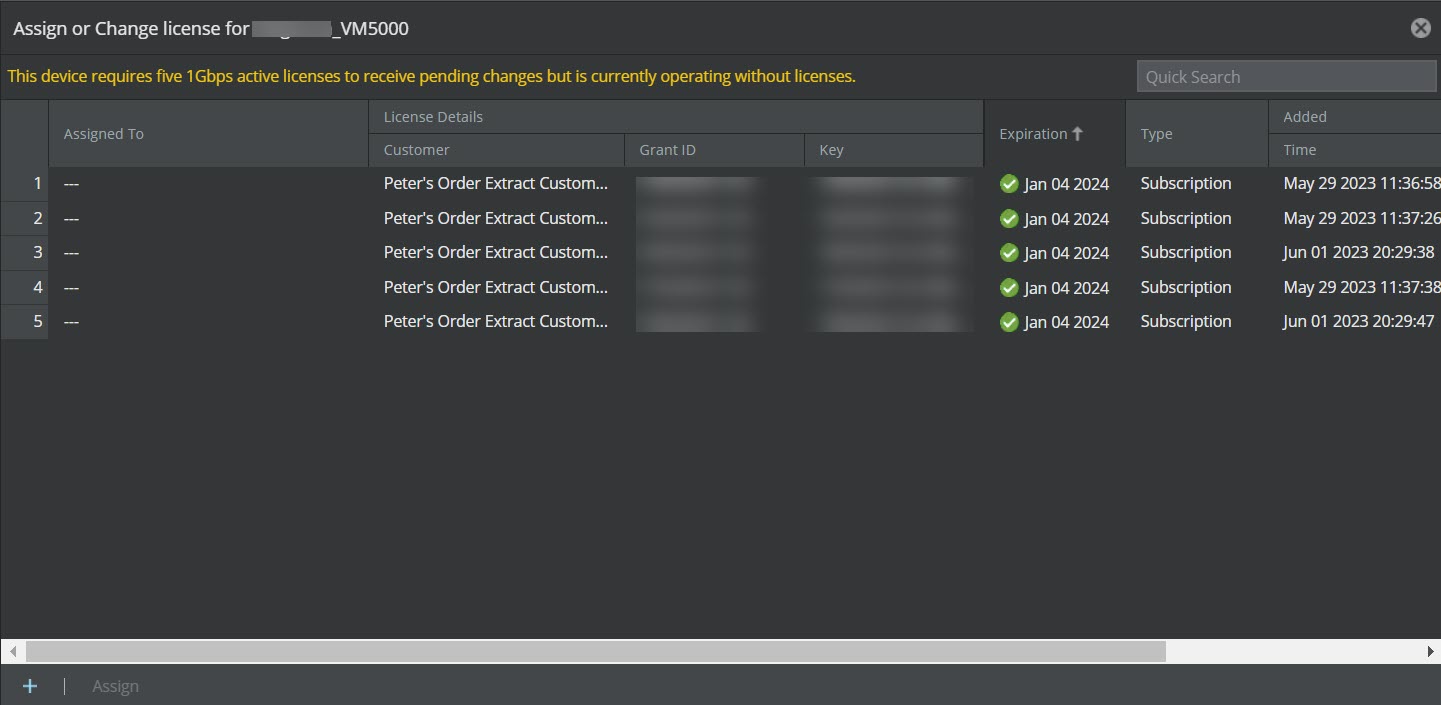
Select the licenses from the list or click
 to import the licenses. After selecting the five required active licenses click Assign.
You can also assign a license to a selected device from the <Device_Name> panel. To assign the license, perform the following steps:
Go to Devices → <Admin Domain Name> → Global → Device Manager.
Double-click on the required Sensor on the Device Manager page.
A <Device_Name> panel is displayed.
Go to Device Details and select the tooltip icon from System License.
Repeat the similar steps from Step 4 to assign the license.
Similarly, you can also assign the license to a particular device from the Summary page. To assign the license, perform the following steps:
Go to Devices → <Admin Domain Name> → Devices → <Device_Name> → Summary.
Go to Device Details and select the tooltip icon from System License.
Repeat the similar steps from Step 4 to assign the license.
Assign a license to the Sensor from Licenses
To assign the license from the Licenses page in the Manager, perform the following steps:
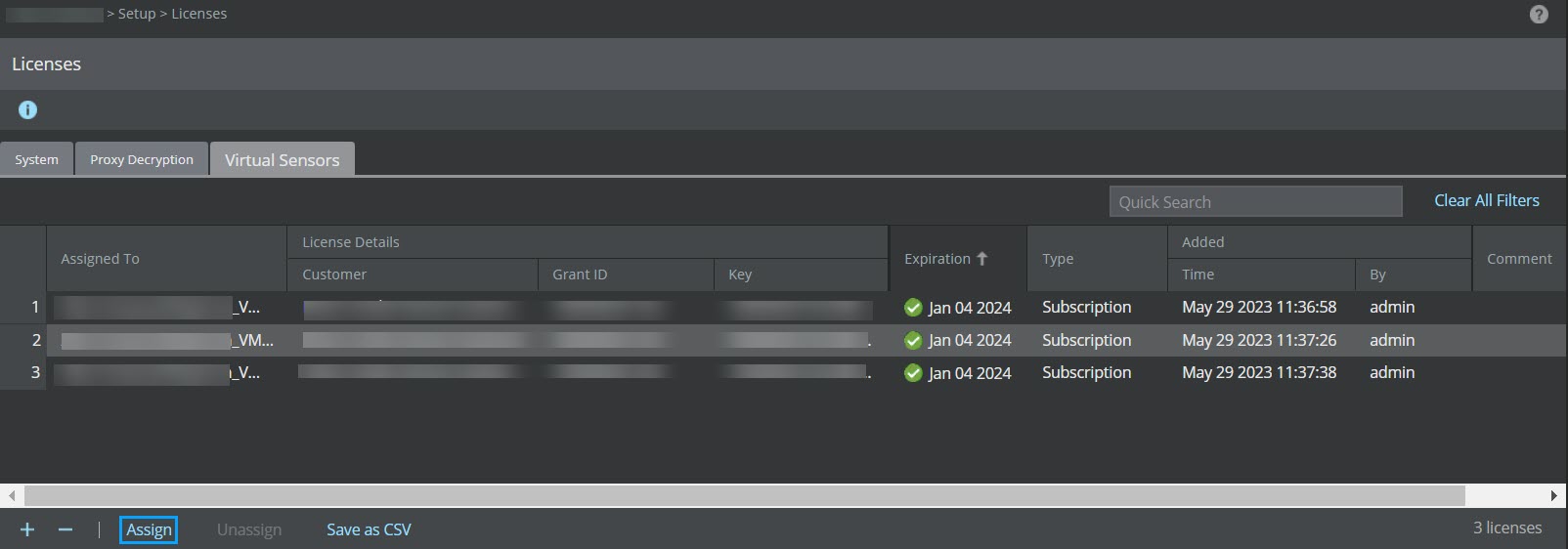
Go to Manager → <Admin Domain Name> → Setup → Licenses.
Click the Virtual Sensors tab.
Now, select the required license from the list and click Assign.
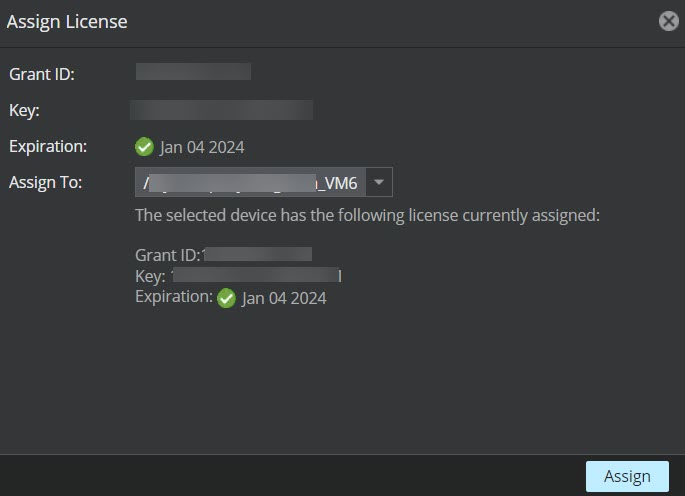
The Assign License window is displayed.
Assign licenses
Select the required Sensor from the Assign To drop-down.
Click Assign to assign the license to the Sensor.
Assign License window
Note
The Assign To field displays only the list of VM600 Sensors.
For more information, refer to the Sensors section in Device Manager in Trellix IPS Manager.