Virtual Sensors require a software license to activate the baseline throughput of 5 Gbps and 1 Gbps on VM5000 and VM600 Sensors respectively. The license is provided as a .zip or .jar file. The Manager supports both formats. The license procured contains the details of the Sensor's throughput. The Manager checks the compliance periodically to check the number of licenses against the Sensor's throughput.
Note
You must first purchase a license to enable traffic inspection in the Sensors. To obtain a license, contact Trellix Sales.
If you are using any VM600 or VM5000 Sensor and plan to upgrade the Manager to 11.1.7.41 or later versions, you must assign 1 license to each VM600 and 5 licenses to each VM5000 Sensor instance. Without the license assignment, you cannot deploy signature sets and policy updates to the Sensor.
Licenses for Clusters in the Public Cloud are not applicable.
In the case of the VM5000 Sensor, 5 active licenses each of 1 Gbps are required to achieve the throughput of the Sensor. For the VM600 Sensor, only 1 active 1 Gbps license is required.
You can upload the license from the Licenses page in the Manager. In the Manager, go to Manager → <Admin Domain Name> → Setup → Licenses. Click on the Virtual Sensors tab.
Licenses page
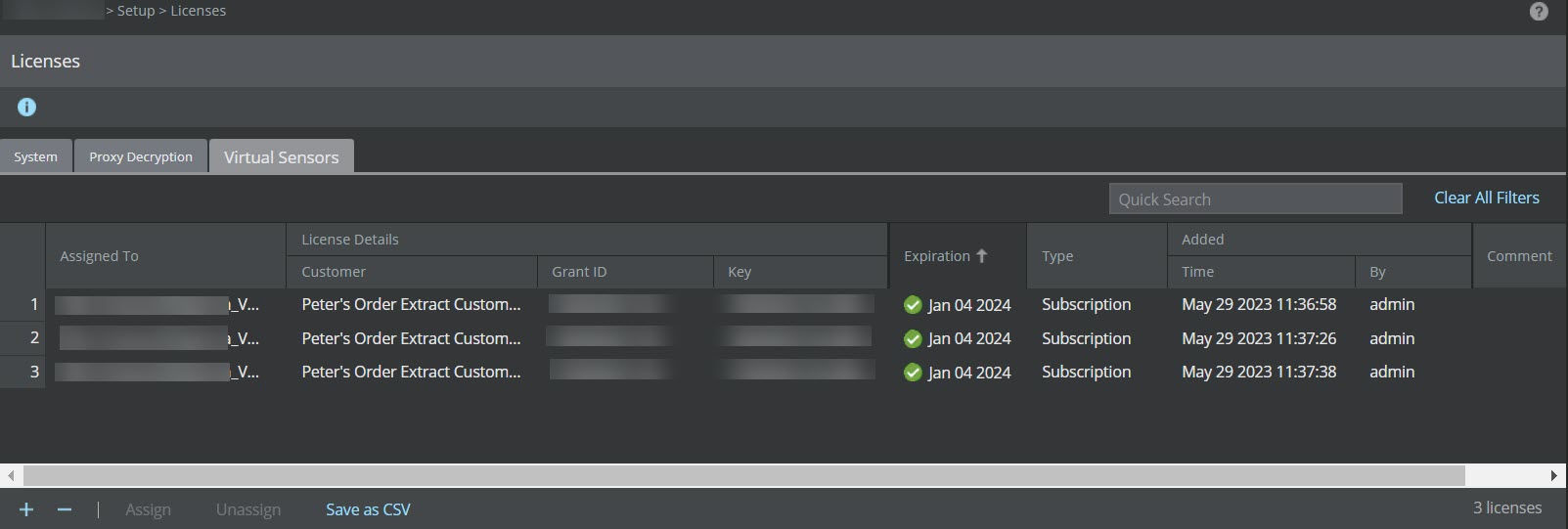
The following details are displayed on the Virtual Sensors tab:
Option | Definition |
|---|---|
Assigned To | Name of the Sensor assigned to the license |
License Details | Customer – The customer for whom the license file was generated Grant ID – Trellix Grant ID of the corresponding customer Key – License key number of the customer Expiration – Applicable only for demo and subscription licenses
Type – Displays if the license is Perpetual, Subscription, or Evaluation (Demo) type. |
Added | Time – Date in <mm-dd-yy> format, and time when the license was added By – Name of the user who added the license |
Comments | Enables you to add your comment per license file that is imported. Double-click in the Comment field and enter your comment. Click outside this field and your comment is automatically saved. |


The following actions can be performed on the Virtual Sensors tab: