Use this file to discover all available pages before exploring further.
The new docs.trellix.com features a modernized UI and AI-powered conversational search. Content is currently available in English, with additional languages launching in early November 2026. We hope you enjoy the updated experience.
You can assign policy groups to interfaces and subinterfaces. This is especially useful when you want to define policy groups and also quickly assign it to Sensor interfaces.
Task
In the
Policy tab, select
<Admin Domain Name> → Intrusion Prevention → Objects → Policy Groups.
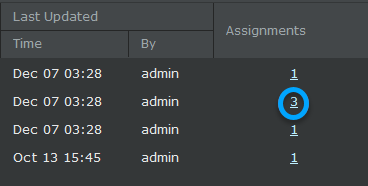
Click the
Assignments value of the policy group that you want to assign.
Assignments The
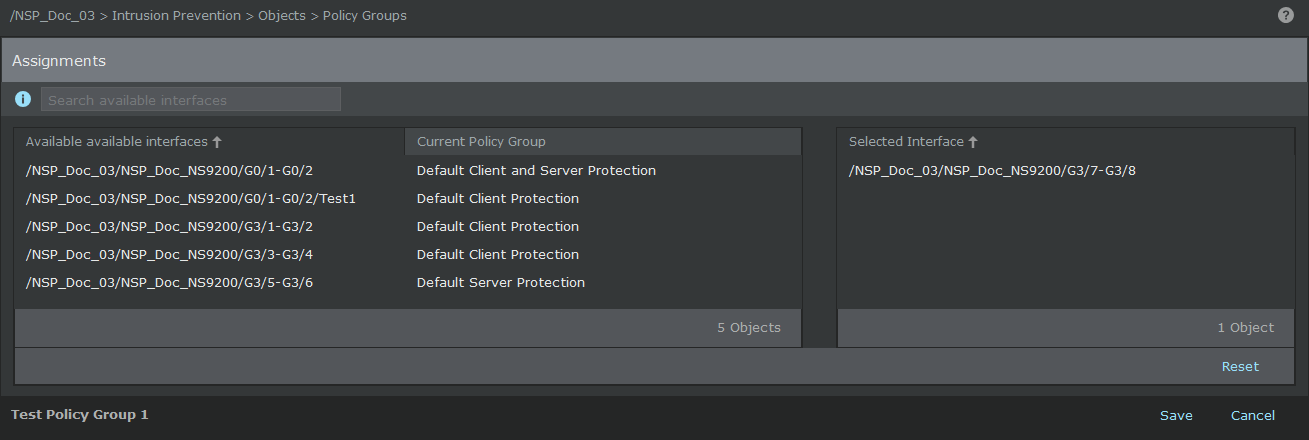
Assignments window for the policy group is displayed.
Assign the policy group to the required interfaces and subinterfaces.
Assignments for Policy Group
Option
Definition
Search Interfaces
To filter the list of available interfaces, enter a string that is part of the
Available Interfaces.
Available Interfaces
Lists the interfaces and subinterfaces of the Sensors in the admin domain. The Sensor interfaces to which you have already assigned policy group are displayed under
Selected Interfaces.
Select a interface and click
to move it to
Selected Interface.
Current Policy Group
The policy group that is currently assigned to an interface. To replace that policy with the policy that you are currently assigning, move the resource to
Selected Interface.
Selected Interface
Lists the Sensor interfaces to which you have assigned the selected policy group.
Reset
Reverts to last saved configuration.
Save
Saves the changes to the Manager database.
Cancel
Closes the
Assignments window without saving the changes.
 to move it to
Selected Interface.
to move it to
Selected Interface.