Before you begin
To assign tags from the Manager, make sure you have enabled the Enable Endpoint Tagging? checkbox in the ePO Integration page in the Manager.
You are also able to assign tags to endpoints, managed by Trellix ePO - On-prem, directly through Attack Log of the Manager. This facility makes it simple for any security analyst who notices an alert in the Attack Log to identify a suspicious or vulnerable endpoint and, beyond quarantining it, mark it for further action. These assignments also reflect in Trellix ePO - On-prem in real-time.
Task
-
Go to
Analysis → <Admin Domain Name> → Attack Log.
Note
You must select a domain in which integration with Trellix ePO - On-prem is enabled. The integration must also have endpoint tagging enabled in the Manager.
- Select the alert whose attacker or target IP address you want to tag in ePO. Click Other Actions at the bottom of the page.
-
Go to
Tag Endpoint → in ePO and select the attacker IP address or the target IP address you want to tag.
The Tag Endpoint pop-up appears with the IP address of the endpoint that you are about to tag, the ePO server that you have integrated with, and a drop-down list of tags you can assign. These tags must already have been created in Trellix ePO - On-prem. If the tag does not show up in the list, click the refresh icon.
Tag an endpoint from Attack Log 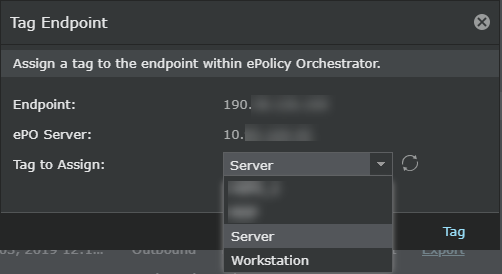
Note
Remember you allowed to assign tags only to managed endpoints, which are endpoints that are managed by Trellix ePO - On-prem (using the Trellix Agent).
-
Select the tag you want to assign and click
Tag.
If the assignment is successful, you receive a message stating the same. If you have selected an unmanaged endpoint or the tagging is unsuccessful for another reason, you receive a message stating the failure.