When you modify an IPS Policy, a new version is created that has the changes. To view or compare the version changes perform the following steps:
Task
-
In the
IPS page, click on the number link in the
Active Revision column for the IPS policy for which you wish to see the version details. The
Version Control page is displayed.
Active Revision number link 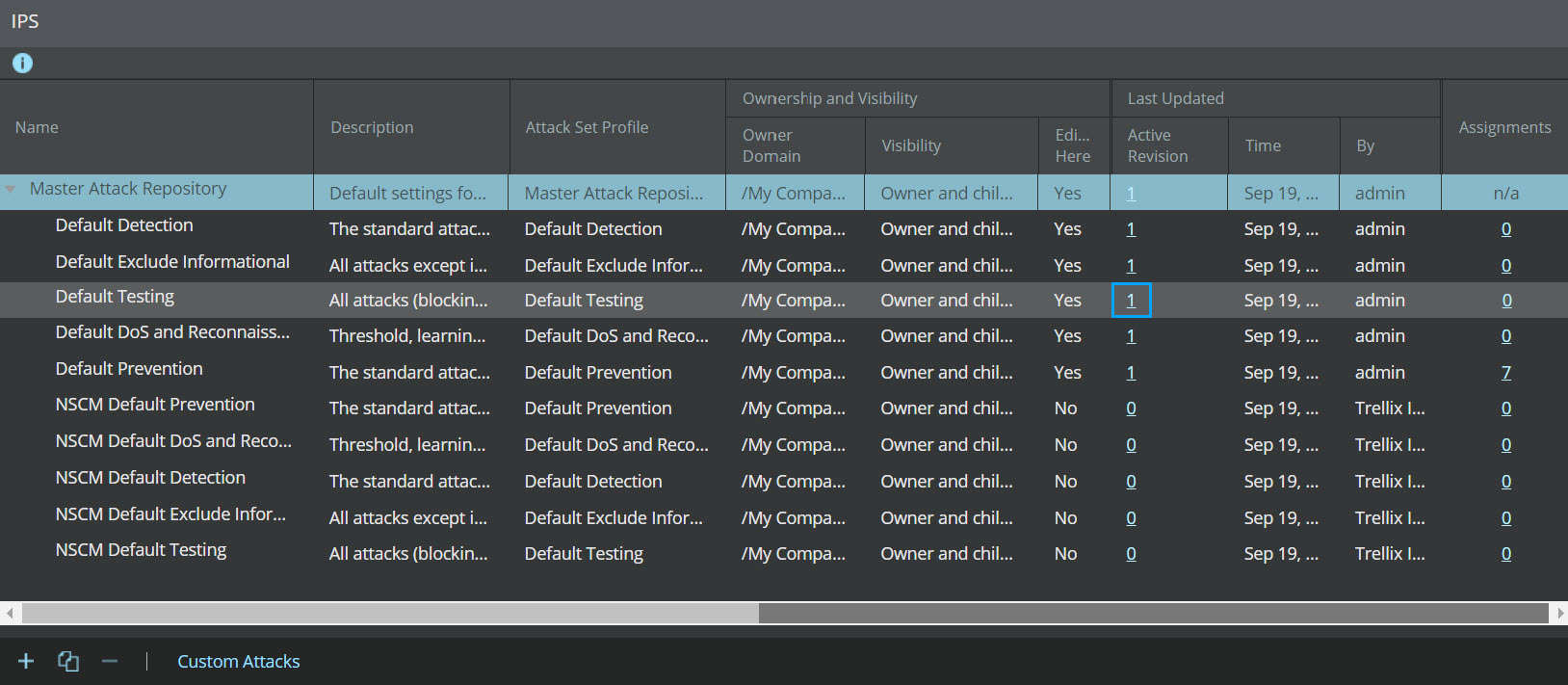
Note
The number in the link indicates the number of revisions made for the IPS Policy.
-
The left panel of the
Version Control page displays the following details.
Option Definition Revision Displays the revision number for the IPS policy Revised Time: Displays the date and time when the revision was made By: Displays the name of the user who made the revision
Active Specifies whether the revision is the current revision. Displays Yes if it is the current revision. Displays No if it is not the current revision. The right panel of the Version Control page displays the following revision details of the selected revision.Version Control 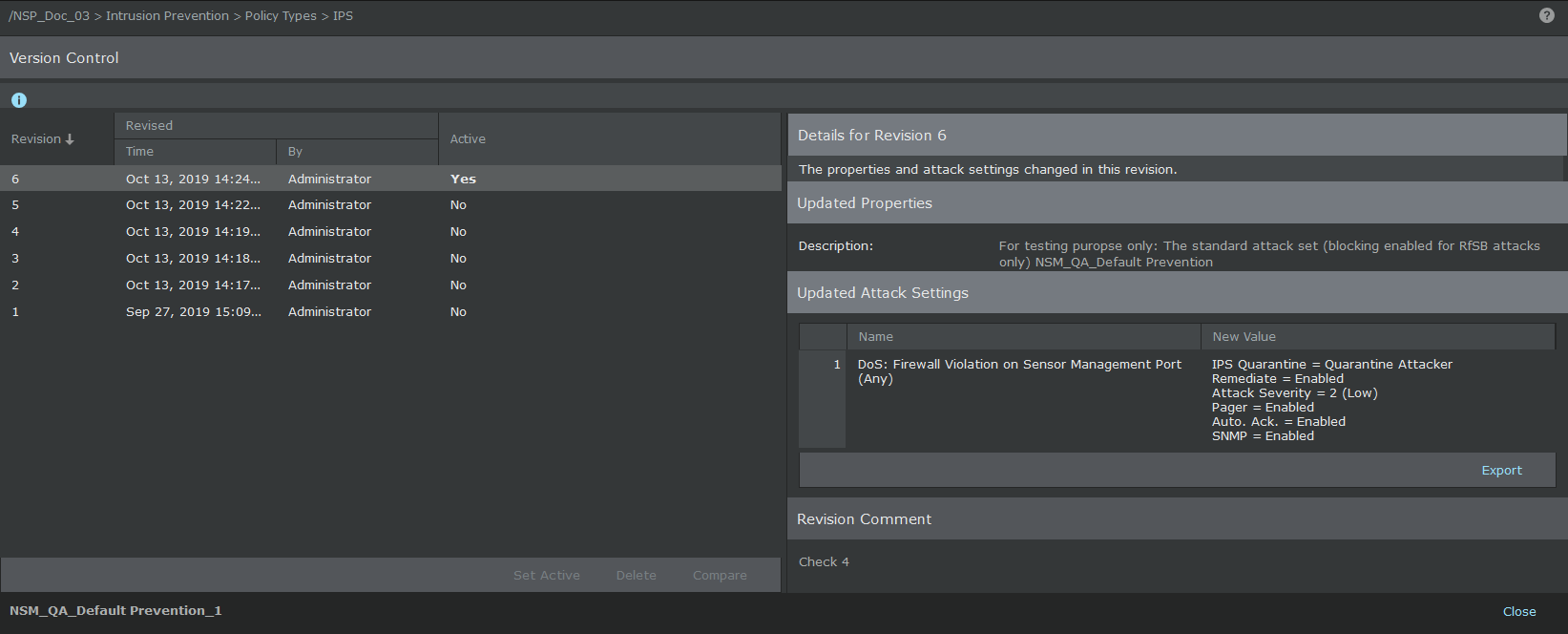
Option Definition Details for Revision Displays the changes made in the revision Updated Properties Lists the properties that are updated in the revision Updated Attack Settings Displays the name of the updated attack settings in the Name column and displays the new value of the updated attack settings in the New Value column Revision Comment Displays the revision comment, if provided - Press Shift and select the two versions to be compared.
-
Click
Compare button. The
Comparison between Revision window is displayed with the details of revision changes.
Note
The Compare button is disabled by default. The Compare button is enabled only when two versions are selected.
- To set the selected version as active, click Set Active.
- To delete the selected version, click Delete.
-
Click
Export to export the list of revision changes in CSV format.
Note
If you attempt exporting policies using Internet Explorer 10 in combination with Windows Server 2008/2012, the Manager will generate the “Export of custom policy error”. To avoid this, go to Control Panel → Add or Remove Programs → Add/ Remove Windows Components; the Windows Components Wizard window opens. Select the Internet Explorer Enhanced Security Configuration and disable it. For more information on the fault, refer to Trellix Intrusion Prevention System Product Guide.
- Click Close to go back to the IPS page.