Before you begin
You have installed the Virtual Sensor.
For optimal and predictable performance of Virtual Sensors, you must follow the below guidelines.
- You must configure each Virtual Sensor VM to execute on as many cores as required for the Sensor model by assigning CPU affinity to the VM. For example, an IPS-VM600 VM must be affinitized to 4 logical cores.
- No other virtual machines running on the same ESXi host can be allowed to share the CPU cores that are assigned to a Virtual Sensor virtual machine. For example, if there are 16 CPU cores on a ESX server, the Virtual Sensor VM can be affinitized to the first 3 CPUs. All other VMs running on the same ESX server must be excluded from using the first 3 CPUs by affinitizing them to use the remaining CPUs on the host.
Task
- Use the shut CLI command to shutdown the Virtual Sensor and make sure that the Virtual Sensor is powered off in the VMware vSphere Web Client.
-
Log on to the ESX as the root user in VMware vSphere Web Client.

-
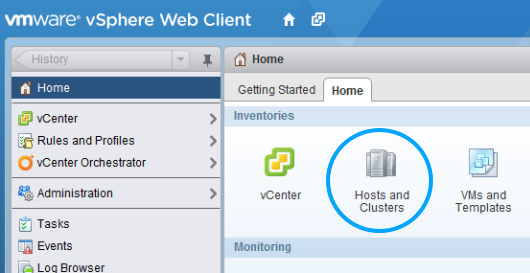
On the vSphere
Home tab, select
Hosts and Clusters.
-
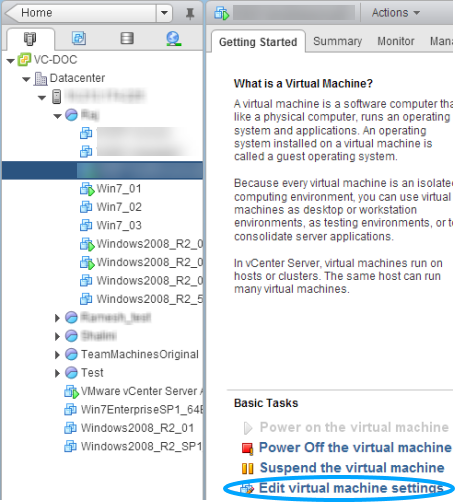
Under the corresponding ESX, select the required Virtual Sensor and select
Edit virtual machine settings.
-
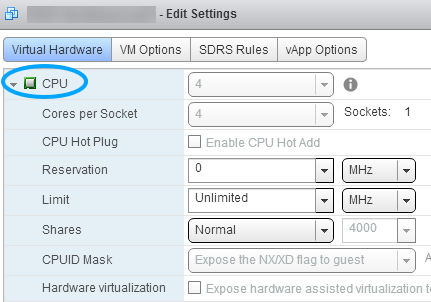
In the
Edit Settings dialog box, click
CPU.
-
From the
HT Sharing drop-down, select the required option.
HT sharing means hyperthreaded core sharing.
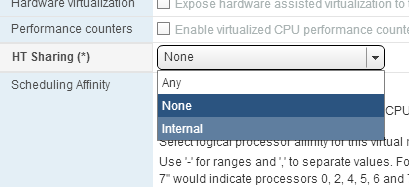
- None — For best, optimal, and predictable performance, Trellix recommends this option.
- Internal — Better, less optimal, and less predictable performance is expected with this option.
- Any — Normal performance, which is less optimal than Internal and sometimes even unpredictable, is expected with this option.
For detailed description of these options and to know the difference between them, refer to VMware documentation.
-
In the
Scheduling Affinity text box, enter the logical CPU affinities for the Virtual Sensor.
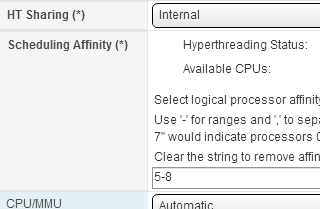
The string that you enter depends on the Virtual Sensor model. For example, IPS-VM600 uses 4 logical CPU cores. So, in the figure above, 5-8 indicates processors 5, 6, 7, and 8.
- Click OK.
- Power on the Virtual Sensor in VMware vSphere Web Client.