Use this file to discover all available pages before exploring further.
The new docs.trellix.com features a modernized UI and AI-powered conversational search. Content is currently available in English, with additional languages launching in early November 2026. We hope you enjoy the updated experience.
You must enable Endpoint Reputation at the interface level for the Sensor to perform IP address lookups. At the interface level, you can inherit the settings from the admin domain or customize it for the interface.
Task
In the Manager, select
Policy → <Admin Domain Name> → Intrusion Prevention → Policy Manager.
Double-click the interface for which you want to configure Endpoint Reputation.
A
<Device Name/Interface> panel appears for the selected interface.
In the
Inspection Options section of the
<Device Name/Interface> panel, select the Endpoint Reputation policy you want from the
Policy drop down list.
To create a new policy, click the
icon or double click on the policy to edit an already assigned policy.
Click the
icon.
The
Properties tab for a new policy appears.
Enter the
Name and
Description, select the
Visibility, and click
Next.
The page shifts to open the
Inspection Options tab.
Click the
GTI Reputation Services tab and the
Endpoint sub-tab opens.
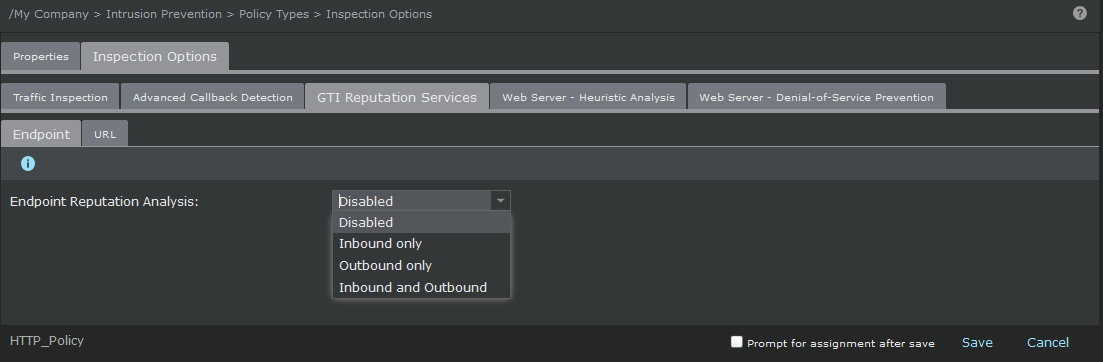
Enable
Endpoint Reputation Analysis in the required direction.
If the outbound connection is enabled, the reputation of the destination IP address is identified. If the inbound direction is enabled, the reputation of the source IP address is identified.
Specify the Endpoint Reputation options in the corresponding fields.
Option
Definition
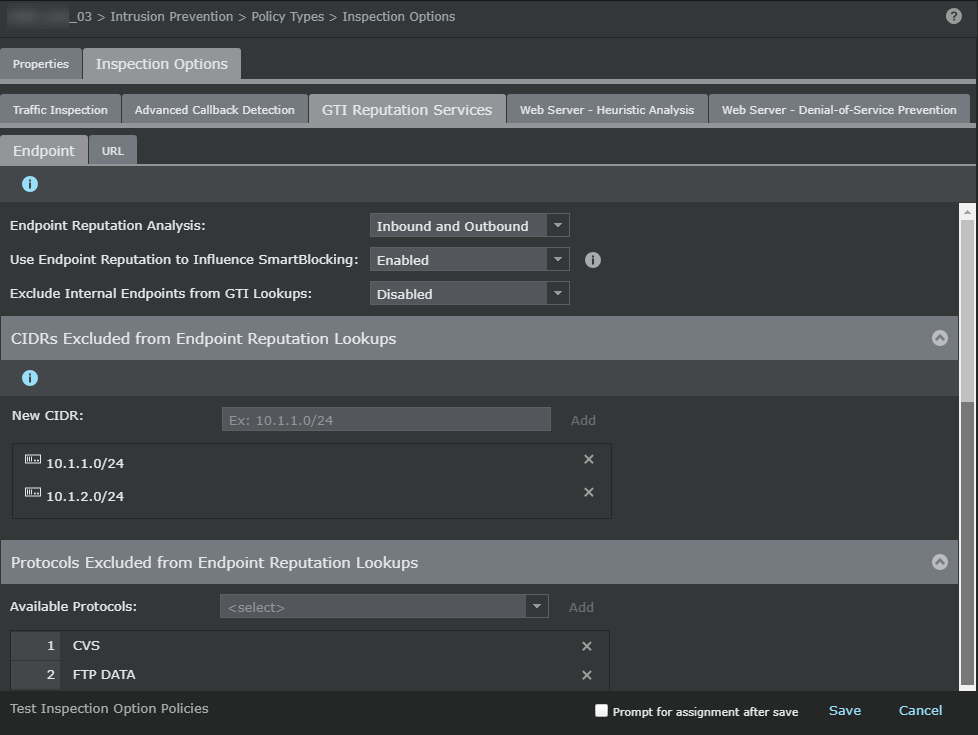
Endpoint Reputation Analysis
Select any of the following options:
Disabled
Inbound only
Outbound only
Inbound and Outbound
Use Endpoint Reputation to Influence SmartBlocking
Enable to enhance the blocking of an attack by a high-risk host.
Exclude Internal Endpoints from GTI Lookups
Enable to exclude all the internal hosts from Reputation Lookups based on their IP addresses.
CIDRs Excluded from Endpoint Reputation Lookups
List of IPv4 networks that are excluded from Reputation Lookup.
New CIDR — Click to add an IPv4 network. After you enter the network address and the CIDR notation, click
Add.
Delete — Hover over the network you want to delete and click the "x" icon to delete the network.
Note
For the IP addresses specified the exclusion list, the entire flow is marked as exclusion list irrespective of the direction of the flow.
Protocols Excluded from Endpoint Reputation Lookups
Create the exclusion list for Reputation Lookup based on protocols. When a protocol is added, the Sensor does not perform Reputation Lookup with respect to the corresponding flow.
Available Protocols — Select the protocol to be excluded from the drop down list and click
Add.
Delete — Hover over the protocol you want to delete and click the "x" icon to delete the protocol.
Save
Saves the Endpoint Reputation Lookup configuration.
Cancel
Cancels the configuration process and exits the page.
Click
Save in the
<Device Name/Interface> panel to save the configuration changes.
Do a configuration update for the corresponding Sensor.
.png) icon or double click on the policy to edit an already assigned policy.
icon or double click on the policy to edit an already assigned policy.