You configure the Sensor monitoring ports from the Manager interface. The port configuration must match the cabling of the switch, and the ports must be set to "In-line Fail-open Active (Port Pair)" and must be enabled.
Steps:
In the Manager interface, select Device List → Sensor_Name → Physical Device → Port Settings.
Click a numbered port (for example G1/1) from monitoring ports.
The Configure Monitoring Port window displays current port settings.
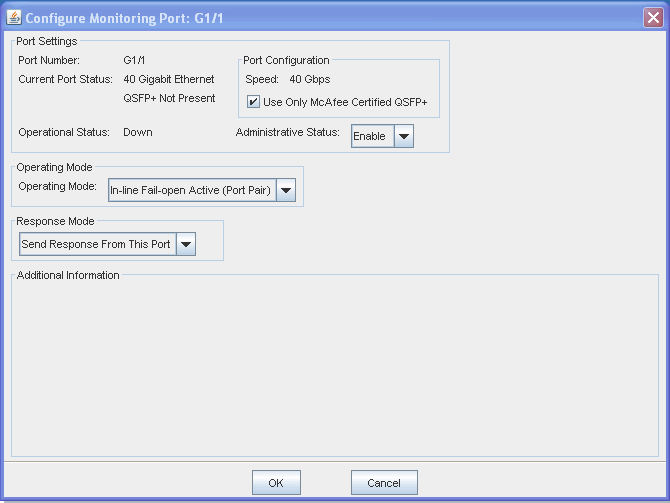
In the Port Configuration, do the following.
Enable the check box Use Only McAfee Certified QSFP+.
Select the Administrative Status to Enable (On).
Select the Operating Mode as In-line Fail-open Active (Port Pair).
The message "Are the Active Fail-open Kit connected?" Select Yes that you have already connected the Bypass Switch.
Select the area of your network to which the current port is connected: Inside (internal) or Outside (external)
Click OK.
Open the Bypass Switch HyperTerminal session.
Repeat steps 1-8 for any other ports you need to configure.
For more information on configuring monitoring ports, see the Trellix Intrusion Prevention System Product Guide.
Download the changes to your Sensor.