The integration between the Manager and Trellix ePO - On-prem server is performed with the help of an extension file, which needs to be installed on the Trellix ePO - On-prem server. You can download the extension file from the Manager. Before you configure Trellix ePO - On-prem server settings, follow the steps mentioned in Install Trellix IPS extension file in Trellix ePO - On-prem to install the extension file on the Trellix ePO - On-prem server. Following this, you need to configure Trellix ePO - On-prem server settings on the Manager.
To integrate the Manager with Trellix ePO - On-prem, perform the following steps:
Task
Navigate to Manager → <Admin Domain Name> → Integration → ePO → ePO Integration.
The ePO Integration page is displayed.
Enable the required options for Trellix ePO - On-prem integration.
(Optional) Select the checkbox for the Enable Endpoint Lookup? option.
(Optional) Select the checkbox for the Enable Endpoint Tagging? option.
This option enables you to assign tags created in Trellix ePO - On-prem to managed endpoints.
Note
At least one of the above options has to be selected for Trellix ePO - On-prem integration.
Enable ePO Integration area
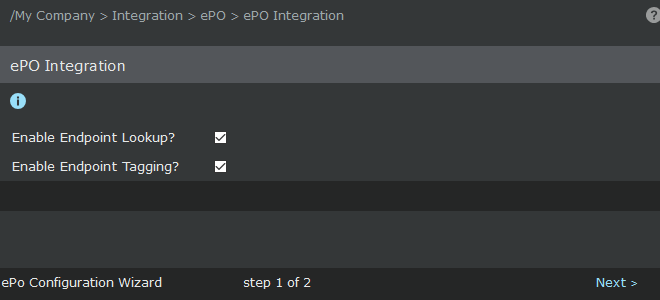
Click Next to view ePO Server Settings page.
ePO Server Settings
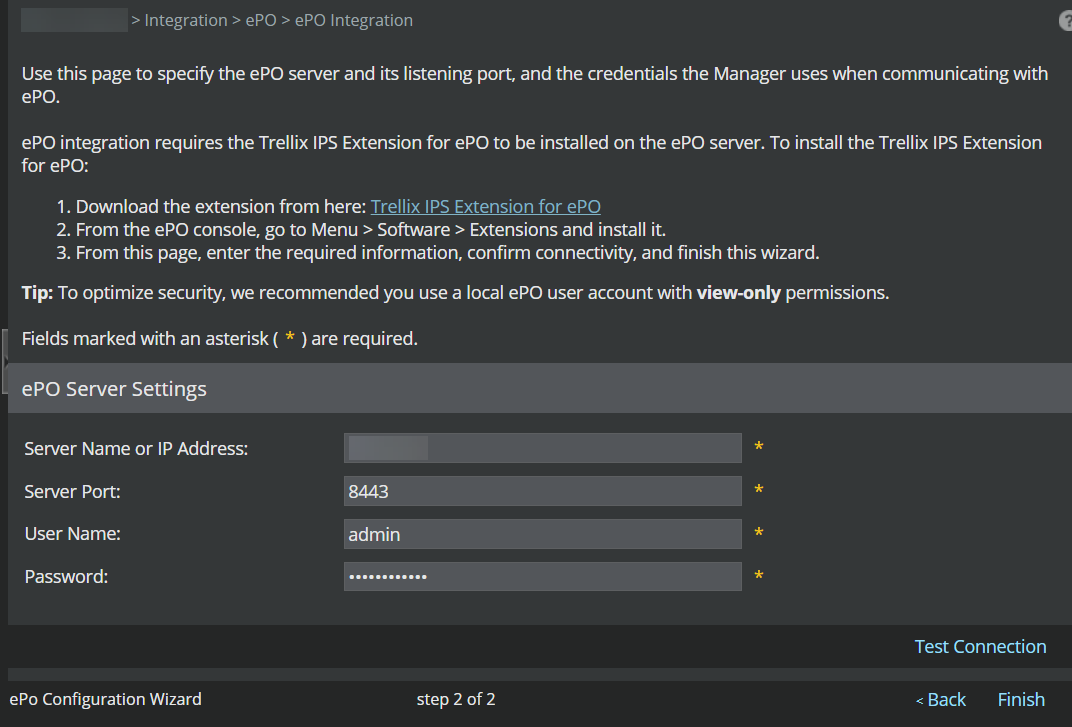
Specify the ePO server details as described in the following table.
Field
Description
Server Name or IP Address
Enter the name or the IP address of the Trellix ePO - On-prem server running the extension file. Note that this Trellix ePO - On-prem server should have the details of the hosts covered by the admin domain.
Contact your ePO administrator for the server name and IP address.
Server Port
Specify the HTTPS listening port on the Trellix ePO - On-prem server that will be used for the Manager-ePO communication. Contact your ePO administrator for the port number.
User Name
Enter the username to be used while connecting to the Trellix ePO - On-prem server.
Trellix recommends you create an ePO user account with View-only permissions required for integration.
Password
Enter the password for connecting to the ePO server.
Click Test Connection to ensure that the extension file is installed and started on the Trellix ePO - On-prem server.
If the connection is up, click Finish to save the configuration.
Configuring Trellix ePO - On-prem server for separate admin domains
You can enable or disable the Manager - Trellix ePO - On-prem integration for an admin domain. If you enable the Manager -Trellix ePO - On-prem integration for an admin domain, you can view the details for the hosts of that admin domain from the Attack Log.
If you have more than one instance of Trellix ePO - On-prem, the admin domains can be configured to different Trellix ePO - On-prem servers. However, you should plan your deployment in such a way that an admin domain is configured with the appropriate Trellix ePO - On-prem server. For example, if you have an exclusive Trellix ePO - On-prem server for your Branch Office, the Branch Office Admin Domain should be configured to the Branch Office Trellix ePO - On-prem server.
Note
For more information on Trellix ePO - On-prem, refer to Trellix ePO - On-prem documentation.