Before you begin
To enable proxy based outbound SSL decryption, you must purchase the license and add it in the Manager. The license required for proxy based SSL decryption is the same for both inbound and outbound.
To enable proxy based outbound SSL decryption, perform the following steps:
Note
Jumbo frame traffic with SSL encryption will not be decrypted even if SSL decryption is enabled.
Task
- Go to Devices → <Admin Domain Name> → Global → IPS Device Settings → SSL Decryption.
-
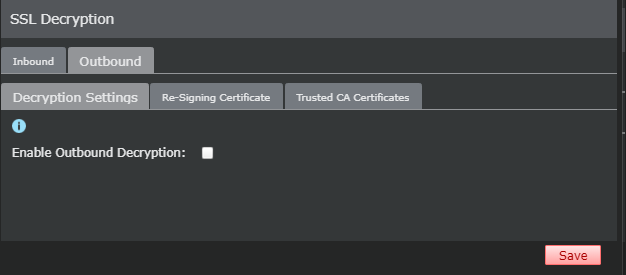
On the
Outbound tab, select
Decryption Settings tab.
-
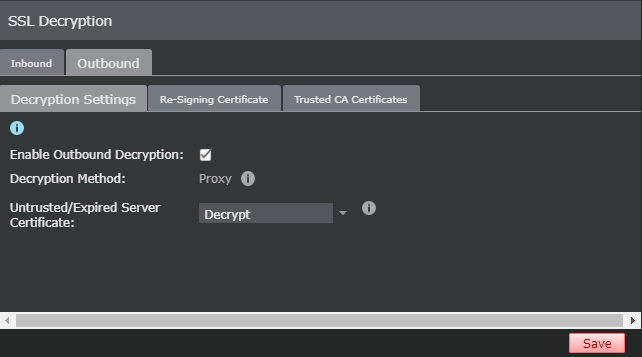
Select the
Enable Outbound Decryption checkbox.
-
Select the required action from the
Untrusted/Expired Server Certificate drop-down.
The reasons for failure can be due to the Sensor not being able to validate the web server's certificate. This happens when the certificate signed by a CA is not on the Sensor's trusted CA list.
The descriptions for the possible Sensor actions in case of a failure are as follows:
Action Description Decrypt The Sensor decrypts the flows from the web server. Block Flow The Sensor blocks the flows from the web server. -
Click
Save.
Note
If a valid license is not assigned to a Sensor, a warning The device requires a valid proxy decryption license is displayed in the Deploy Pending Changes page for that particular Sensor. To assign a valid license, see section Add license to the Manager.
-
If you change the mode of operation for SSL decryption, or disable SSL decryption, a reboot of the Sensor is required.
Note
Reboot of the Sensor is required after you enable outbound SSL decryption for the feature to function. If you have already configured proxy based inbound SSL decryption, reboot is not required.
- Go to, Manager → <Admin Domain Name> → Troubleshooting → Logs → Faults.
- View the critical messages for the corresponding Sensor to see if a Sensor reboot is required.
- If yes, perform a full reboot of the Sensor.