A Cluster is a collection of Virtual IPS Sensors that protect a group of instances. The Clusters tab allows you to configure Clusters and the corresponding protected groups.
Task
-
In the Manager, go to
Devices → <Admin Domain Name> → Global → Device Manager.
The Device Manager page is displayed.
-
Select the
vIPS Clusters tab.
The page displays Clusters. When you select the Cluster, details for the specific groups protected by it is displayed.
.png)
Option Definition Cluster Name Name of the Cluster. Description Description for the Cluster. Member Sensors Number of Member Sensors in the selected Cluster. Note
Clicking on this number redirects you to Devices → <Admin Domain Name> → Devices → Summary. Here, the summary of the Member Sensors are displayed.
Last Updated Time — Date in <mmm-yy> format, and time when the Cluster was last updated.
By — User who modified the Cluster.

Refresh the status of all the Clusters. Search Enter the keyword to search the required Clusters. 
Create a new Cluster. .png)
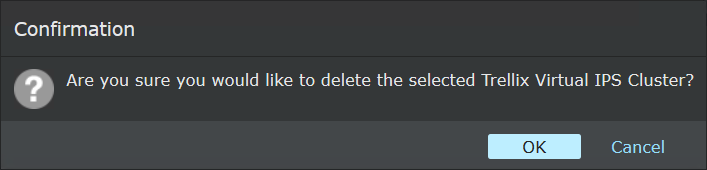
Deletes a Cluster. To delete a Cluster:
- Select the Cluster and click
.
- Click
OK to delete the selected Cluster, or click
Cancel to return to the
Clusters page.
Save as CSV Creates a .csv list of the list of Clusters. View VMs To view the VMs protected by the Clusters. <Number> Clusters Displays all available Clusters in the Manager. - Select the Cluster and click
-
To add a new Cluster, click
.
- The Add Cluster panel appears where you can update the Controller configuration, and enter the shared secret key for the Cluster to establish communication with your Trellix IPS Manager.
-
Enter the following details:
Option definitions Option Definitions Cluster Name Enter a unique name for the cluster. Note
The minimum length for name is 1 character. The name can contain up to 50 alphanumeric (upper or lower case letters) characters, including hyphens and underscores. The name must begin with a letter.
Description Enter a description for the Cluster. Note
The minimum length for description is 1 character. The maximum allowed character length is 255 characters.
Shared Key Enter the shared key used by the Sensor to establish communication with the Manager. Note
The minimum length for shared secret size is 8 characters. The maximum allowed character length is 25 characters.
Confirm Shared Key Re-enter the shared key for confirmation. Last Updated Displays the time and user who last modified the Cluster. The field is blank when you are creating the Cluster for the first time. vIPS Protected Groups Displays the list of Protected Groups whose instances are assigned to the Cluster. .png)
-
Click
Save to save the details to the Manager database.
The vIPS Cluster tab displays the details of the new Cluster.
Note
After you install and start the Sensor instance, the Sensor communicates and establishes trust with the Manager. The Manager then adds the Sensor to the relevant cluster.
- To view the instances being protected by a Cluster, click View VMs.