You can create and manage Connection Limiting policies at an admin-domain level. After you create the Connection Limiting policies for an admin domain, you can assign it to the corresponding Sensor interfaces and sub-interfaces.
Task
- Click the Policy tab.
- From the Domain drop-down list, select the domain you want to work in.
-
Select
Intrusion Prevention → Policy Types → Connection Limiting.
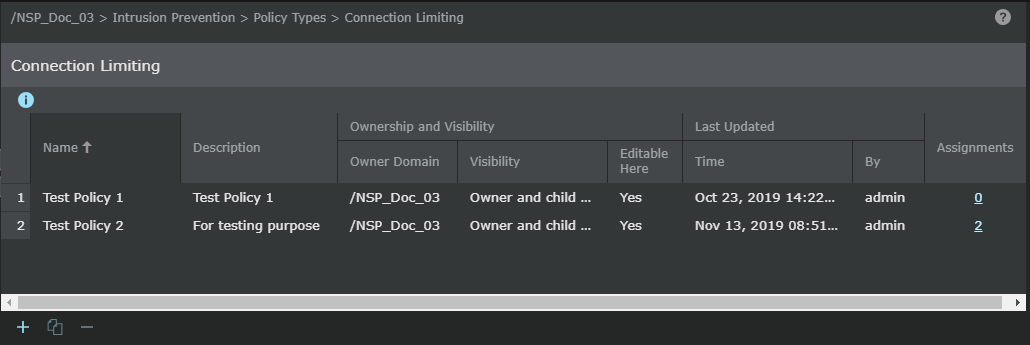
-
Click
.png) to create a new policy.
The Properties tab opens.
to create a new policy.
The Properties tab opens. -
Specify the details on the
Properties tab.
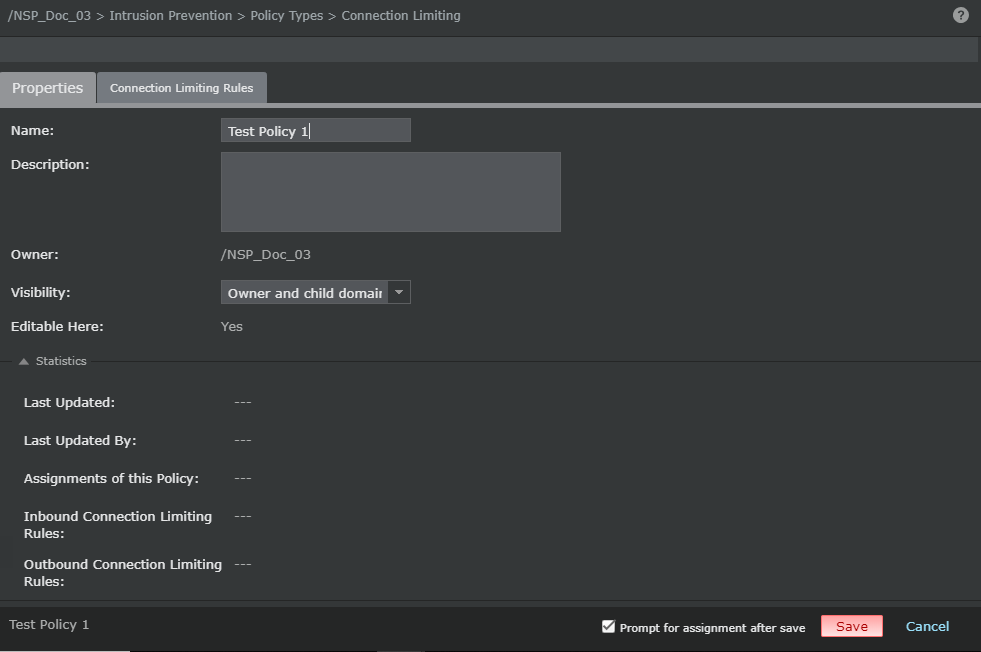
Option Definition Name Enter a unique name to easily identify the policy. Description Optionally describe the policy for other users to identify its purpose. Owner Displays the admin domain to which the policy belongs Visibility Select Owner domain only to make the policy available only to the owner domain or select Owner and child domains to makes the policy available to the corresponding child admin domains. Note
However, the policy cannot be edited or deleted from the child admin domains.
Editable here The status Yes indicates that the policy is owned by the current admin domain. Statistics Lasted Updated — Displays the time stamp when the policy was last modified Last Updated By — Displays the user who last modified the policy Assignments of this policy — Indicates the number of interfaces and sub-interfaces to which the policy is assigned Inbound Connection Limiting Rules: Displays the number of Connection Limiting rules currently defined for inbound traffic Outbound Connection Limiting Rules: Displays the number of Connection Limiting rules currently defined for outbound traffic Prompt for assignment after save When selected, you are automatically prompted to select the Sensor resources to which you want to assign the policy. Save Saves the changes made on the Properties tab. This is visible only when you open an existing policy. Next Saves the changes made on the Properties tab and to access the Connection Limiting Rules tabbed region. This button is available only when you create a policy. Cancel Reverts to the last saved configuration -
In the
Connection Limiting Rules, click the appropriate button to insert a new rule.
Button Definition 
Inserts a new rule above the currently selected rule 
Inserts a new rule below the currently selected rule 
Clones the currently selected rule .png)
Deletes the currently selected rule 
Moves the currently selected rule one row up 
Moves the currently selected rule one row down -
Double-click each column of a Connection Limiting rule and specify your choices.
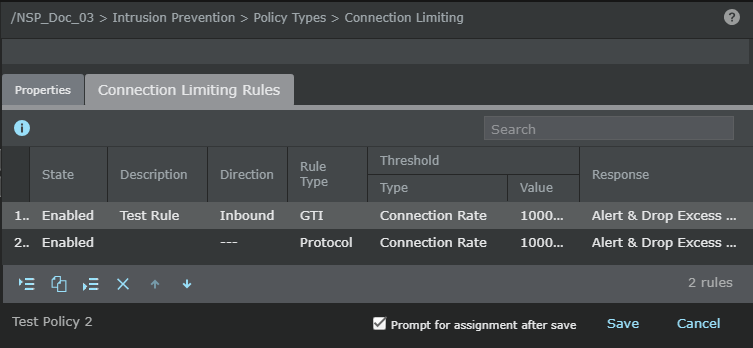
Option Definition # Displays the serial number of the rule. This is referenced in the alerts. State Displays whether a rule is enabled or disabled. Sensor does not apply disabled rules. This option might help you during troubleshooting. Description Optionally enter additional information about the rule. You can enter a description up to 64 characters long and click OK. Direction - Any — To apply this rule at both the ports
- Inbound — To apply this rule only to traffic seen at the outside port
- Outbound — To apply this rule only to traffic seen at the inside port
Rule Type - Protocol — To limit TCP/UDP/ICMP active connections or connection rate from a host
- Trellix GTI — To limit connection rate based on reputation and/or geo-location of external hosts
Note
Trellix GTI-based rules are only applicable when Trellix GTI IP Reputation is enabled.
Note
Both the rule types are specified on a per-direction (inbound/outbound) basis.
Threshold Type: - Connection Rate — The rate of the connection defined per second.
- Active Connections — The number of active connections.
Note
Only Connection Rate is available for Trellix GTI rules.
Value — Define the connections per second or the number of active connections based on the Threshold Type you selected. External Reputation — Select one of the external Trellix GTI reputations (risk levels): - High Risk
- Medium Risk or High Risk
- Unverified, Medium or High Risk
- Any
Note
This option is applicable only for Trellix GTI rule type.
Location — Select the external geo-location (Trellix GTI countries). Note
This option is applicable only for Trellix GTI rule type.
Service Select a protocol from the Transport Protocol drop-down list: - TCP (You can specify the port number for TCP protocol.)
- UDP (You can specify the port number for UDP protocol.)
- Ping (ICMP echo Request)
-
All TCP & UDP
Service option 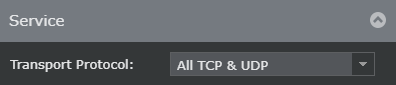
Note
Service component is only applicable for protocol rule type.
Response Select the response action that the Sensor must perform when the traffic matches the options you specified in the Connection Limiting rule. The following are the response options: - Alert Only
- Alert & Drop Excess Connection
- Alert & Deny Excess Connection
- Alert & Quarantine
Prompt for assignment after save When selected, the Assignments window opens when you save a policy and you can assign the policy to the required Sensor resources. When deselected, the rule is saved in the Manager database and the policy appears in the Connection Limiting list.
Save Saves the Connection Limiting rules in the Manager database. The Connection Limiting policy is listed in the Connection Limiting list.