Log into the Splunk Enterprise server using the Web UI and create an HTTP Event Collection (HEC) token to connect and run the Layer 7 Metadata Event Exporter feature on your ADD Product Series appliance.
An HEC token is a 32-bit number that allows a logging connection between agents and HTTP clients, such as the ADD Product Series appliance and Splunk Enterprise. After the token is presented and accepted, events can be delivered by your ADD Product Series appliance in JSON format to the Splunk Enterprise server.
Note
You disable per-token acknowledgments by clearing the Enable indexer acknowledgement checkbox.
Prerequisites
Administrator or Operator access to the ADD Product Series appliance.
An active subscription to the Splunk Enterprise server.
A connection to the Splunk Enterprise server.
Log into the Splunk Enterprise server Web UI.
Click Settings > Data Inputs.
The HTTP Event Collector page appears.
Click New Token.

The Add Data page appears.
Click Next to configure a new token for receiving data over HTTP.
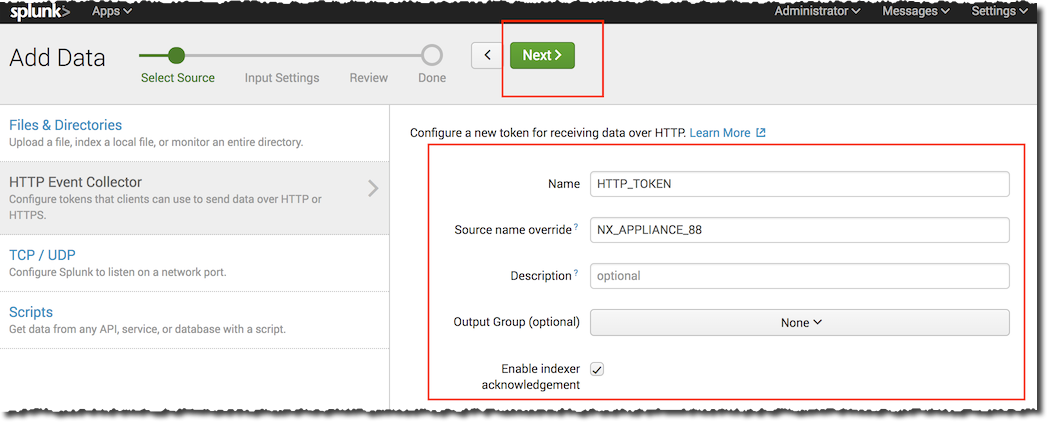
Enter the token information as indicated in the following table.
Field
Description
Name
A name for the HEC input token.
Source name override
A name for the event data associated with the HEC token.
Description (optional)
A description for the HEC input token.
Output Group (optional)
The name of an existing output forwarding group set up by the Splunk administrator.
Enable indexer acknowledgement
Clear the checkbox.
Click Next.
Click Select and then select Structured from the Select Source Type pull-down menu to format and categorize your data.
Choose json_no_timestamp format for event data.
Click Review to verify your HEC token input settings.
Click Submit to confirm settings.
Copy and save the token value for your reference.