This section explains the default page that is displayed when you launch the Custom Attack Editor.
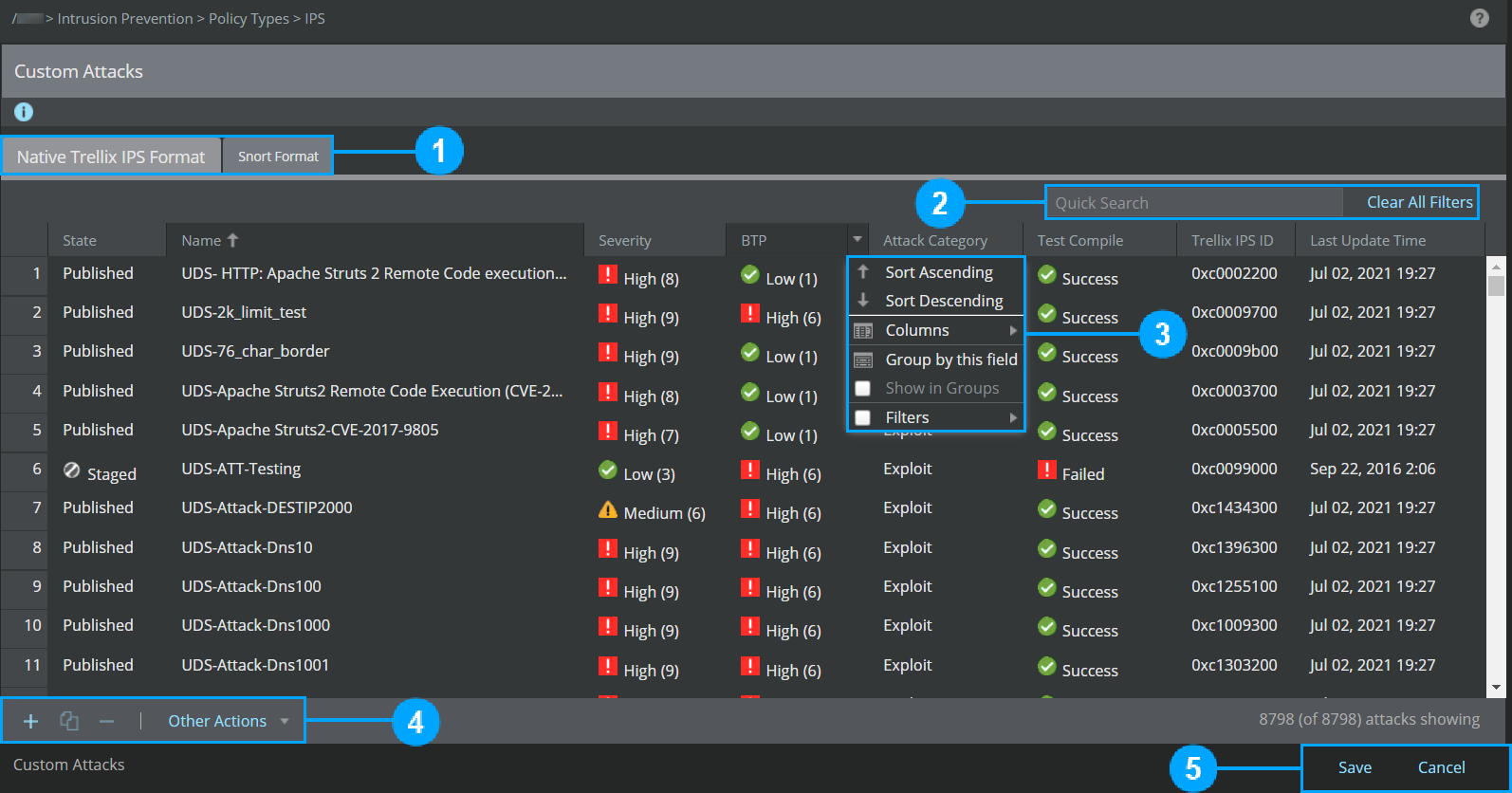
| Item | Description |
|---|---|
| 1 | Tabs |
| 2 | Regular expression search |
| 3 | Viewing options |
| 4 | Menu options |
| 5 | Save/Cancel buttons |
The default page of the Custom Attack Editor has the following areas:
- Tabs — All the custom attacks are displayed in tabbed regions in the Custom Attack Editor. There are two tabs in the Custom Attack Editor:
- Native Trellix IPS Format tab is the default tab that is displayed when you launch the Custom Attack Editor. It lists all the Native
Trellix IPS Format custom attacks that are currently stored in the Manager server as well as newly created custom attacks.
You can use this tab to perform the following actions on Native Trellix IPS Format Custom Attacks:
- Add, copy, or delete
- Other actions such as:
- Export
- Test Compile
- Import
- Check Attack Counts
- Export All
- Manage Grepping Protocols
- Save as CSV
Native Trellix IPS Format tab 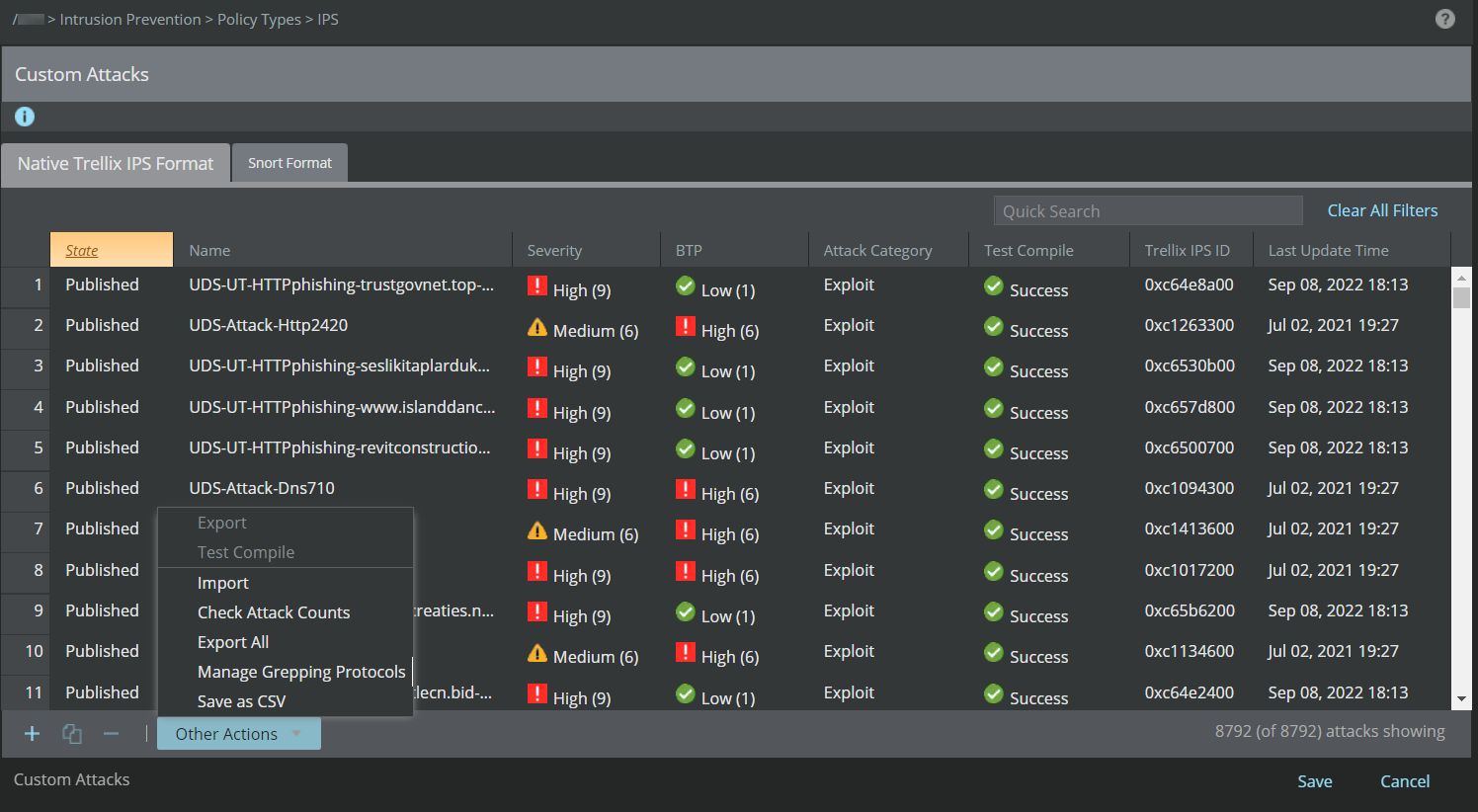
- Snort Format tab displays all the Snort Custom Attacks.
You can use this tab to perform the following actions on Snort Format Custom Attacks:
- Add, copy, or delete
- View Snort variables
- Other actions such as:
- Export
- Test Compile
- Import
- Check Attack Counts
- Export All
- Manage Grepping Protocols
- Save as CSV
Snort Format tab 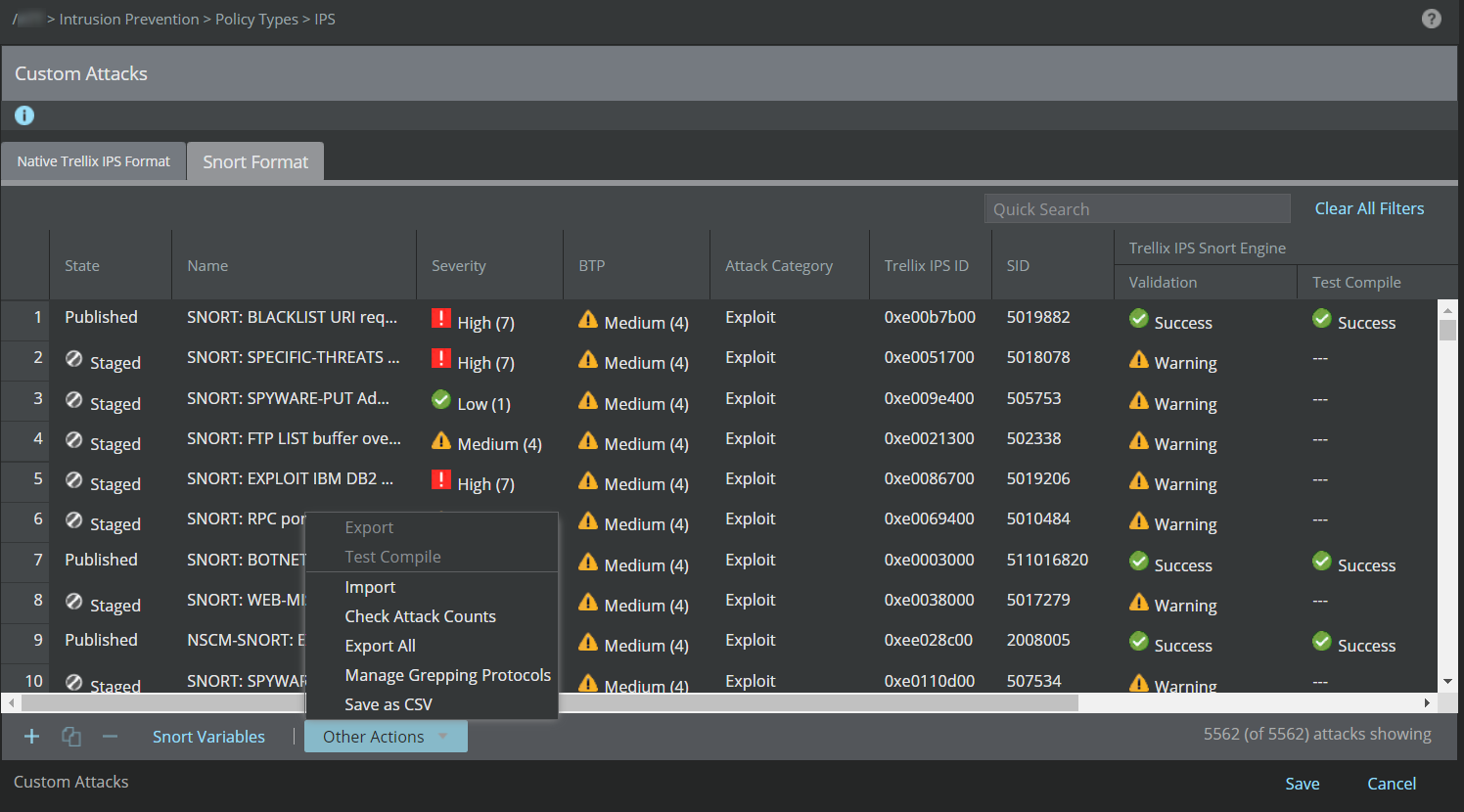
- Native Trellix IPS Format tab is the default tab that is displayed when you launch the Custom Attack Editor. It lists all the Native
Trellix IPS Format custom attacks that are currently stored in the Manager server as well as newly created custom attacks.
- Regular expression search — You can use Java regular expressions to ensure a quicker search. The following table shows some of the important expressions that can be used for quick filter option.
Regular expression Description ^ Matches beginning of line $ Matches end of line abc*xyz String starts with abc and ends with xyz \A Beginning of entire string \z End of entire string . Matches any single character - Viewing options — This area contains the options you can use to list just the custom attacks that you wish to view. These options can be helpful when you are trying to locate specific custom attacks from a large set.
You can hide a column. You can also modify the way the content is aligned in each of the columns.
- Menu Options — The main actions that you can perform in the Custom Attack Editor.
- Save\Cancel buttons — These options are used to Save or Cancel the changes that you have made.