To delete a configured device in the Manager perform the following steps:
- Go to
Devices → <Admin Domain Name> → Global → Device Manager. The
Device Manager page is displayed.
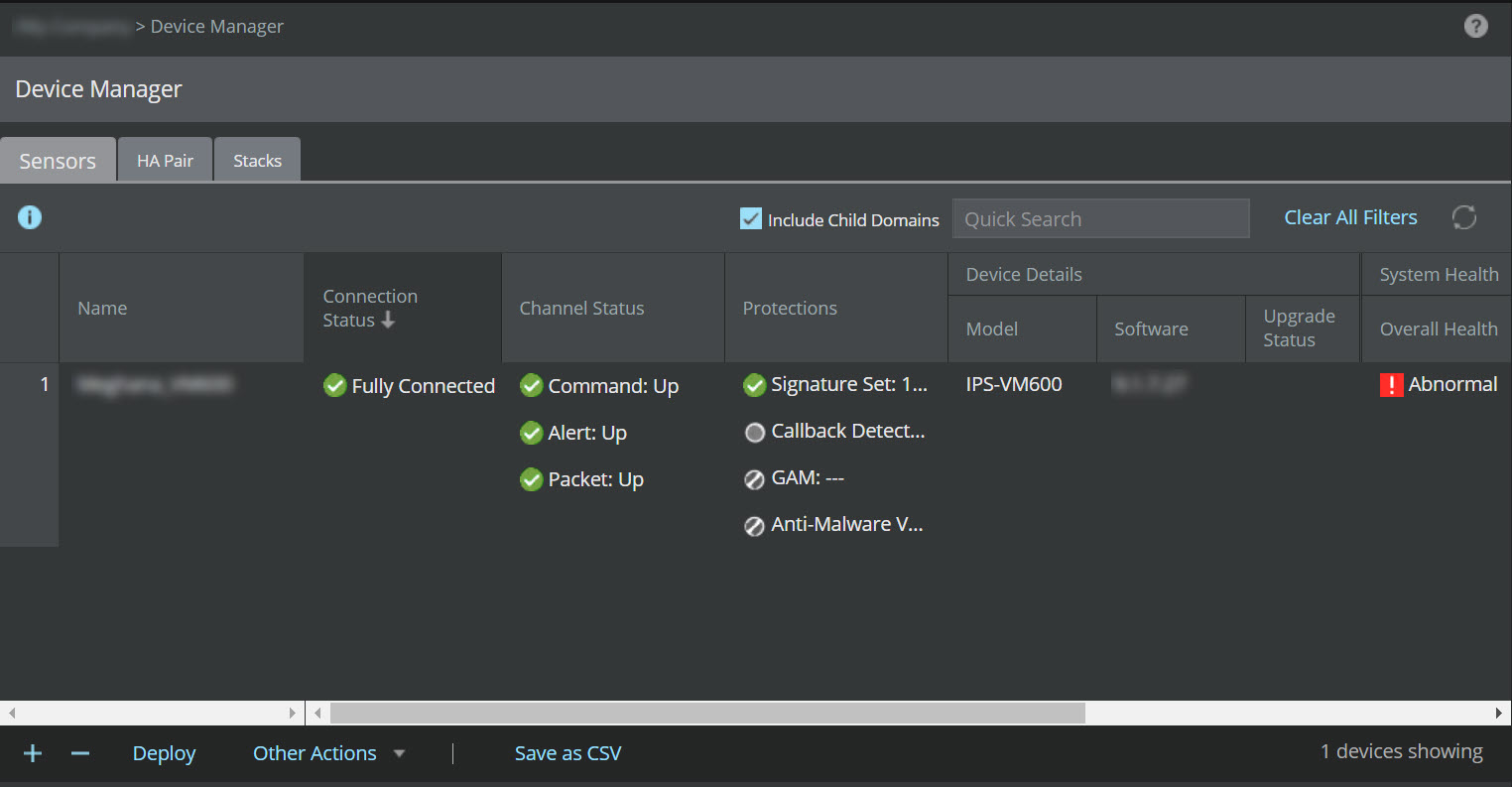
- Select the Sensors tab.
- Select the device(s) you wish to delete from the list. Then, click
 .
.
- A
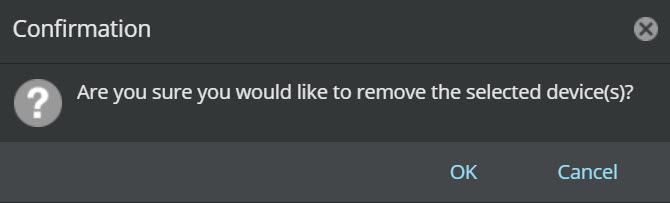
Confirmation dialog box is displayed. Click
OK to remove the selected device(s) from the Manager.
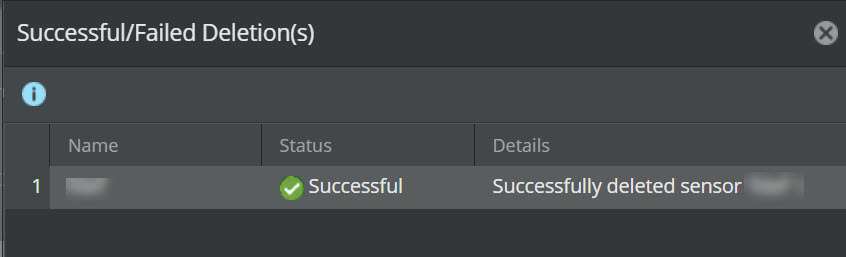
- You can view the delete status from
Successful/Failed Deletion(s) dialog box.
Notes:
- Do not delete the device from the Manager if you plan to generate reports with data specific to the device.
- If the device is in the middle of active communication with the database, deleting the device may not be successful (the device still appears in the Resource Tree). If you experience this problem, check your device to make sure communication to the Manager is quiet and then re-attempt the delete action.