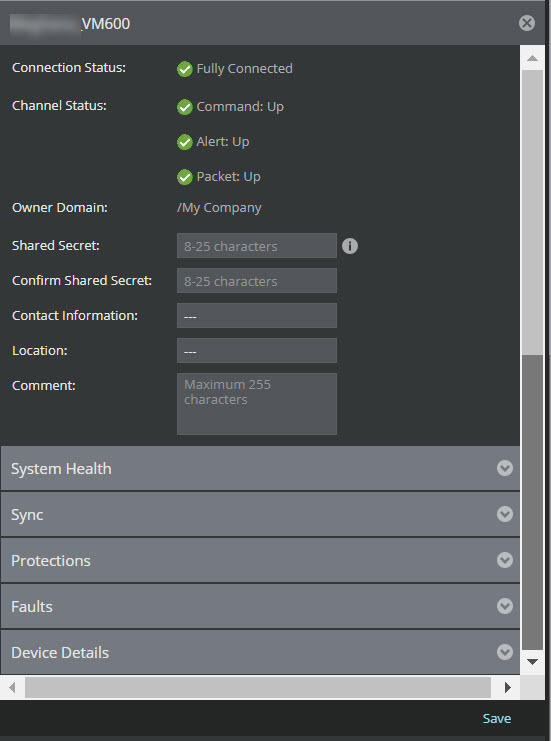
You can edit all the parameters except Device Name and Device Type. The most important details is Shared Secret. Changing the shared secret can be performed in the event you want to re-secure your system's integrity.
Note
Trellix recommends to first change the Shared Secret from the Manager. You do not have to immediately change the shared secret in the device CLI; the Manager and the device will continue to communicate. However, when you update the Shared Secret on the CLI, you must type the same value as entered in this action.
To edit a device, do the following:
Task
-
Go to
Devices → <Admin Domain Name> → Global → Device Manager.
The Device Manager page is displayed.
- Select the Sensors tab.
-
From the display list, double-click on the required Sensor
Details panel with <Device Name> is displayed.
-
Make the required changes and click
Save.
Note
Double asterisks indicate that the data for the field is missing or that data has been retrieved from the database rather than from the device. This could indicate that the device is inactive or not initialized.