To delete a single alert policy exception, use the operations icon in the last column.
Prerequisites
Admin or Operator access to the appliance.
To delete a single alert policy exception:
Choose Settings > Alert Policy Exceptions.
(Optional) Sort and filter the list to find the alert policy exception you want to delete.
See Viewing the list of alert policy exceptions using the Web UI.
To delete an alert policy exception, click the operations icon (
 ) and choose Delete.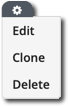
Click Delete to confirm the operation.