Use the IPS policy editor to filter the list of IPS rules displayed, include or exclude rules used by the policy, and override the blocking action specified by a rule.
Filtering the rules listed in the IPS policy editor (Web UI)
Editing the rule inclusion and exclusion attributes of an IPS policy (Web UI)
Overriding the actions of rules selected by an IPS policy (Web UI)
To edit the rule match attributes of a policy, you must use the CLI.
Note
You cannot edit a default IPS policy, but you can edit a clone of a default IPS policy. See Cloning an IPS policy (Web UI).
Filtering the rules listed in the IPS policy editor (Web UI)
From the Web UI, you can filter the IPS rules listed in the IPS policy editor. The policy editor page lists all IPS rules in the appliance database, and the Enabled column indicates which rules are included in the IPS policy.
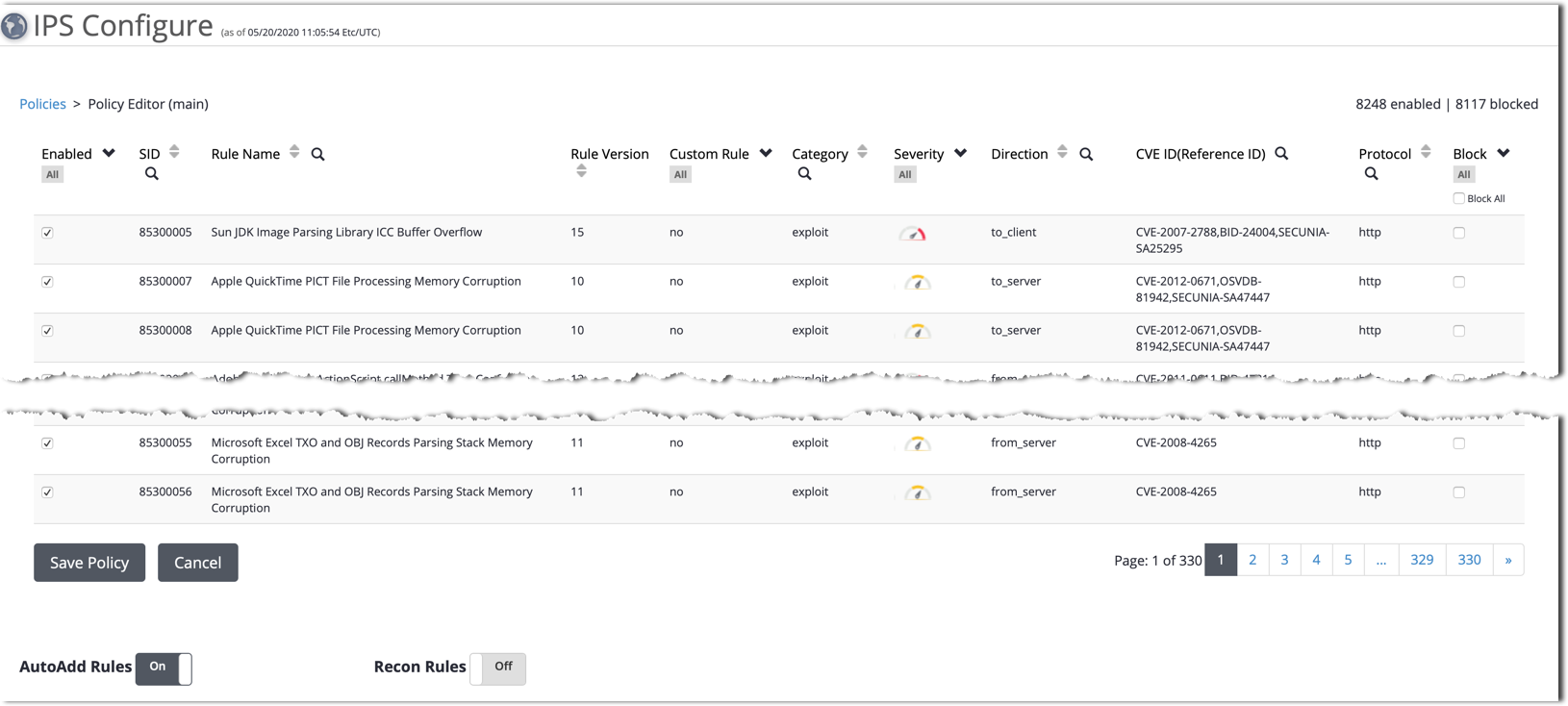
You can filter the IPS rules displayed in the policy editor by specifying match values in supported columns of the list. Filtering supports case-insensitive partial-word matches of the following regex reformat:
'<pattern>' ~* '.*<value>.*'<pattern> is the string you enter as the match string
<value> represents any value in the column you are filtering
For example, you can enter ‘script’ into the search box for the Rule Name column. The filter finds all enabled rules that contain the text string “script” in any location. Search results might contain the following forms of “script” anywhere in the rule name: ActionScript, JavaScript, PostScript, Script, Script-Fu, and Scripting.
You can filter the list of rules on the following columns:
After you filter the list of IPS rules displayed in the policy editor, you can use the Enabled and Block columns to edit the IPS policy. For details, see Editing the rule inclusion and exclusion attributes of an IPS policy (Web UI) and Editing the rule inclusion and exclusion attributes of an IPS policy (CLI).
Prerequisites
Log in to the Web UI of the IPS appliance as Operator or Admin.
Note
If you are managing the IPS platform from a Central Management System appliance, an Operator has view access only.
To filter the IPS rules listed in the Policy Editor page:
Choose IPS > Configure.
Open the policy editor to the IPS policy you want to view and configure:
For a default policy, click Clone & Edit in the Actions column.
For a custom policy, click either Clone & Edit or Edit in the Actions column.
The page lists all IPS rules in the appliance database, and the checkbox in the Enabled column indicates which rules are included in the IPS policy.
Click the search icon (
 ) in the column on which you want to filter.
In the text box below the column heading, type the match string.
Press Enter. The page displays the rules that match the search string.
If you need to clear the search criteria, click the X icon (
 ).
).
Editing the rule inclusion and exclusion attributes of an IPS policy (Web UI)
From the Web UI, you can edit the rule inclusion and exclusion attributes of a custom IPS policy.
Note
You cannot edit a default IPS policy, but you can edit a clone of a default IPS policy.
To edit an IPS policy, use the IPS Configure page to open the policy editor to the IPS policy you want to edit. The policy editor lists all IPS rules in the appliance database, and the Enabled column indicates which rules are included in the IPS policy.
Use the Enabled column to include or exclude the use of an IPS rule in the policy.
Prerequisites
Log in to the Web UI of the IPS appliance as Operator or Admin.
Note
If you are managing the IPS platform from a Central Management System appliance, an Operator has view access only.
To edit the rule-exclusion or rule-inclusion attributes of a custom IPS policy:
Choose IPS > Configure.
Find the IPS policy for which you want to edit rule-exclusion or rule-inclusion attributes.
Go to the Actions column and click Edit or Clone & Edit.
(Optional) Filter the IPS rules displayed in the policy editor. For details, see Filtering the rules listed in the IPS policy editor (Web UI).
(Optional) Sort the list on the other columns of the table.
Edit the rule inclusion and exclusion attributes of this policy:
To include a rule in the policy, select the Enabled option.
To exclude a rule from the policy, clear the Enabled option.
Click Save Policy.
If you are editing a default IPS policy, specify a name for the custom IPS policy you want to create with your changes. Do not specify the name of an existing IPS policy.
If you are done editing the policy, you can click IPS Policy above the list to return to the IPS Policy page.
If you want to apply the changed or new policy to monitoring interfaces, select the interface or interfaces and then click Apply. Otherwise, click Cancel.
Overriding the actions of rules selected by an IPS policy (Web UI)
From the Web UI, you can override the actions for individual IPS rules selected by a custom IPS policy.
Note
You cannot edit a default IPS policy, but you can edit a clone of a default IPS policy.
To edit an IPS policy, use the IPS Configure page to open the policy editor to the IPS policy you want to edit. The policy editor lists all IPS rules in the appliance database, and the Enabled column indicates which rules are included in the IPS policy.
Use the Blocked column to include or exclude the use of an IPS rule in the policy.
Prerequisites
Log in to the Web UI of the IPS appliance as Operator or Admin.
Note
If you are managing the IPS platform from a Central Management System appliance, an Operator has view access only.
To override the actions of rules selected by a custom IPS policy:
Choose IPS > Configure.
For the IPS policy you want to view and configure, open the IPS policy editor page:
For a default policy, click Clone & Edit in the Actions column.
For a custom policy, click either Clone & Edit or Edit in the Actions column.
(Optional) Filter the IPS rules displayed in the policy editor. For details, see Filtering the rules listed in the IPS policy editor (Web UI).
(Optional) Sort the IPS rules on the other columns of the table. For more information, see IPS policy editor.
Configure the action performed by rules that are enabled for this policy:
To allow an enabled rule to perform the action specified in the rule definition, leave the Block option unselected.
To force an enabled rule to block traffic when matched for this policy, select the Block option.
To configure actions for all rules enabled in the policy, you can click All or select or clear Block All.
Note
The settings you configure in the Block column are specific to this IPS policy only. The settings do not impact the individual IPS rule definitions.
Click Save Policy.
If you are editing a default IPS policy, specify a name for the custom IPS policy you want to create with your changes. Do not specify the name of an existing IPS policy.
If you are done editing the policy, you can click IPS Policy above the list to return to the IPS Policy page.
If you want to apply the changed or new policy to monitoring interfaces, select the interface or interfaces and then click Apply. Otherwise, click Cancel.