Before you begin
Make sure that you have enabled the integration with a Trellix ePO - On-prem server.
DXL integration is disabled by default for a device. You can enable it to inherit settings from the domain or be independent for the device.
Task
-
Go to
Devices → <Admin_Domain_Name> → Device → <Device_Name> → Setup → DXL Integration.
The Data Exchange Layer (DXL) Integration page appears.
-
You have the option to use DXL integration preferences including
Trellix ePO - On-prem server settings used in the domain. To use this option, select the
Inherit Settings? checkbox.
The remaining options are immediately disabled when you select this option.
- If you have chosen to inherit settings from the domain, click Save. If not, proceed to step 4.
-
Select the
Enable DXL Integration? checkbox.
The Trellix ePO - On-prem server configuration fields are displayed.
-
Enter the
Trellix ePO - On-prem server IPv4 address.
Data Exchange Layer integration for a device shows settings specific to it 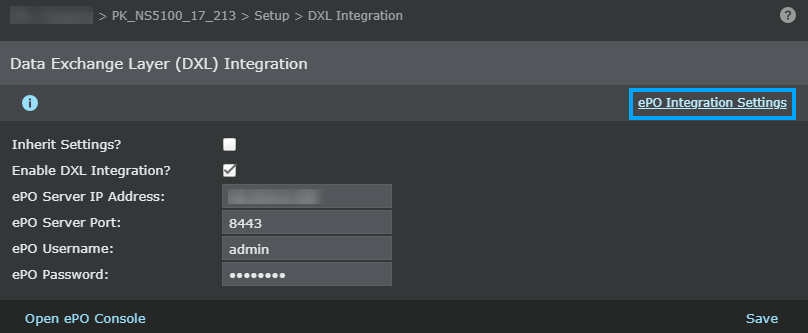
- Enter the port that the Sensor must use to communicate with Trellix ePO - On-prem.
-
Enter the credentials the Sensor must use to access
Trellix ePO - On-prem.
Note
The credentials you configure here need not be the same credentials as those entered in the ePO Integration page. To review this configuration, click the ePO Integration Settings hyperlink at the top-right corner of this page.
- Click Save to confirm your settings.