Before you begin
Make sure that you have configured the integration with a Trellix ePO - On-prem server.
DXL is disabled by default for a domain which you can configure. You can later choose whether to use this configuration for each device or override it and use different settings for a device.
To configure DXL integration for a domain, follow these steps.
Task
-
Go to
Devices → <Admin_Domain_Name> → Global → IPS Device Settings → DXL Integration.
The Data Exchange Layer (DXL) Integration page appears.
- Select the Enable DXL Integration? checkbox.
- To change Trellix ePO - On-prem server settings for the Manager, in general, click the ePO Integration Settings hyperlink at the top-right of the page.
-
Click
Save to confirm your settings.
Data Exchange Layer integration page for a domain 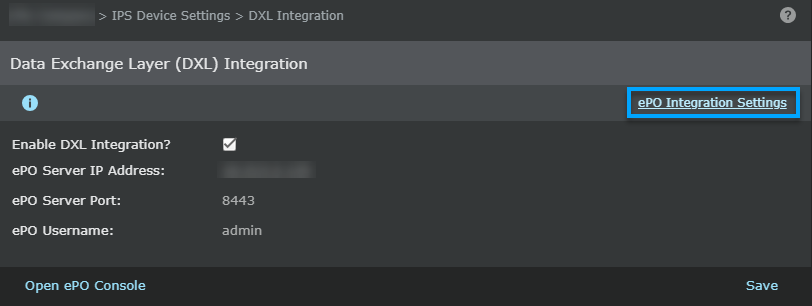
Note
To access the Trellix ePO - On-prem console of the Trellix ePO - On-prem server mentioned in this page, click the Open ePO Console button. Clicking this button takes you to the Trellix ePO - On-prem logon screen where you need the appropriate credentials to log on.