The changes made on the Manager interface are also reflected on Sensor CLI. To view the status on the Sensor, enter status command.
Task
- To enable the Assert mode, click Devices → <Admin Domain Name> → Devices → <Device Name> → Troubleshooting → Layer 2 Bypass.
- In the Layer 2 Pass-Through Monitoring section, select Assert in the drop-down list against Layer 2 Mode.
- Check ARP Spoofing to enable it on the device.
-
Click
Save.
Once applied, you can view the number of critical faults and current mode in the Layer 2 Pass-Through Status dialog at the bottom of the screen.
Layer 2 Settings window 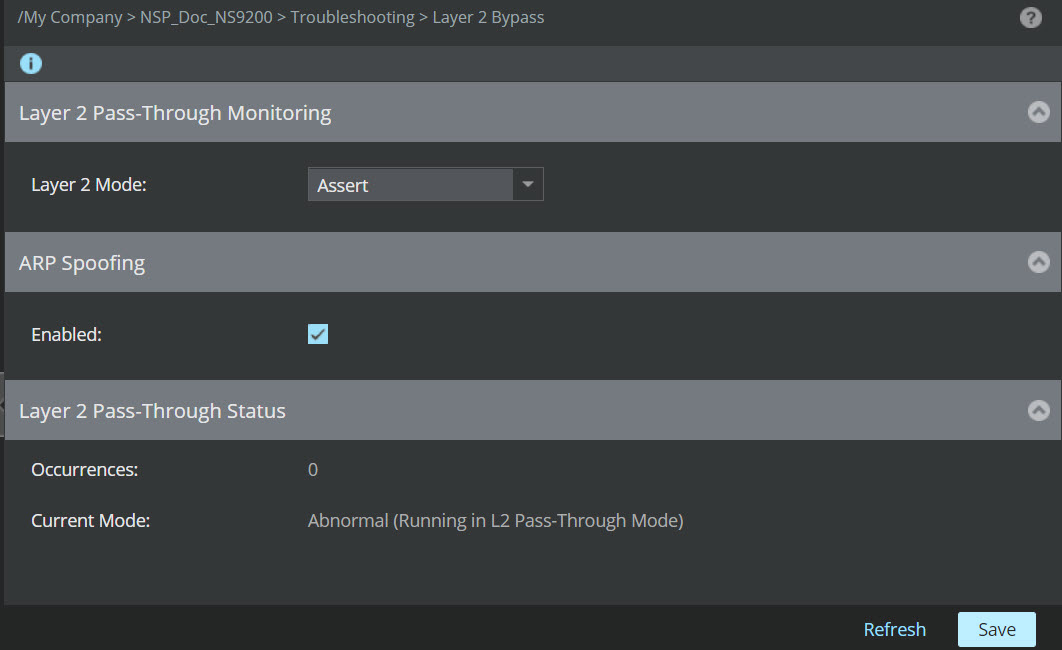
Note the following status fields:
- Occurrences: Displays the current number of threshold-breaching events
- Current Mode: Displays the current mode of the device. Abnormal means that Layer 2 pass-through mode is enabled in the device. L2 Pass-Through Mode means pass-through mode is enabled.
Note
To view the status of Assert mode for Sensors in a stack, Click Devices → <Admin Domain Name> → Devices → <Device Name> → Member Sensors → <Stackname-node id> → Troubleshooting → Layer 2 Bypass
Note
- The Manager interface does not allow you to move to ON/OFF mode once the layer 2 mode is set to Assert, then only Deassert is allowed.
- If you set the mode to 'Assert', it gets applied to all the Member Sensors for a stack / HA.
- The Layer 2 modes Assert/Dessert could only be set from Manager interface for Sensor versions 10.1.5.107 and above. For others, it is recommended to set these modes through CLI commands.