To enable or disable ICAP blocking mode using the Web UI, use the ICAP Settings page.
Prerequisites
Administrator access to the Network Security appliance
The ICAP service is enabled on the appliance. For details, see Enabling or disabling the ICAP service.
Choose Settings > ICAP.
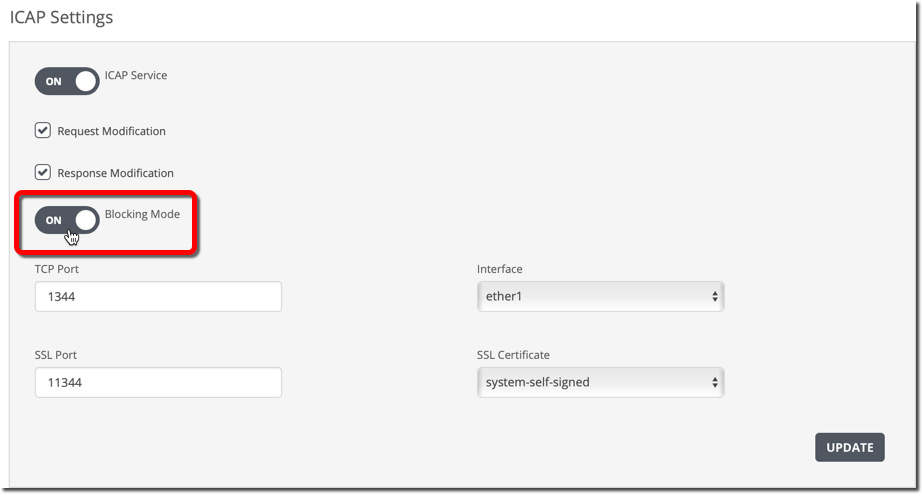
Make sure the ICAP Service toggle button displays "ON" to show that the Network Security appliance can act as an ICAP server to perform detection on ICAP-encapsulated data.
Click the Blocking Mode toggle button.
The toggle button display changes from “OFF” to "ON" to show that the ICAP-enabled Network Security appliance can block REQMOD and RESPMOD requests from ICAP clients if a potential threat is detected.
Click Update.
Choose Settings > ICAP.
Click the Blocking Mode toggle button.
The toggle button display changes from “ON” to "OFF" to show that that the ICAP-enabled Network Security appliance does not block REQMOD and RESPMOD requests from ICAP clients if a potential threat is detected.
Clear the Response Modification checkbox.
Click Update.