Use the Settings > Evidence Collector page to enable or disable the Communications Broker Sender using the Web UI.
In the Web UI, choose Settings > Evidence Collector.
Click Helix Integration.
In the Enable Settings area, click the Commbroker toggle button to enable the Comm Broker.
The toggle button displays "ON" to show that Comm Broker can receive and send third-party logs to Helix Enterprise on the Network Security appliance.
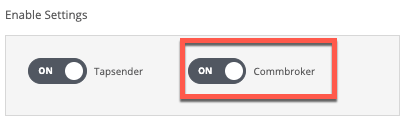
The following message appears:

In the Web UI, choose Settings > Evidence Collector.
Click Helix Integration.
In the Enable Settings area, click the Commbroker toggle button to disable the Comm Broker.
The toggle button displays "OFF" to show that the Comm Broker cannot receive and send third-party logs to Helix Enterprise on the Network Security appliance.
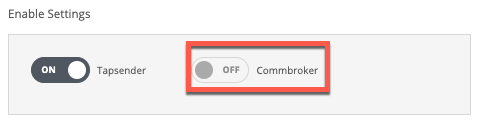
The following message appears: