Use the Trellix Whitelist area in the Whitelist Categories (optional) page to enable or disable the Network Security appliance not to decrypt HTTPS traffic that matches a domain in the predefined Trellix exclusion list using the Web UI.
In the Web UI, choose Settings > SSL Intercept.
Click Whitelist Categories (optional).
Click Trellix Whitelist.
To enable the Network Security appliance not to decrypt HTTPS traffic that matches a particular domain in the predefined exclusion list, click the toggle button.
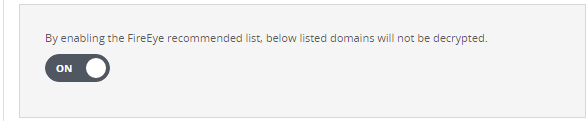
The toggle button displays "ON" when the appliance is enabled not to decrypt traffic that matches a domain in the predefined exclusion list.
The following message appears:

In the Web UI, choose Settings > SSL Intercept.
Click Whitelist Categories (optional).
Click FireEye Whitelist.
To disable the Network Security appliance not to decrypt HTTPS traffic that matches a particular domain in the predefined exclusion list, click the toggle button.
The toggle button displays "OFF" when the appliance decrypts traffic that matches a domain in the predefined exclusion list.