Important
You must complete all of the fields before you click Save to add each certificate to the certificate database. You must import the trusted and untrusted SSL CA certificates separately.
In the Web UI, choose Settings > SSL Intercept.
Click Upload SSL Certificate.
Click Add Certificate Key. The Add Certificate/Key dialog box opens.
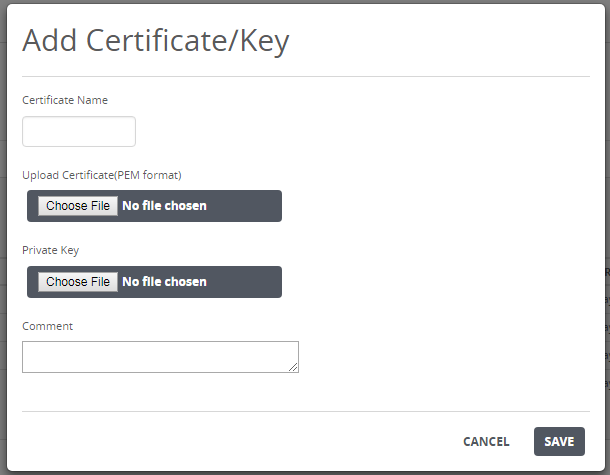
In the Certificate Name field, enter a unique name for the certificate.
Select the certificate public key:
In the Upload Certificate field, click Choose File.
In the dialog box, navigate to the certificate
.pemfile on your local desktop.
Select the private key:
In the Private Key field, click Choose File.
In the dialog box, navigate to the key file on your local desktop.
In the Comment field, enter information about the certificate.
Click Save.