This topic covers the following information:
About IPS Event Acknowledgment
Acknowledging All Retrieved IPS Events (Web UI)
Acknowledging All IPS Events in a Page (Web UI)
Acknowledging Individual IPS Events in a Page (Web UI)
Showing Acknowledged IPS Events (Web UI)
About IPS event acknowledgment
You can acknowledge IPS event entries so that they do not appear in the default viewing mode of the IPS Events page.
IPS event acknowledgment and display
IPS events are acknowledged from the IPS Events page. You can use the sorting and filtering capabilities of the page to help to identify which events want to acknowledge. You can acknowledge all the events in the list, all the events in a page, or you can acknowledge individual events.
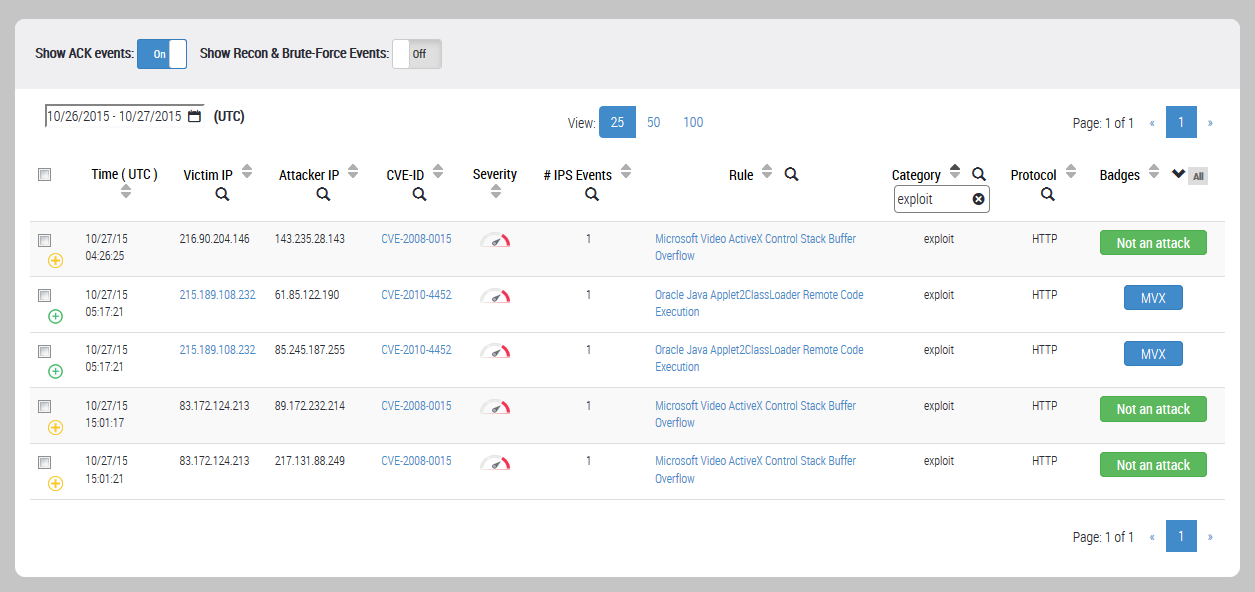
By default, the IPS Events page hides acknowledged events, reconnaissance events, and brute-force attacks. If you acknowledge IPS events while the Show ACK Events option is in the Off position, acknowledged events are removed from the displayed list. To show acknowledged events, set the Show ACK Events option to the On position.
The IPS Events page displays acknowledged event entries (if they are not hidden) with green expand icons (  ) so they can be easily distinguished from unacknowledged events that have gold expand icons (
  ). To view the details for an acknowledged IPS event or event grouping, click the green expand icon next to the check box.
IPS event acknowledgment restrictions
Before you begin acknowledging IPS events, be aware of the following restrictions:
You cannot undo the acknowledgment of an IPS event entry.
You cannot acknowledge IPS brute-force events or reconnaissance events.
Acknowledged IPS events are not reflected in the What's Happening panel of the Dashboard. For more information, see Dashboard > What's Happening.
IPS event acknowledgment for a managed appliance
If you are managing your IPS appliance from a Central Management System appliance, you can acknowledge IPS events locally at the Network Security appliance or remotely from the Central Management System appliance.
If you acknowledge IPS events locally, the updated acknowledgment information is aggregated at the Central Management System appliance. However, if you acknowledge IPS events remotely, the updated acknowledgment information is aggregated at the Central Management System appliance but is not pushed to the Network Security appliance you updated.
For information about configuring and operating the Central Management System appliance, see the Trellix Central Management System Administration Guide.
Acknowledging all retrieved IPS events (Web UI)
You can acknowledge all IPS event and alert entries retrieved for display in the IPS Events page, including entries not visible on the current page.
Important
You cannot undo the acknowledgment of an IPS event entry.
An acknowledged entry's expand (plus sign next to the check box) is green. An unacknowledged entry's expand icon is gold.
Prerequisites
You are logged in to the IPS appliance as an Admin.
Procedure
To acknowledge all retrieved IPS events:
Choose IPS Events.
(Optional) To change the entries retrieved, you can set or clear the following settings:
Show ACK Events
Show Recon & Brute‑Force Events
(Optional) To change the entries retrieved, you can configure the following filters:
Time frame
Badges
(Optional) To retrieve only the entries that match specific values, click the search icon (
 ) that appears in any of the following column headings. For a description of each field, see About the IPS Events Page.
Victim IP
Attacker IP
CVE-ID
Severity
# IPS Events
Rule
Category
Protocol
Badges
Select the check box (
 ) at the top of the list.
All entries visible on the page are selected.
Click Select All Events.

All entries are retrieved (including entries not visible on the current page) are selected.
If you want to clear all entry selections, click Cancel.

If you want to clear all entry selections visible on the current page, clear the check box in the leftmost column of the list heading row.
Click Acknowledge.

The IPS Events page refreshes. If Show Ack Events is On, the list shows the acknowledged entries with green expand icons (
). If the option is Off, the list hides the acknowledged entries.
Acknowledging All IPS events in a page (Web UI)
You can acknowledge all IPS event and alert entries visible on the current view of the IPS Events page.
Important
You cannot undo the acknowledgment of an IPS event entry.
An acknowledged entry's expand (plus sign next to the check box) is green. An unacknowledged entry's expand icon is gold.
Prerequisites
You are logged in to the IPS appliance as an Admin.
Procedure
To acknowledge all IPS events in a page:
Chooose IPS Events.
(Optional) To change the entries retrieved, you can set or clear the following settings:
Show ACK Events
Show Recon & Brute‑Force Events
(Optional) To change the entries retrieved, you can configure the following filters:
Time frame
Badges
(Optional) To retrieve only the entries that match specific values, click the search icon (
) that appears in any of the following column headings. For a description of each field, see About the IPS Events Page.Victim IP
Attacker IP
CVE-ID
Severity
# IPS Events
Rule
Category
Protocol
Badges
Select the check box (
) at the top of the list.All entries visible on the page are selected.
Click Acknowledge.
The IPS Events page refreshes. If Show Ack Events is On, the list shows the acknowledged entries with green expand icons (
). If the option is Off, the list hides the acknowledged entries.
Acknowledging individual IPS events in a page (Web UI)
You can acknowledge individual IPS event groupings in the currently displayed page of the list.
Important
You cannot undo the acknowledgment of an IPS event entry. For more information, see About IPS Event Acknowledgment.
An acknowledged entry's expand (plus sign next to the check box) is green. An unacknowledged entry's expand icon is gold.
Prerequisites
You are logged in to the IPS appliance as an Admin.
Procedure
To acknowledge individual IPS event groupings in a page:
Choose IPS Events.
(Optional) To change the event groupings retrieved, you can set or clear the following settings:
Show ACK Events
Show Recon & Brute‑Force Events
(Optional) To change the event groupings retrieved, you can configure the following filters:
Time frame
Badges
(Optional) To retrieve only the event groupings that match specific values, click the search icon (
) that appears in any of the following column headings. For a description of each field, see About the IPS Events Page.Victim IP
Attacker IP
CVE-ID
Severity
# IPS Events
Rule
Category
Protocol
Badges
Go to the page of event groupings you want to acknowledge.
Select the check box (
) of each event grouping you want to acknowledge.Click Acknowledge.
The IPS Events page refreshes. If Show Ack Events is On, the list shows the acknowledged event grouping with green expand icons (
). If the option is Off, the list hides the acknowledged groupings.
Viewing Acknowledged IPS Events (Web UI)
You can show or hide acknowledged IPS events and alerts on the IPS Events page. Acknowledged IPS events are hidden by default. When you list acknowledged events in the IPS Events page, the acknowledged event are listed with a green plus sign ( ) next to the check box. Click the plus sign to expand the entry, and click the green minus sign (  ) to collapse the entry.
Unacknowledged alerts and alert groupings are listed with a gold plus sign ( ) next to the check box.
Prerequisites
Log in to the Web UI of the IPS appliance as Monitor, Analyst, or Admin.
Procedure
To show acknowledged IPS events and alerts:
Choose IPS > IPS Events.
Set the Show ACK Events to the On position.

The list refreshes to include acknowledged IPS events. The IPS Events page displays acknowledged event entries (if they are not hidden) with green expand icons (
) so they can be easily distinguished from unacknowledged events that have gold expand icons ( ).To view the details for an acknowledged IPS event or event grouping, click the entry's expand icon.
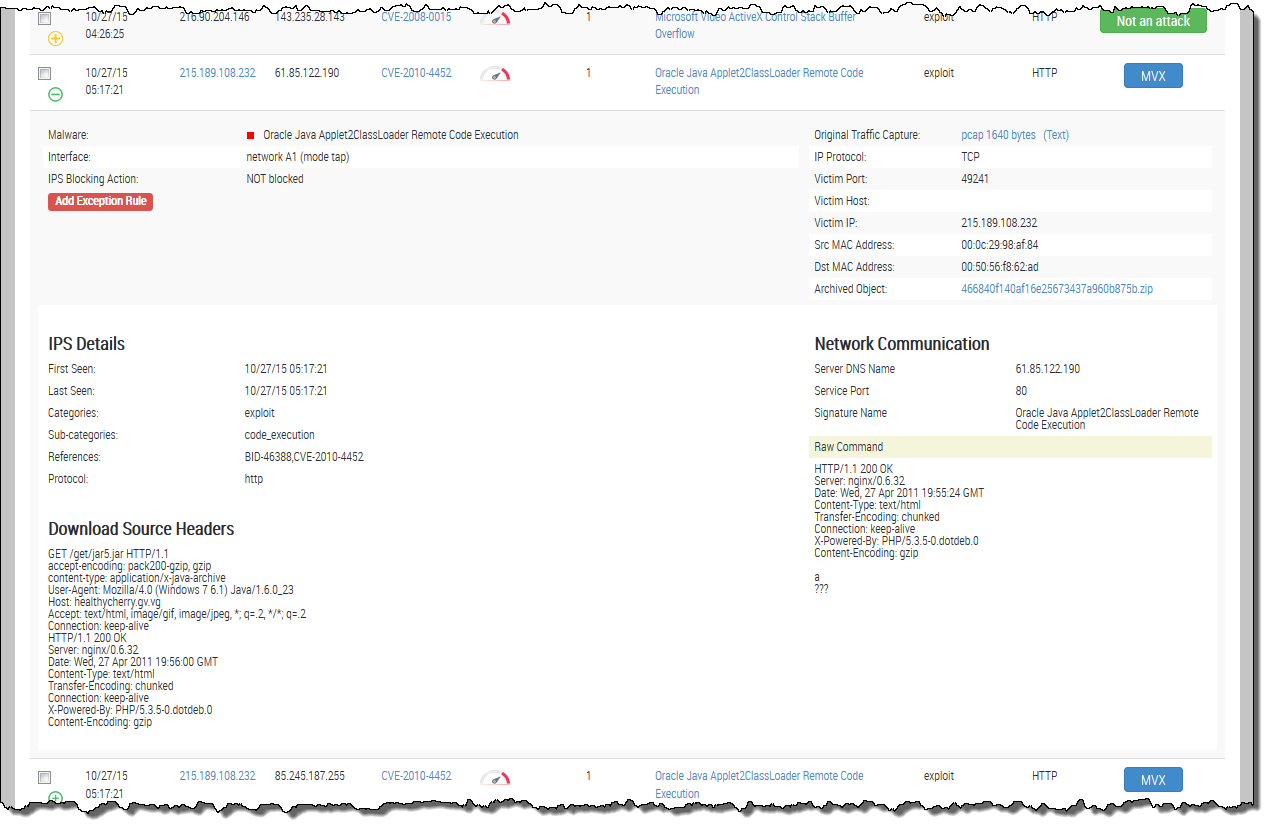
To collapse the details, click the green collapse icon (
).