This section covers the following information:
About the IPS events page
Fields in the IPS events list
Shortcuts from the IPS events list
Details for an IPS event grouping
About the IPS events page
The IPS Events page lists the IPS events (threats detected by IPS rules) and IPS alerts (MVX-correlated IPS events). For multiple IPS events that share the same victim IP address, attacker IP address, signature ID, and (if applicable) VLAN ID, the IPS Events page combines the event information into a single entry in the list. You can expand or collapse a combined entry to show or hide the details of the grouped IPS events. For descriptions of IPS events and alerts and their difference from standard malware events and alerts, see Malware events and IPS events.
The following example shows the default display of an IPS Events page.
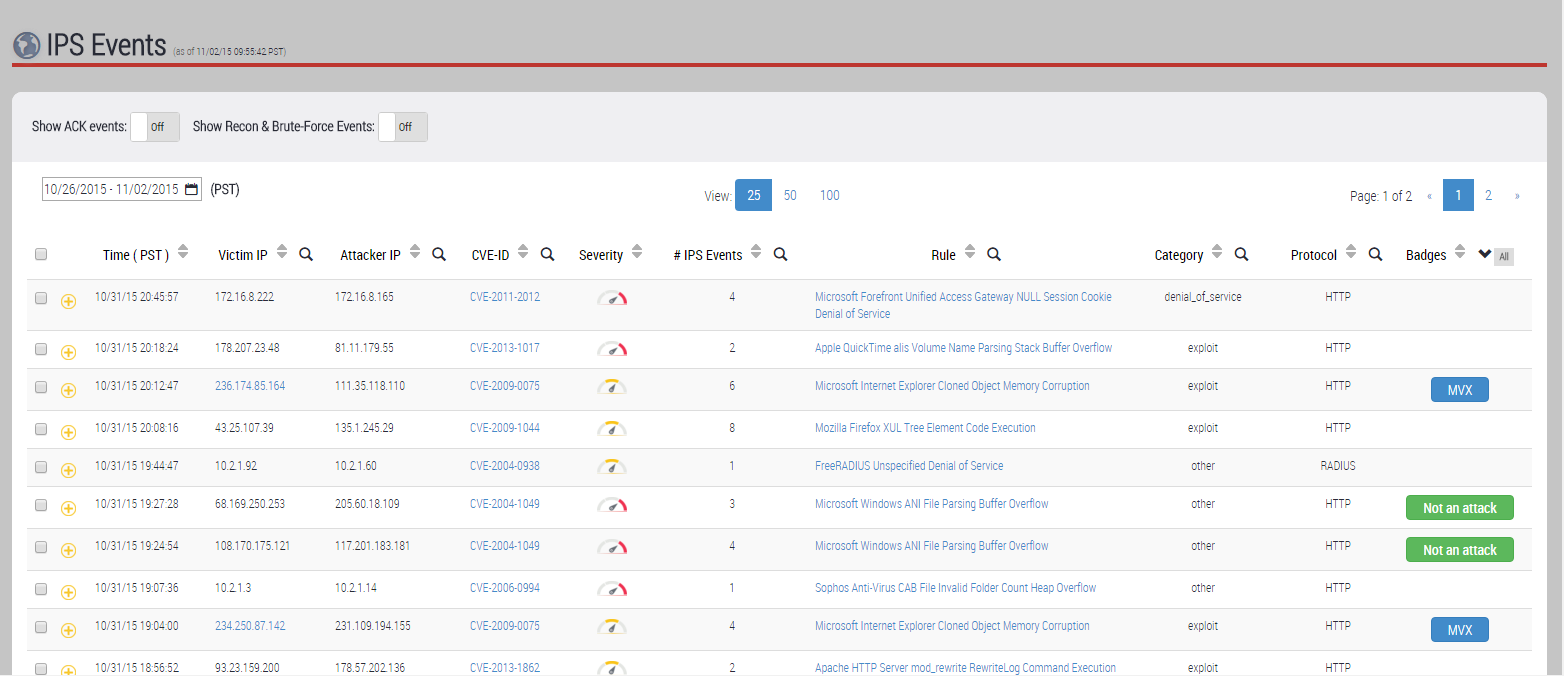
Use the IPS Events page to monitor the types and rates of network threats that the platform detects through IPS signature matching. Watch for rising or abnormal statistics, particularly with respect to IPS events for server-targeting threats (for which the platform does not perform MVX correlation).
By default, the IPS Events page lists IPS events and alerts for the past 25 days. The list displays up to 25 entries per page. Acknowledged entries and entries for reconnaissance activity and brute-force attacks are hidden.
By default, the IPS Events page lists IPS events and alerts in reverse chronological order. You can change the sort key or sort direction of the list by clicking a column heading.
To manage the IPS Events page display, use the following controls:
IPS Events Page Control | Description |
|---|---|
| To show acknowledged IPS events, set the option to the On position. Default: Off |
| To show IPS events for reconnaissance activity and brute-force attacks, set the option to the On position. See Showing or hiding IPS reconnaissance events (Web UI) and Showing or hiding or brute-force events (Web UI). Default: Off |
| To specify the time frame for which the page displays IPS events, click the calendar icon ( Default: The past 24 hours. |
| To set the number of rows displayed per page, select a value in the View field. Default: 25 rows per page. |
| To control the page displayed, use the left and right arrows next to the page number. Default: page 1. |
| Select an IPS events or event grouping that you want to acknowledge. When a check box is selected, the following buttons appear at the top of the list:
|
| Click the plus sign to expand the view of the unacknowledged IPS event (or IPS event grouping) to show additional details. Click the minus sign to collapse the entry. See Details for an IPS event grouping. |
| Click the plus sign to expand the view of the acknowledged IPS event (or IPS event grouping) to show additional details. Click the minus sign to collapse the entry. See Details for an IPS event grouping. |
| To change the sort order of the list, go to the column to be sorted and then click one of the sort direction buttons. Default: The list is sorted on the Time field in descending order. |
| To find entries that match certain values, click the search icon. Enter the match value and then press Enter. To clear a search criteria, click the X icon ( Example:
Default: The list is not filtered. See Shortcuts from the IPS events list. |
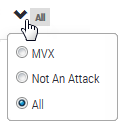
| To filter the list based on badges, click the V icon (x) next to the Badges column heading. You can include MVX-badged entries, include Not an Attack-badged entries or you can include both types of badges.
Default: IPS event list displays entries for all badges. |








Fields in the IPS events list
Each entry in the IPS Events list displays the following information about an attack detected by an IPS rule.
Column | Description |
|---|---|
Time | Date and time of the most recent occurrence of the event. |
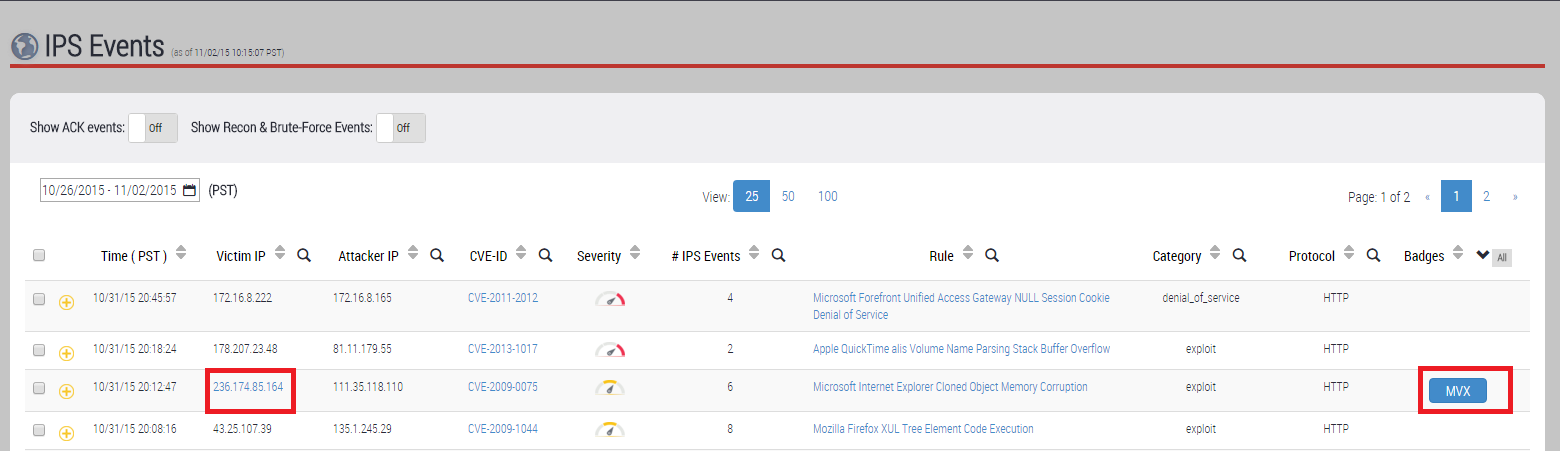
Victim IP | IP address of the attack target host. This address corresponds to two host addresses in the drill-down view of this entry: the Src IP Addr and Src MAC Addr fields. If the system has correlated one or more of these IPS events with a malware attack verified by the MVX engine, the IP address is displayed as a link and the Badges column displays an MVX badge. If the address is a link, it takes you to the Hosts tab, filtered on this IP address. The MVX badge links to the same view of the Hosts tab. See Shortcuts from the IPS events list |
Attacker IP | IP address of the attacker host. This address corresponds to two host addresses in the drill-down view of this entry: the Src IP Addr and Src MAC Addr fields. If the system has correlated one or more of these IPS events with a malware attack verified by the MVX engine, the IP address is displayed as a link and the Badges column displays an MVX badge. If the address is a link, it takes you to the Hosts tab, filtered on this IP address. |
CVE‑ID | If the IPS rule used to detect the event is associated with a security vulnerability description in the Common Vulnerabilities and Exposures (CVE) database, this field displays the CVE identification number. Otherwise, this field is empty. To display a detailed description of the CVE, click the CVE identifier.
|
Severity | Mouse over the meter icon to view the event severity level.
Event severity estimates the likelihood that the targeted host was compromised by the event. ● A value from 7 to 10 is a Critical severity level. ● A value from 4 to 6 is a Major severity level. ● A value from 1 to 3 is a Minor severity level. |
# IPS Events | Number of IPS events of this type (same victim, same attacker, and same signature ID). |
Rule | Name of the IPS rule used to detect the event. To display a detailed description of the security vulnerability (with the exception of custom IPS rules), click the linked text.
See Shortcuts from the IPS events list. |
Category | Attack category. |
Protocol | Presentation-layer protocol used as the attack vector. |
Badges | Badges in this column indicate IPS analysis of the IPS events represented by the table entry.
The system has correlated one or more of these IPS events with a malware attack verified by the MVX engine. Click the badge to view the Alerts tab, filtered to list alerts that target the victim IP address. See Shortcuts from the IPS events list and MVX correlation of IPS events.
The entry represents one or more IPS events that have been verified to be non-malicious. The badge is not hyperlinked. |





Times are displayed in UTC format by default. You can set the time zone in the Settings > Date and Time page.
Shortcuts from the IPS events list
Most of the entries in the IPS Events page contain shortcuts to other pages in the Web UI.
IPS Events Fields That Contain Shortcuts
CVE‑ID
If the IPS rule used to detect the IPS event is associated with a security vulnerability description in the CVE database, this field displays the CVE identification number.
Rule
To display a detailed description of the security vulnerability (with the exception of custom IPS rules), click the linked text.
Victim IP
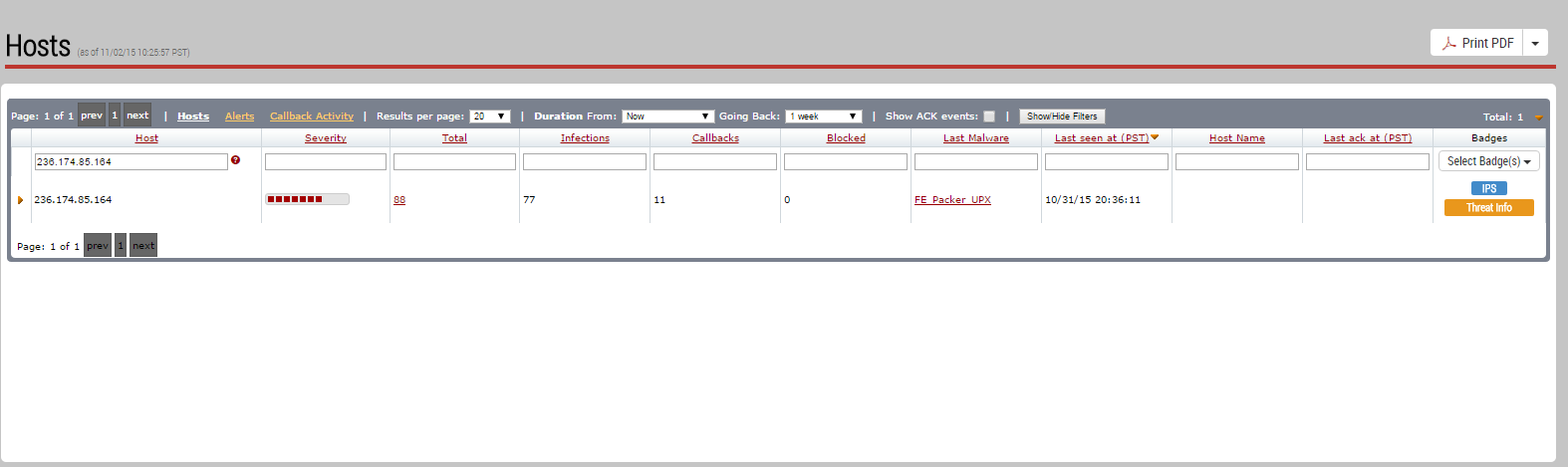
If an entry contains an MVX badge, the system has correlated one or more of the IPS events with a malware attack verified by the MVX engine. Click the IP address to view information about the compromised host. The Hosts tab lists alerts, grouped by victim IP address and attack rule name, that match the following criteria:
• Host = Victim IP
• Badges contains IPS
Badges
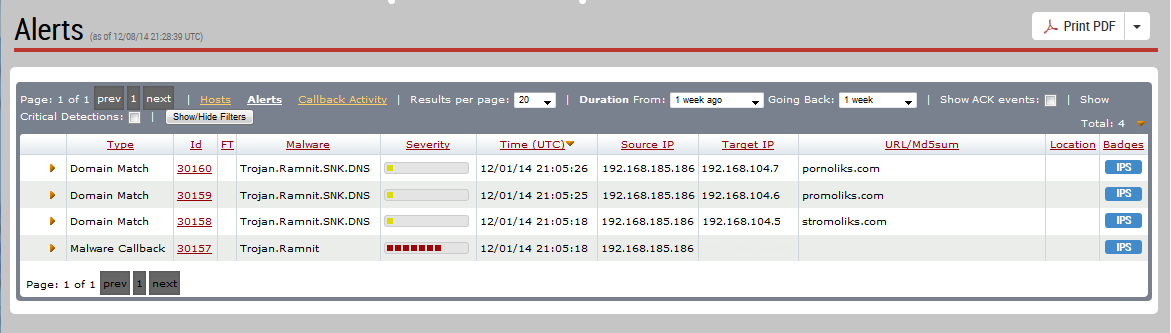
If an entry contains an MVX badge, the system has correlated one or more of the IPS events with a malware attack verified by the MVX engine. Click the MVX badge in this field to view information about all IPS badges on the compromised host. The Alerts tab lists alerts, grouped by attack rule name, that match the following criteria:.
• Source IP = Victim IP
• Badges contains IPS
Example of Using Shortcuts in the IPS Events Page
As an example, suppose you are analyzing a particular event grouping in the IPS Events page. You are focusing on an IPS alert (indicated by the badge circled in red) for an attack on the host at IP address 236.174.85.164 (circled in red):
If you click the victim IP address, the Hosts tab displays the entry for the attack victim.
If you click the MVX badge, the Alerts tab displays entries for the victim and IPS rule.
Details for an IPS event grouping
To display detailed information about any entry in the IPS Events page, you can expand the view of the entry by clicking the expand icon (gold or green plus sign) next to the check box.
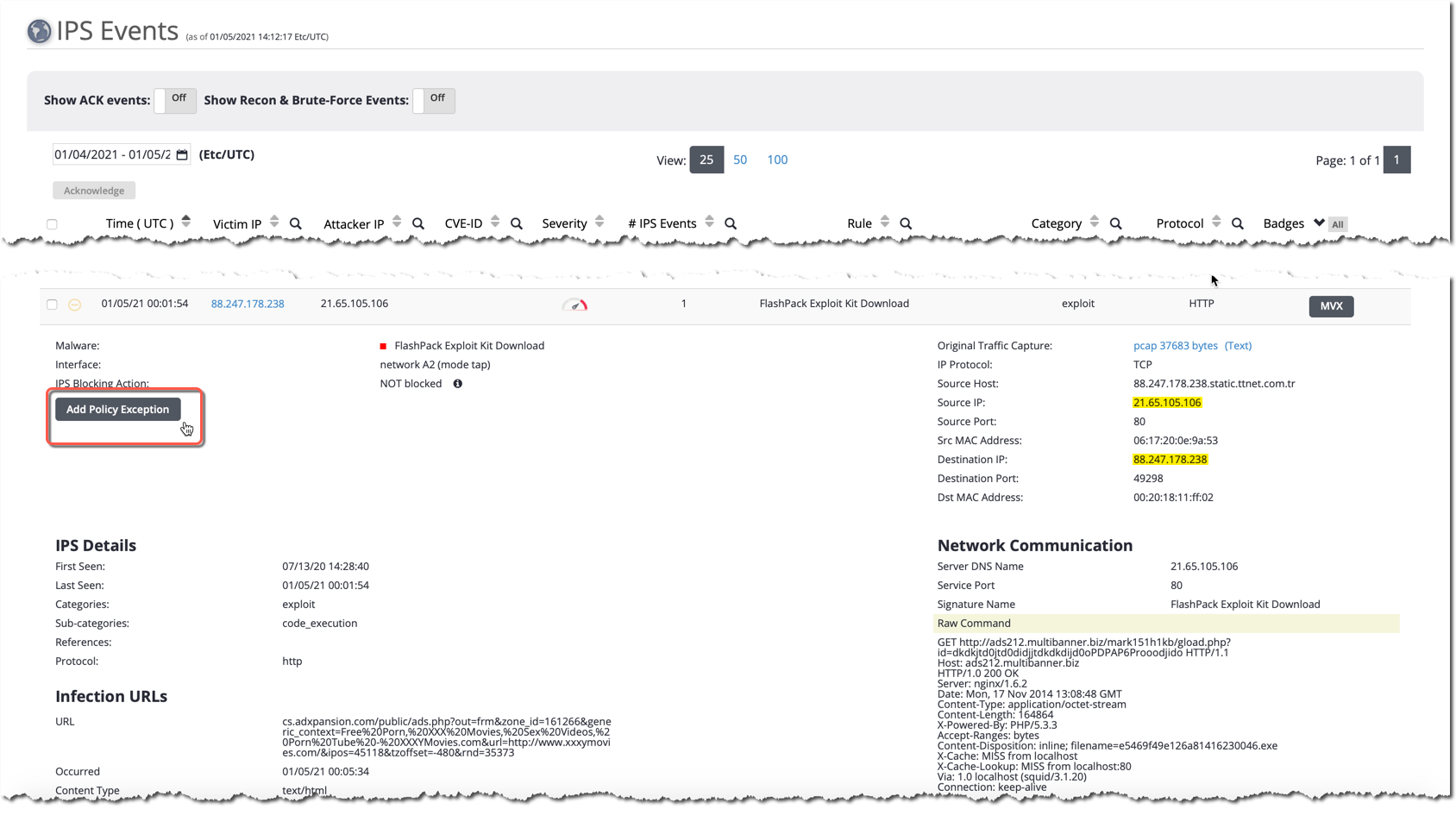
The following example shows the detailed event information and configuration options that might appear in the drill-down view of an IPS event.
Note
To add an alert policy exception for the selected IPS event, click Add Policy Exception. The Add Policy Exception dialog box appears with fields prepopulated with the configuration details for the selected event. For details about alert policy exceptions and using the Add Policy Exception dialog box, see "Alert Policy Exceptions" in the Network Security User Guide.
The following table describes the fields of the drill-down view of an entry in the IPS Events page.
Field | Description |
|---|---|
Malware | Name of the IPS rule that matched the event. |
Interface | Monitoring interface that received the suspected malicious traffic. |
Mode | Monitoring interface operational mode. • tap • bypass • inline block FS open • inline block FS close • inline monitor |
IPS Blocking Action | Action taken on the traffic that triggered this event: • Blocked • NOT Blocked To disable or force blocking for a vulnerability or IPS rule, or to suppress a vulnerability or IPS rule (or rules), click Add Exception Rule. For details, see Action overrides to all IPS rules. For information about action overrides to selected IPS rules for traffic through specified interfaces or IP addresses, see Action overrides to selected IPS rules. |
Alert Policy Exception | Click to add an alert policy exception for the selected IPS event, click Add Policy Exception. The Add Policy Exception dialog box appears with fields prepopulated with the configuration details for the selected event. For details, see "Alert Policy Exceptions" in the Network Security User Guide. |
Original Traffic Capture | Links to two forms of the packet capture (pcap) that triggered the IPS event: • Raw pcap • ASCII text version of the pcap |
Protocol | IP protocol used to transport the threat. |
Victim Port | Port number associated with the victim IP address. |
Victim Host | Domain name of the most recent victim. |
Victim IP | Victim IP address. Same as the Victim IP field in the main view. |
Src MAC Address | MAC address of the victim machine. |
Dst MAC Address | MAC address of the attacking machine. |
IPS Details | |
First Seen | Time when the attack was first detected (within the specified period of time). |
Last Seen | Time when the attack was last detected (within the specified period of time). |
Categories | Attack category and (if applicable) attack subcategory. |
References | Vulnerability database entries referenced by the IPS rule. |
Protocol | Presentation-layer protocol used as the attack vector. |
Network Communication | |
Raw Command | Text dump of the packet payload. |