Go to Devices → <Admin Domain Name> → Global → Device Manager page. You can add new HA pairs by selecting the HA pair tab. A HA pair will be managed just as any other device is managed, by going to Devices → <Admin Domain Name> → <Device Name> → Devices.
Using the HA Pairs tab, you can enable failover configuration for two identical Sensor models. The term "HA pair" refers to the pair of devices that constitute the Primary-Secondary arrangement required for failover functionality. The Primary/Secondary designation is used purely for configuration purposes and has no bearing on which device considers itself active. Primary device designation determines which device's configuration is preserved and copied to the Secondary device by Manager. Both devices receive configuration and update changes from Manager; however, the Secondary accepts the changes as if they are coming directly from the Primary device. In the event of primary failure, the Secondary device will see all changes as coming directly from Manager.
Two devices in a HA pair can have different fail-open/fail-closed settings. It is possible to configure, for example, one device to fail open, and the second device to fail closed. The intended use of this option is in an Active-Standby configuration with the Active link configured to fail closed (to force traffic to the standby link in case of failure), and the Standby link configured to fail open (to provide uninterrupted traffic flow should both devices fail).
Note
For more information on high availability using HA pairing, see the Trellix Intrusion Prevention System Product Guide.
| NS-series Sensor model | Port(s) used for failover |
|---|---|
| NS9500 | G0/1 (QSFP28 100 or 40G QSFP+) |
| NS9300 | G1/1 and G1/2 (40G QSFP+) |
| NS9200 | G0/1 |
| NS9100 | G0/1 |
| NS7500 | G0/1 |
| NS7350 | G0/1 (10G SFP+) |
| NS7250 | G0/1 (10G SFP+) |
| NS7150 | G0/1 (10G SFP+) |
| NS7300 | G0/1 (10G SFP+) |
| NS7200 | G0/1 (10G SFP+) |
| NS7100 | G0/1 (10G SFP+) |
| NS5200 | G1/1 and G1/2 |
| NS5100 | G1/1 and G1/2 |
| NS3500 | Not Supported |
| NS3200/NS3100 | 1 |
Note
High availability is not supported in NS3500 Sensor.
| M-series Sensor model | Port(s) used for failover |
|---|---|
| M-8000 | 3A and 3B |
| M-6050 | 4A. Note that 4B remains unused. |
| M-4050 | 2A |
| M-3050 | 2A |
| M-2950 | 6A |
| M-2850 | 6A |
| M-1450 | 4A |
| M-1250 | 4A |
To configure two devices for failover, do the following:
Task
-
Go to
Devices → <Admin Domain Name> → Global → Device Manager page and select
HA Pairs tab.
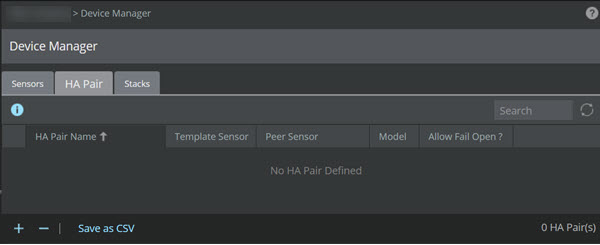
The HA Pairs tab is displayed. -
Click
 . The
New HA Pair dialog box is displayed.
. The
New HA Pair dialog box is displayed.
New HA pair window 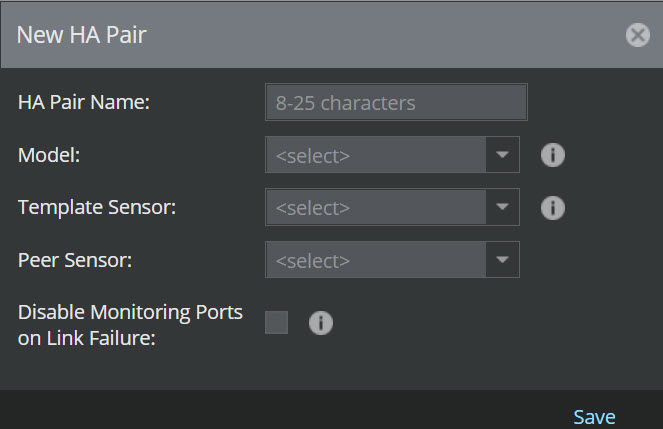
- Enter the HA pair name that will uniquely identify the grouping in HA Pair Name.
- Select the Model from the drop-down option. Both devices in a HA pair must be using same model and same version.
- Select the Template Sensor from the drop-down option.
- Select the Peer Sensor from the drop-down option.
- Enable or disable Disable Monitoring Ports on Link Failure for the HA pair as per your requirement. By default, it is disabled.
-
Click
Save. A
Confirmation dialog box is displayed. Click
OK. The new HA pair will appear in the display list.
Note
In the Manager, if at least two Sensors are not using same model and software version, an Error dialog box is displayed.
Note
An option to edit the existing HA pair is not provided. If you double-click a row in the grid, an Error dialog box is displayed. You change the configuration by deleting and re-creating a HA pair.
Note
If you have created a HA pair while maintaining an open Attack Log window, the Attack Log will continue to report alerts from both the Primary and Secondary devices, respectively, identifying each device by the given device name and not by the name of the HA pair. This may cause confusion in the event that both devices detect identical alerts. (In true failover operation, if both devices detect the same alert, only one alert instance is reported with the name of the HA pair as the identifying device.) Restart the Attack Log for proper alert reporting. The same is true in reverse if a HA pair is deleted. You must restart the Attack Log to view alerts separately from each device.