These licenses can either be individual .jar files, or they can be bundled together and provided to you in the form of a .zip file. Each license supports a pre-defined number of Virtual IPS Sensors, and this number is specific to the license file you have procured.
Note
- There is no limit on the number of license files you can add to the Manager.
- The license files do not expire.
- The licenses for Clusters in Public Cloud is not applicable.
The Manager periodically compares the number of Virtual IPS Sensors supported by your licenses with the installed number of Virtual IPS Sensors. You are compliant as long as the number of Virtual IPS Sensors in your Manager does not exceed the total number of Virtual IPS Sensors allowed across all licenses. For example, if you have two licenses, one of which allows 5 Virtual IPS Sensors and the other allows 10 Virtual IPS Sensors, you are compliant as long as you have no more than 15 Virtual IPS Sensors in that Manager.
If there are not enough licenses added to the Manager, a fault is raised accordingly.
Scenario
Jack works as an InfoSec professional in an organization. He plans to deploy a virtual IPS solution to monitor and protect the network infrastructure. So, Jack purchases a Trellix vIPS license that supports 5 Sensors. Since the Sensors in vIPS are capable of a throughput of up to 1 Gbps, he should now be able to examine 1 Gbps x 5 Sensors = 5 Gbps traffic flowing through the network. Currently, the organization is experiencing only 3 Gbps traffic onto its servers which is expected to increase with time. At this point, Jack decides to average 600 Mbps traffic across 5 Sensors. Within a month, the ingress traffic increases to 5 Gbps. Now, Jack plans to add 5 more Sensors without buying a license and average the traffic flow across all of them. He assumes that he can add any number of Sensors as long as he is not exceeding 5 Gbps licensed throughput.
In this scenario, Jack needs to understand that the license he procured supports only 5 virtual Sensors. He cannot add more Sensors and make them functional unless he procures a new license. If he does so, the Manager identifies the additional Sensor(s) during its periodic checks, and immediately raises a fault.
The Licenses page in the Manager displays your license compliance, and maintains the count for Virtual IPS Sensors. This page also allows you to add and remove individual licenses.
Task
- In the Manager, select the Manager → <Admin Domain Name> → Setup → Licenses → Virtual Sensors page.
-
The overall compliance status and number of
vIPS Sensors along with the maximum number allowed, and the number of
vIPS Sensors in use is displayed.
Option Definition Status Overall compliance which can either be Compliant or Non-compliant. If the vIPS Sensor count is within the maximum limit defined in the license, the overall state is displayed as Compliant with a green icon
 preceding it.
If the vIPS Sensor count exceeds the maximum limit, the overall state is displayed as Non-Compliant with a red icon
 preceding it.
Additional Licenses Required Additional number of licenses required for compliance Trellix Virtual IPS Sensors Number of vIPS Sensors in use along with the maximum number Virtual Probes Number of Virtual Probes in use If the status is Compliant, the tooltip for vIPS Sensors displays that no additional licenses are required. However, if the overall license status is Non-Compliant, the tooltip for vIPS Sensors indicates that additional number of licenses are required for compliance. -
The
Individual Licenses section displays the details of each license imported into the Manager.
Option Definition Allowed Virtual Sensors Maximum number of Virtual IPS Sensors allowed for the selected license License Customer – Customer for whom the license file was generated Grant ID – The Trellix Grant ID of the corresponding customer
Key – Key of the license file
Added Time – Date in <mmm-yy> format, and time when the license was added By – Name of the user who added the license
Comment Enables you to add your comment per license file that is imported. Click in the Comment field and enter your comment. Click outside this field and your comment is automatically saved. -
To import licenses into the Manager, click
.png) . Click
Browse to locate the license, and then click
Add.
The successful addition of a license is displayed in the popup window.
. Click
Browse to locate the license, and then click
Add.
The successful addition of a license is displayed in the popup window.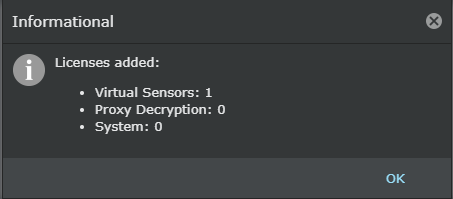
-
To remove a license, select the license you want to remove from the
Individual Licenses section, and click
.png) .
In the pop-up window, click OK to remove the selected license or Cancel to return to the Licenses page.
.
In the pop-up window, click OK to remove the selected license or Cancel to return to the Licenses page.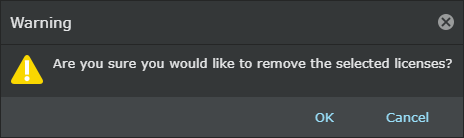
-
Click
Save as CSV to export license information in the .csv format. The default CSV file name is VirtualSensorLicenses-yyyy-mm-dd_hh-mn-ss.csv, where:
yyyy refers to yearsmm refers to monthsdd refers to dayshh refers to hoursmn refers to minutesss refers to seconds