If you plan to connect a monitoring port to an existing vSwitch, you might have to modify some of the configuration. For example, in scenario 2, you need to modify virtual switch 1 to connect it to monitoring port 1.
Task
-
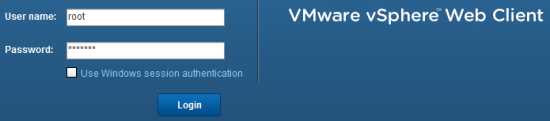
Log on to the ESX as the root user in VMware vSphere Web Client.
-
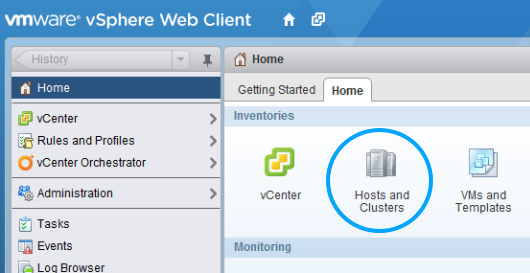
On the vSphere
Home tab, select
Hosts and Clusters.
Note
If the page takes loger time to load, click the page-refresh icon at the top.
-
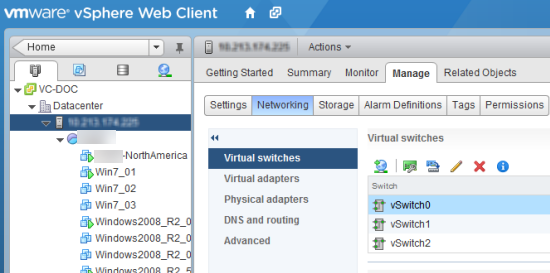
Select the required ESX server and select
Manage → Networking → Virtual switches.
-
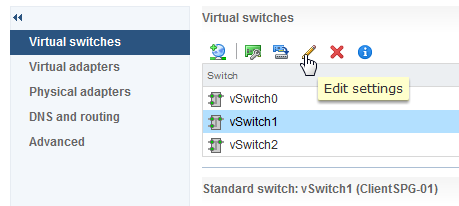
Select the required vSwitch and click on its
Edit settings icon.
-
Select
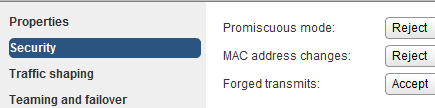
Security, make sure the fields are set to the values mentioned below, and click
OK.
- Promiscuous mode — Reject
- MAC Address Changes — Reject
- Forged Transmits — Accept
-
Modify the port group that you are using for the VMs in this switch.
For example, in scenario 2, this is the port group that you use for the 10.10.10.15 client.
Note
This step might be relevant only for scenario 2.
-
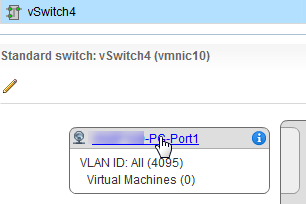
Move the mouse over the required port group and click on it.
The switch port group is now selected.
-
Click on the
Edit settings icon for the switch port group.
.png)
-
Click
Properties and modify the
Network label, if required.
For example, change it to Client Port.
-
In the VLAN ID (Optional) field, you can specify the required VLAN. For the scenarios in this section, select None (0).
.png)
-
Click
Security, make sure the fields are set with the following values, and click
OK.
- Promiscuous mode — Reject
- MAC Address Changes — Reject
- Forged Transmits — Accept
-
Move the mouse over the required port group and click on it.
-
Create a port group to connect the monitoring port of a Sensor.
-
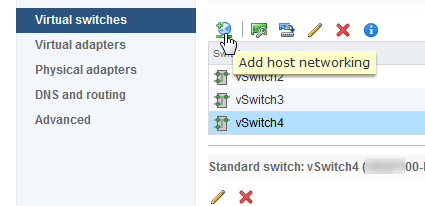
Select the corresponding vSwitch and click on the
Add host networking icon.
-
In the
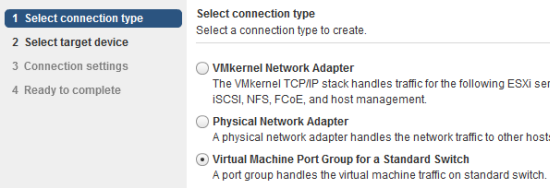
Select connection type step, select
Virtual Machine Port Group for a Standard Switch and then click
Next.
-
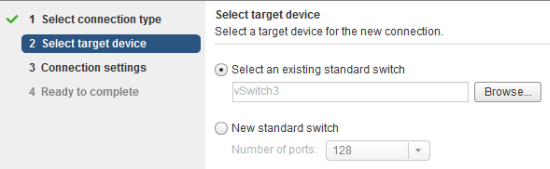
In the
Select target device step, select
Select an existing standard switch and make sure the vSwitch that you created is selected. Then click
Next.
-
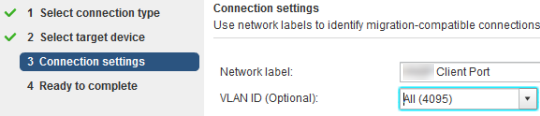
In the
Network Label field, enter the required name
For example, enter VIPS Client Port.
-
Make sure VLAN ID is set to
All (4095), click
Next and then
Finish.
-
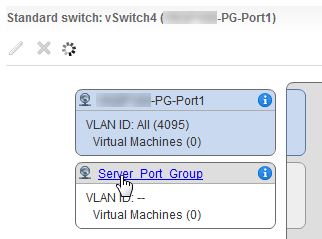
Move the mouse over the switch port group and click on it.
The switch port group is now selected.
-
Click on the
Edit settings icon for the switch port group.
.png)
-
On the Security tab, select
Override next to
Promiscuous mode and then select
Accept
from the drop-down. Click
OK when done.
This is mandatory for the port group that you will use for any Sensor monitoring port.

-
Select the corresponding vSwitch and click on the
Add host networking icon.