The following are the details of the monitoring ports displayed on the Monitoring Ports tab.
| Column | Description |
|---|---|
| Port | Specifies the monitoring port |
| Link | Specifies the status of the monitoring port. The available statuses are:
|
| Connector Type | Displays the connector type |
| Serial Number | Displays the serial number |
| Speed | Specifies the speed of the port. The following are the available speed:
|
| Operation | |
| Mode | Specifies the mode of operation. The following are the available modes:
|
| Fail-Open Kit | Displays the status of the fail open kit. The following are the available status:
|
| Placement | Displays the area of the network where the port is connected. The options are:
|
| Response Port | Specifies the path of response for the device. The available options are:
|
Display options for Monitoring ports
Display options for Serial Number
The following Serial Numbers are displayed on Monitoring Ports tab:
- Transceiver Serial Number - Displays the Transceiver Serial Number in the Serial Number column
- I/O Module Serial Number - Displays the network module serial number in a grid view
- Last Seen Serial Number - Displays the
Last Seen Serial Number as
 , when the Manager fails to read active Serial Number or if the Transceiver/Network module is removed.
Note
If users see any anomaly in the displayed Transceiver Serial Number, it is recommended that they make the link up and then check the Serial Number again. By doing so, the last seen Serial Number is also updated properly.
Note
Whenever a Transceiver is replaced, the port gets disabled and user has to enable the port irrespective of the operating mode.
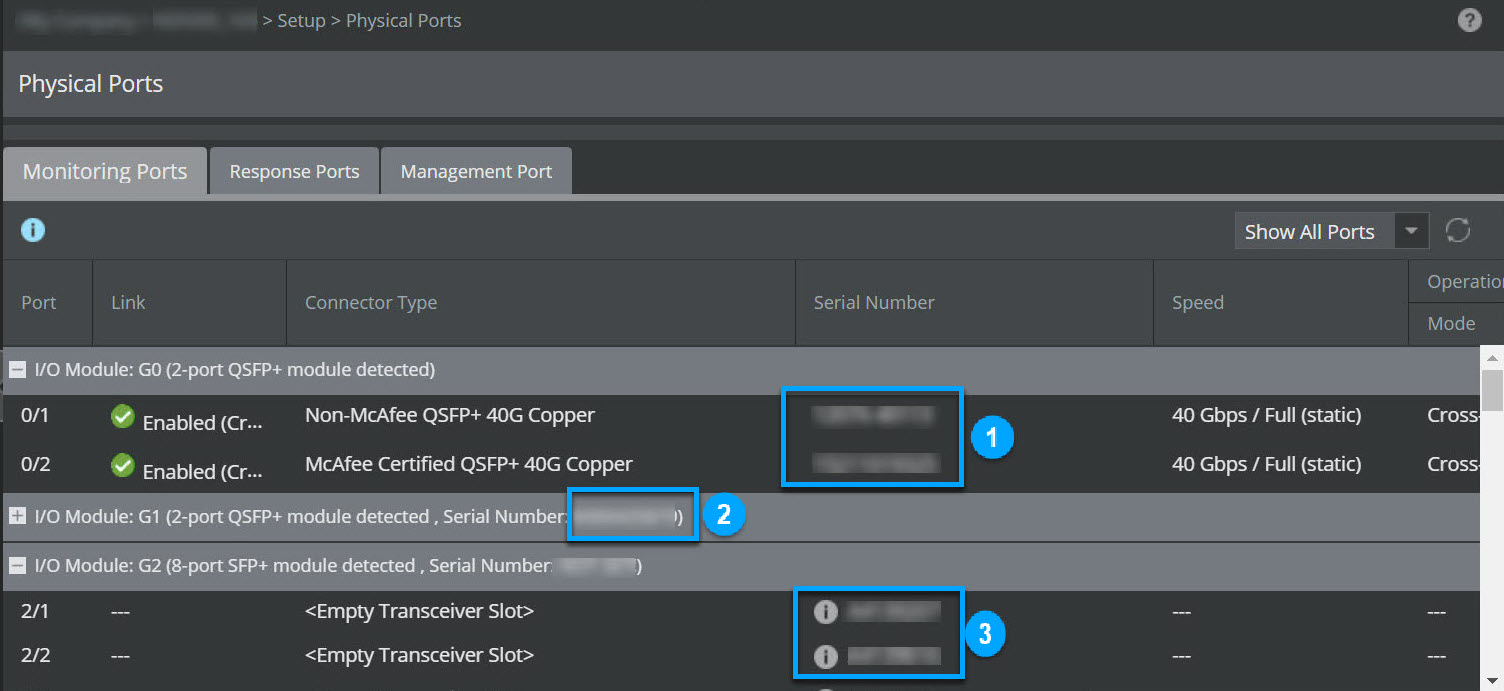
| Callout | Description |
|---|---|
| 1 | Displays the Transceiver Serial Number |
| 2 | Displays the I/O Module Serial Number |
| 3 | Displays the Last Seen Serial Number |
Note
For RJ-45 module, the Serial Number is displayed as Not Applicable.
You have the following options to view the details of the list of monitoring ports:
- Show All Ports - Displays the list of all monitoring ports
- Hide Empty Slots - Hides ports that have empty slots and displays only those ports that are configured