Before you begin
- Make sure that you have configured a DNS server for this device to allow the Sensor to download Gateway Anti-Malware Engine updates. If you have not done so, go to Devices → <Admin Domain Name> → Devices → <Device Name> → Setup → Name Resolution to configure a DNS server.
- You must be using either an NS-series Sensor running Sensor software version 9.1 or above or an NTBA Appliance to use this engine.
An update comprises the following components:
- Gateway Anti-Malware DAT and Gateway Anti-Malware Engine
- Anti-Virus DAT
- Anti-Malware Engine
The update can either be an incremental update or a full update. The full update is approximately 200 MB.
You can use these steps to set up automatic updates for both these components. If you do not want to set up automatic updates, you can use the existing process for manual updates.
This page displays a grid that mentions the active version and latest available version of each component. If you are using the latest version the circle is green. If a newer version is available, the circle is colored red.
Task
-
Click
Devices → <Admin Domain Name> → Devices → <Device Name> → Setup → GAM Updating.
The GAM Updating page appears.
-
You can choose to inherit settings of the domain by selecting the check-box.
If you do not select this option, you can customize update settings for this device.
-
Select
Enable Automatic Updating?.
Notification to configure a DNS server 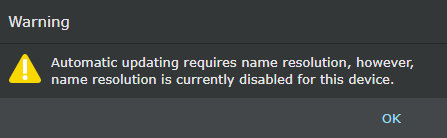
If you have not configured a DNS server for this device, you will receive a notification prompting you to do so. -
Click the
Update Interval drop-down.
The range of the update interval is between 1.5 hours and 24 hours since Trellix provides updates several times in a day.
- Click Save to complete the configuration.
Results
.png)