The Signature Sets option enables you to download available attack signature updates on demand from the Update Server to the Manager server. You can then push the signature download onto your Sensors or NTBA Appliance. You can also download the latest signature sets from an offline utility OfflineSigsetDownloader. For more information, see Offline Signature Set Downloader.
Tip
Because incremental emergency signature sets can be downloaded with regular signature sets, you do not need to use the custom attack definitions feature to import late-breaking attacks.
The Signature Sets option not only allows you to import regular signature sets, but also incremental emergency signature sets that include attack signatures not yet available in regular signature sets.
Incremental emergency signature sets are meant to address late-breaking attacks that might need to be addressed immediately.
Emergency signature sets are non-cumulative and can only add new signatures, so they do not contain a full set of signatures.
To make sure that you have a complete set of signatures, Trellix IPS verifies to see if a required regular signature set is missing and downloads it before downloading the related emergency signature set.
Note
You must use the Automatic Download option of Signature Sets tab from Manager → <Admin Domain Name> → Trellix IPS Protection Status for Trellix IPS to download a required regular signature set automatically, before downloading an emergency signature set. You receive an error if you try to import an emergency signature set through the Manual Import tab. For more information about Automatic Download, refer to Automatic download of Signature sets.
When a signature file or version is downloaded, the version is displayed in the Active Manager Version.
Setting a schedule enables the Manager to verify the Update Server for signature updates on a periodic basis, download the available updates, and push these updates to your Sensors or NTBA Appliances without your intervention.
Task
Select Manager → <Admin Domain Name> → Trellix IPS Protection Status. Then, select Signature Sets tab. The Signature Sets tab is displayed.
The Active Manager Version displays currently available version for your Sensors or NTBA Appliances.
The Latest Available Version displays the latest available version for your Sensors or NTBA Appliances to download. This signature set is kept in a queue for download to your Sensors or NTBA Appliances. You can only have one version in the queue for download.
Note
You can also change the display settings to meet your requirements from the filter option.
.png)
To download the latest signature set, select Download Latest Signature Set.
A Confirmation dialog box appears, select OK. A status window opens to process the signature download.
To download other versions of signature set, select Download Other Versions.
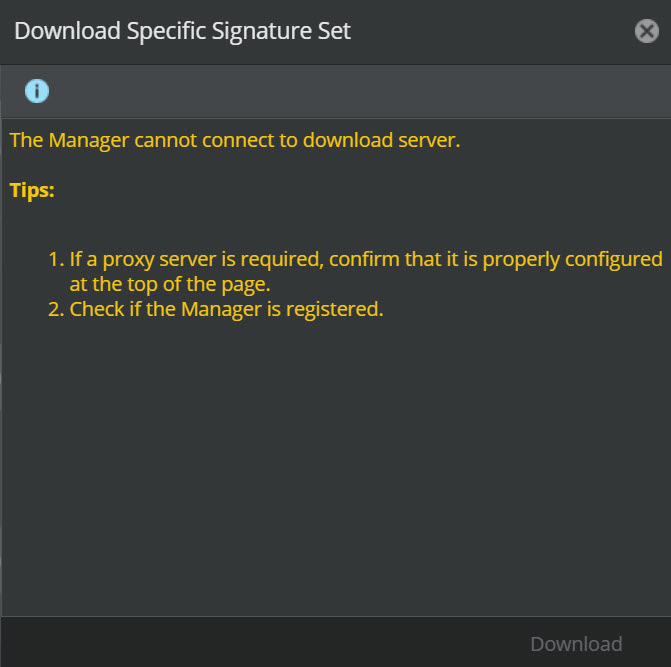
The Download Specific Signature Set dialog box appears, it displays the update details such as Release Date and Size (MB) for that particular Version.
Select the required version and click Download. A status window opens to process the signature download.
If the active manager version is the latest available version, Download Latest Signature Set is disabled.
A
 icon is displayed beside the Active Manager Version if the active signature set version matches the latest signature set version.
 A
 icon is displayed beside the Active Manager Version if the active signature set version is older than the latest signature set version.
Note
In an air-gap network, unregistered, or proxy server disabled Manager:
The Latest Available Version is displayed as ---.
A
 icon is displayed beside the Active Manager Version.
 When you select Download Other Versions, the Download Specific Signature Set does not display the available versions of signature sets.