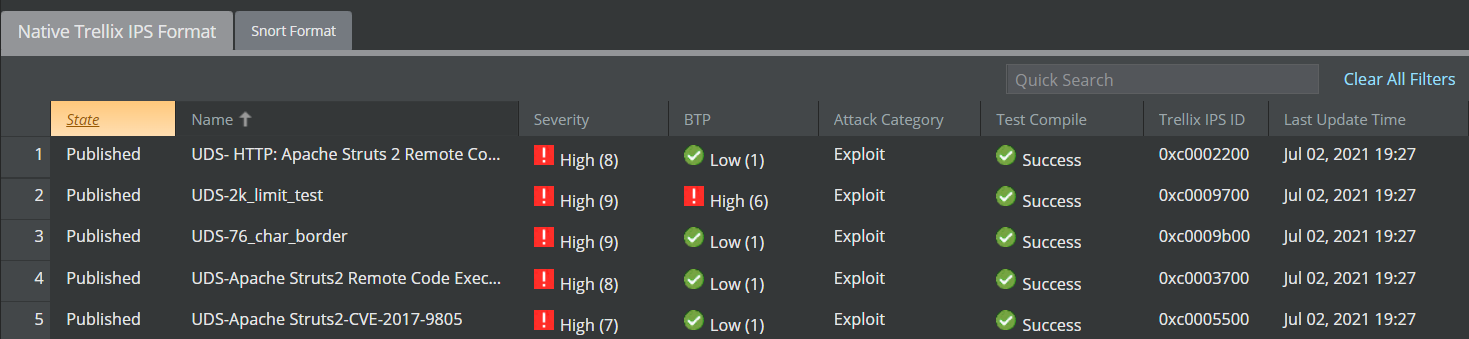
To enable easy viewing, Custom Attacks are listed in tabbed regions in the Custom Attack Editor. The Native Trellix IPS Format tab is the default tab that is displayed when you launch the Custom Attack Editor. It displays all the Native Trellix IPS Format custom attacks. The Snort Format tab displays all the Snort Custom Attacks.
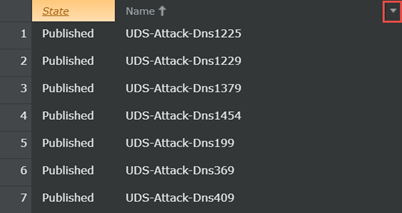
You can click on a column heading and drag-and-drop it to suit your viewing preference. Click on the arrow at the end of the column heading to:
- Hide the column
- Display any hidden columns
- Sort or filter the contents in the column
Note
What you see in the figure below are the default column headings.
| Item | Description |
|---|---|
| Trellix IPS ID |
When you save the added/imported custom attacks to the database, the Manager assigns a unique attack ID to each rule. For native Trellix IPS attacks, the ID starts with 0xc and for Snort attacks, it starts with 0xe.
|
| SID | Snort rule ID (SID) is the ID assigned to a Snort rule by you or the party that provided the rule. The Snort attack definitions that you want to save in the
Trellix IPS database must have a unique SID. Make sure that the SIDs of the attacks that you are writing or importing have not been used by the definitions that are already in the database.
For attack definitions that failed to import, the Trellix IPS assigns -1 as the SID. |
| Trellix IPS Snort Engine | The imported rules are available for both the
Trellix IPS Snort and the Suricata Snort. This column indicates whether the rule was validated successfully.
Some rules may have been converted but with warnings. For example, rules for which an equivalent Trellix IPS signature exists are converted with warnings. Some rules may have failed to convert. For example, rules that use undefined variables fail to convert. The Validation field displays status of attack validation from the Trellix IPS Snort Engine. Validation results can be Success, Failed, or Warning. The Test Compile column displays the status of test compilation. |
| Suricata Snort Engine | The
Validation column displays status of attack validation from the Suricata Snort Engine.
Validation results for the Suricata Snort rules can be Success or Failed. |
| Last Updated Time | This is the time stamp when a rule was imported or modified. |
| State | This column indicates whether a rule will be published and therefore made available for inclusion in the IPS policies. You can click on a rule to publish or stage it.
|
| Name | The name for the attack that the Manager assigns post-import. The format that the Manager uses for the name is SNORT:<the text specified for the msg rule option in the rule> (<SID>). So this name is modified accordingly if you modify the msg text or the SID of the rule.
Note that msg rule option and a unique SID are required in a rule for you to import it into the Manager. |
| Severity | The Manager assigns a severity of Low, Medium, or High based on the priority value of the rule.
You can set the priority for a rule by using the priority keyword in the rule definition. If the priority keyword is not present in the rule, the Manager derives the priority value based on the classtype of the rule. However, if the classtype is not available for the rule and there is no priority set in the rule definition, the Manager assigns a priority value of 0 to the rule.
|
| BTP (Benign Trigger Probability) | This column indicates the possibility of producing false positives. The lower the BTP value, higher is the accuracy of the rule.
|
| Attack Target | This column indicates the type of attack target such as client, server, and so on. |
| Test Compile | This column indicates the compilation status of the attack. |
| Attack Category | This column indicates the category of the attack such as malware, exploit, policy violation, and so on. |
| Protection Category | Indicates the Protection Category to which the Trellix IPS Custom Attack belongs. You specify this when you create a Trellix IPS Custom Attack. |
| Supported Device Types | This column indicates the supported devices for the Snort Rule. |
Note
The columns SID, Trellix IPS Snort Engine, and Suricata Snort Engine are available only on the Snort Format tab.
| State of the Custom Attack | Trellix IPS Snort Engine Validation Status | Test Compile Status |
|---|---|---|
| Published | Success | Success |
| Published | Warning | Success |
| Staged | Warning | Failed |
| Staged | Failed | Pending |
| Staged | Success | Failed |
| State of the Custom Attack | Trellix IPS Snort Engine Validation Status | Test Compile Status | Suricata Engine Validation Status |
|---|---|---|---|
| Published | Success | Success | Success |
| Published | Success | Failed | Success |
| Published | Success | Success | Failed |
| Published | Failed | Pending | Success |
| Published | Warning | Success | Success |
| Published | Warning | Failed | Success |
| Staged | Warning | Success | Failed |
| Staged | Warning | Failed | Failed |
| Staged | Failed | Pending | Failed |
| Staged | Success | Failed | Failed |