To configure Forward Error Correction (FEC), perform the following steps:
Steps:
Log in to the web interface of the 100G Active Fail-Open chassis.
Use default credentials to access the web interface.
Go to, AFO Configuration → Module <number> → Advanced Features.
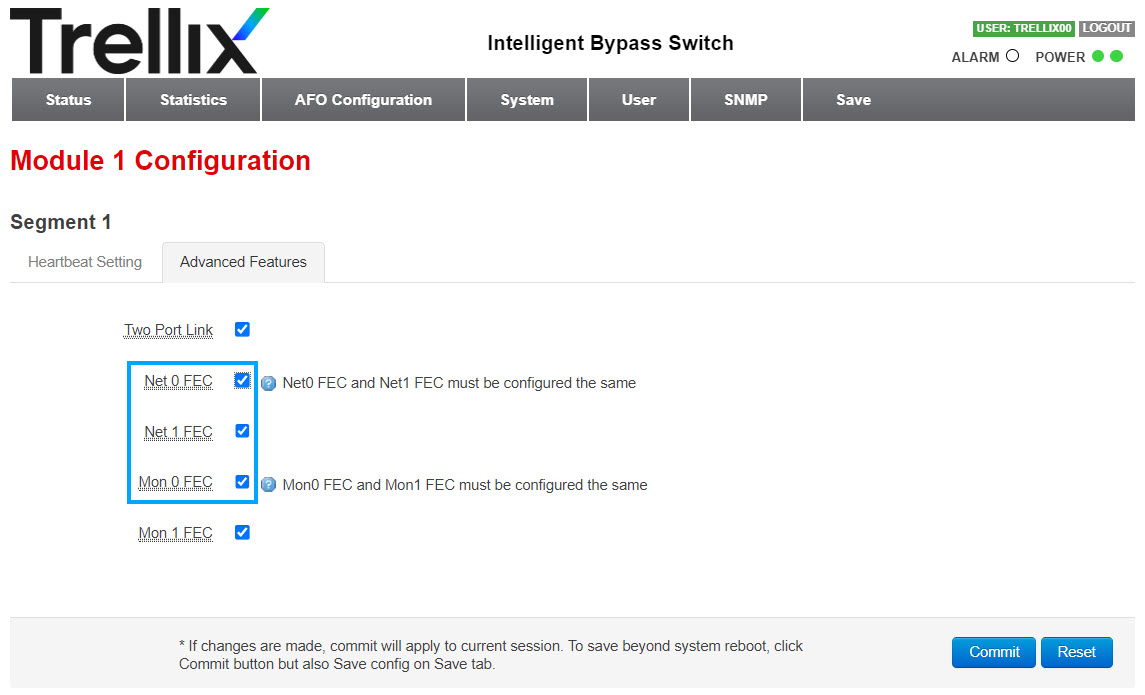
To enable, select the Net 0 FEC, Net 1 FEC, Mon 0 FEC, and Mon 1 FEC.
By default, they are disabled.
Click Commit.
To save your configuration, select the Save tab.
Click Save.
Result: The FEC (Forward Error Correction) configuration on the Active Fail Open module is enabled.
Note
With FEC (Forward Error Correction) on, when disconnecting or reconnecting cables between the MON0 or MON1 and Sensor ports, you need to disable or enable the Sensor port pair to bring the links back up.
Note
When the FEC (Forward Error Correction) configuration on the Active Fail Open module is enabled, make sure that the peer devices such as a Sensor, switch, or router are also enabled, and when the Active Fail Open module is disabled, the peer devices are also disabled. If not, the network ports of an Active Fail Open module will indicate as up even when the network ports of the peer devices are down.