Trellix Intrusion Prevention System (IPS) can send alerts over syslog to the Comm Broker through the IPS Manager. Follow these steps to configure a syslog server and enable it to send alerts to the Comm Broker so you can view them in Helix.
Prerequisites
You need to have Comm Broker installed and running. See the Unmanaged Comm Broker Installation and Configuration Guide for more information.
Configure a syslog server in the IPS Manager
Task
Log in to the IPS Manager and select the Manager tab.
Navigate to Setup > Notification > Server Configuration > Syslog.
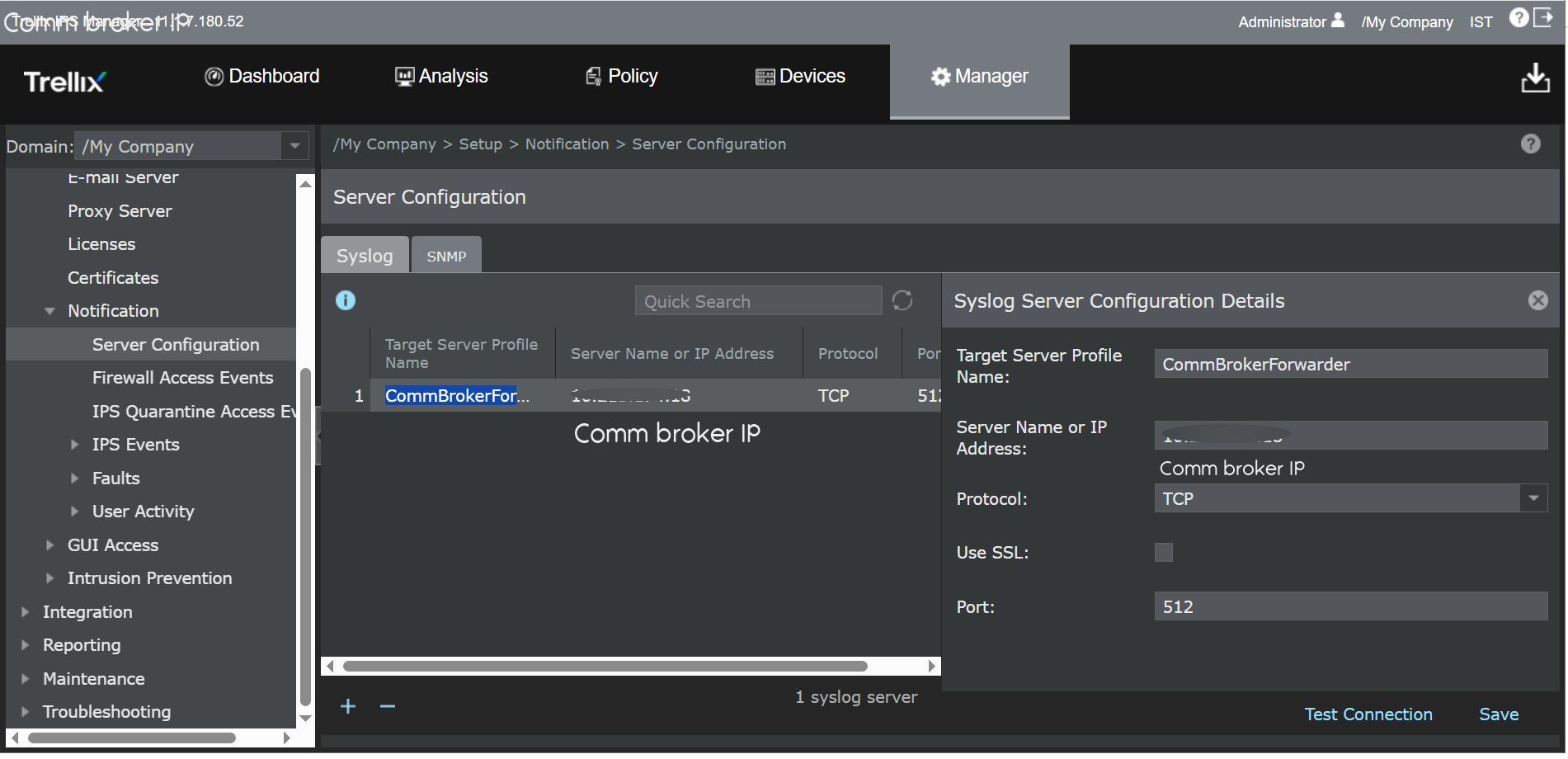
Click the + (Add) icon and enter the IP address, port, and protocol of the Comm Broker.
See Configure a Syslog server for more information.
Click Save.
Enable the syslog to send IPS alerts to Comm Broker
In IPS, select the Manager tab.
Navigate to Setup > Notification > IPS Events > Syslog and add the details of the syslog server.
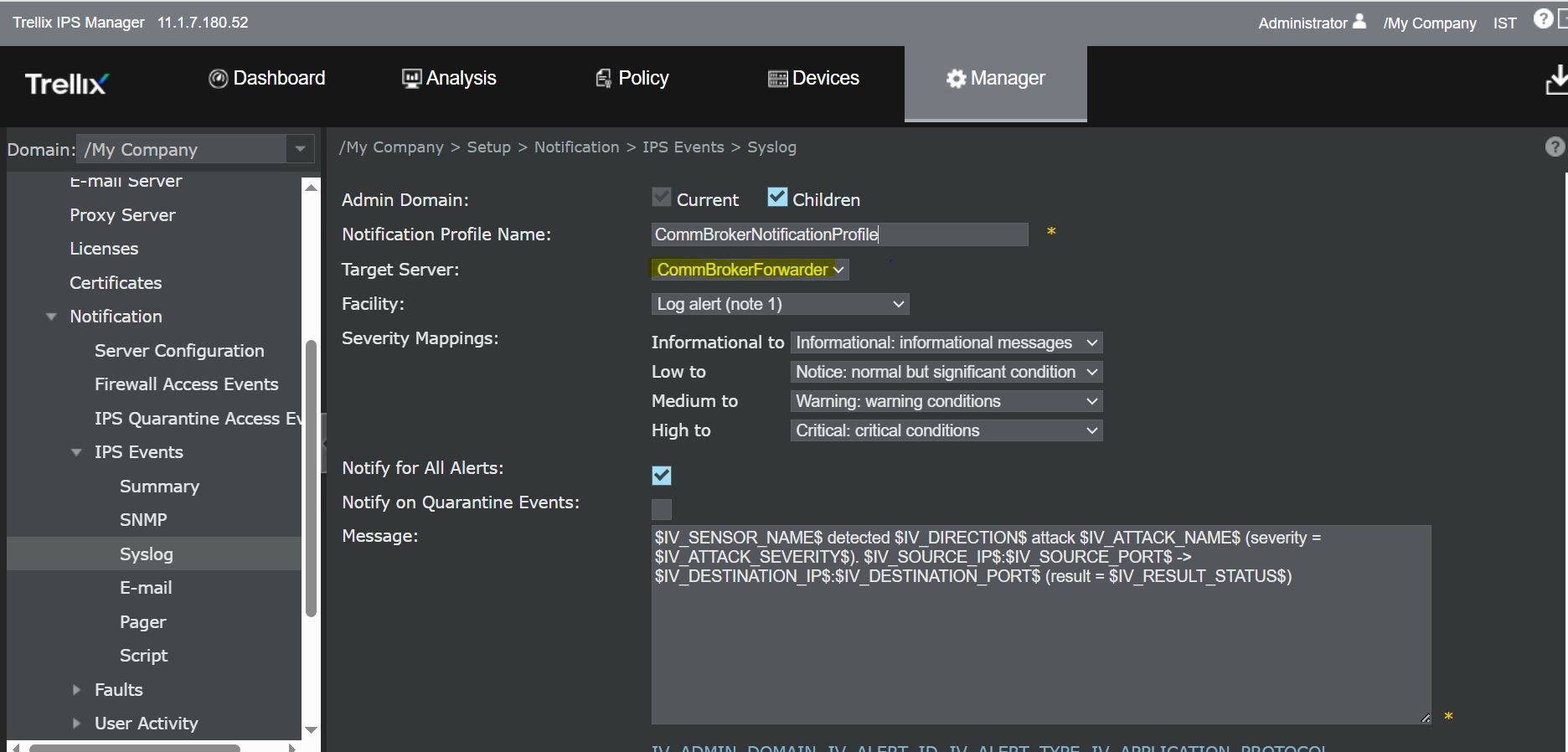
Select the syslog server you added as the target syslog.
To allow Helix to parse the IPS alerts, add this Syslog format into the Message text box:
$IV_SENSOR_NAME$ detected $IV_DIRECTION$ attack $IV_ATTACK_NAME$ (severity = $IV_ATTACK_SEVERITY$). $IV_SOURCE_IP$:$IV_SOURCE_PORT$ -> $IV_DESTINATION_IP$:$IV_DESTINATION_PORT$ (result = $IV_RESULT_STATUS$)
Click Save.
Select Enable syslog from Manager > Setup > Notification > IPS Events > Syslog.
Result: The log events look like in this in the Helix Instance:
SyslogAlertForwarder: Apr 23, 2026 13:09:02 : NS9100_2_18 detected Outbound attack BACKDOOR: Windows Command Shell Running (severity = High). IPAddress/port -> IPAddress/port (result = Attack Successful)”
For more information on configuring the IPS Manager alert syslog, see Add a Syslog notification profile to forward alerts.
Note
The IPS Manager supports multiple syslog profiles for IPS so you can configure additional syslog servers as required. Integrating with Comm Broker won't block other integrations.