The following includes several scenarios related to license assignment:
Scenario 1: When the assigned licenses are insufficient, and one or more licenses have expired
When the number of licenses assigned to a cluster is insufficient or if they have expired, the combination of expired and shortage licenses provides the total number of required licenses for a cluster. After the license assignment, an insufficient warning or an exceeding error message is displayed.
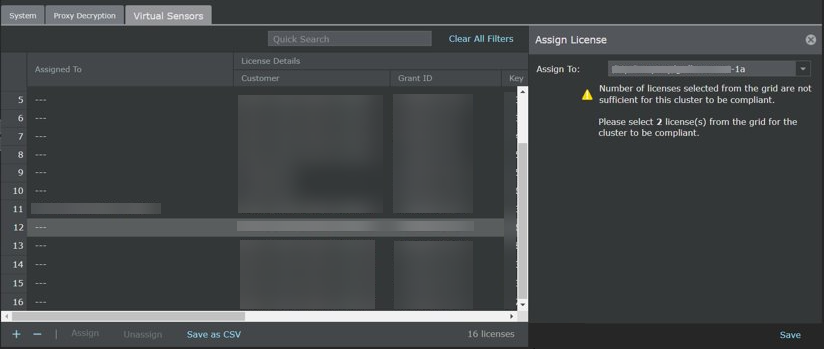
To assign the licenses(s) to the cluster, perform the following steps:
Go to Manager → <Admin Domain Name> → Setup → Licenses and click the Virtual Sensors tab.
Select the required license(s) from the list and click Assign.
The Assign License details panel is displayed.
Assign License details panel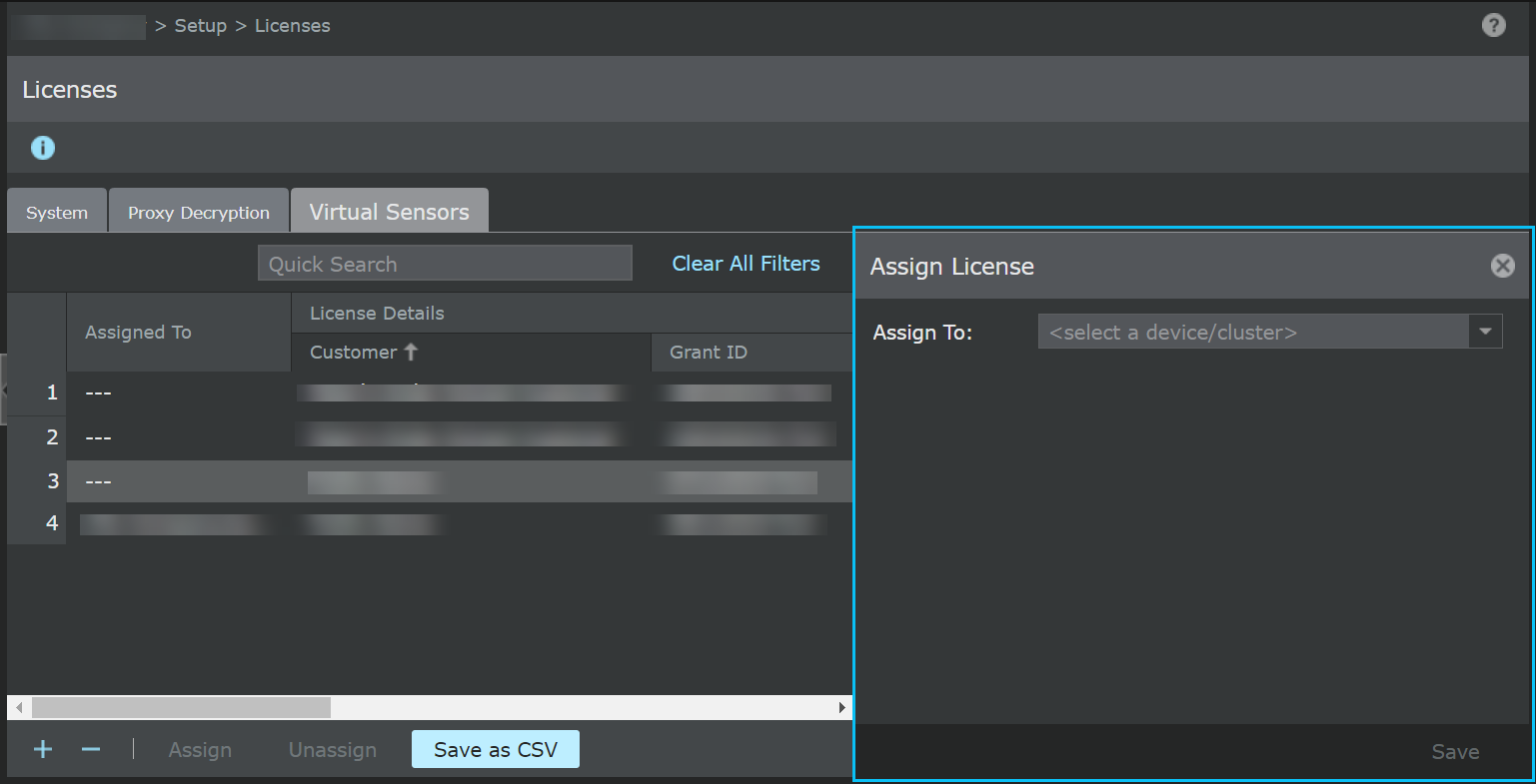
Now, select the required cluster from the Assign To drop-down and click Save.
When sufficient license(s) are assigned to the cluster, an Informational dialog box is displayed.
An Informational dialog box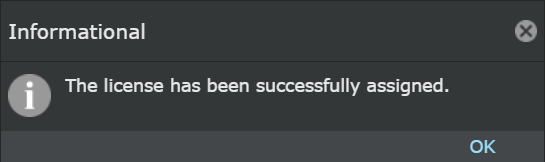
Scenario 2: When more licenses are allocated than the required capacity
When attempting to assign licenses beyond the required capacity, the Save option gets disabled within the Assign License details panel.
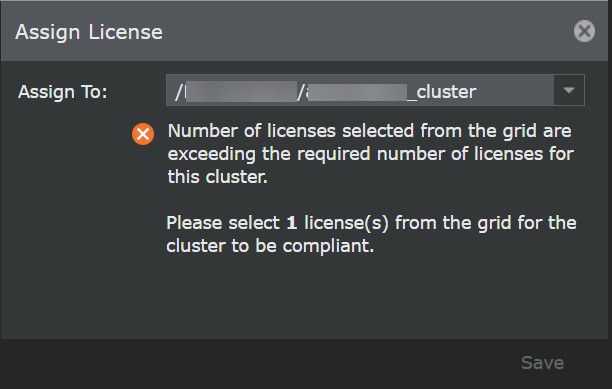
Scenario 3: When sufficient licenses are assigned, and one or more licenses are expired.
When the number of licenses assigned to a cluster is sufficient, and one or more licenses have expired, the total number of required licenses for a cluster is the total count of expired licenses. After the license assignment, an insufficient warning or an exceeding error message is displayed.
Scenario 4: When the assigned licenses are selected
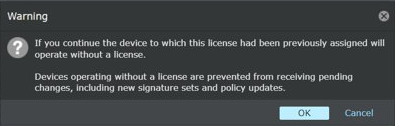
When attempting to assign a license that is already assigned to another Sensor or a cluster, the Manager will display a Warning message upon clicking the Save option.
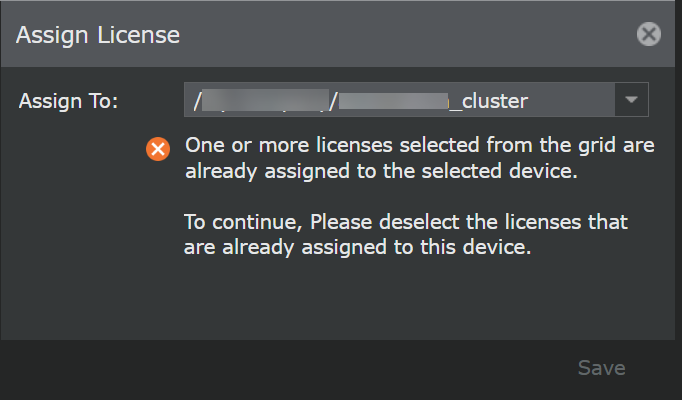
Scenario 5: Assigning the assigned license(s) to the same Sensor or a cluster
When attempting to assign the previously assigned license(s) to the same Sensor or a cluster, the Save option gets disabled within the Assign License details panel.
Scenario 6: Replacing the assigned license(s)
To replace the assigned licenses, follow the below steps:
Go to Manager → <Admin Domain Name> → Setup → Licenses and click the Virtual Sensors tab.
Select the exact required license(s) from the list and click Assign.
The Assign License details panel is displayed.
Select the previously assigned cluster from the Assign To drop-down and click Save.
A Confirmation dialog box is displayed. Click OK.
A Confirmation dialog box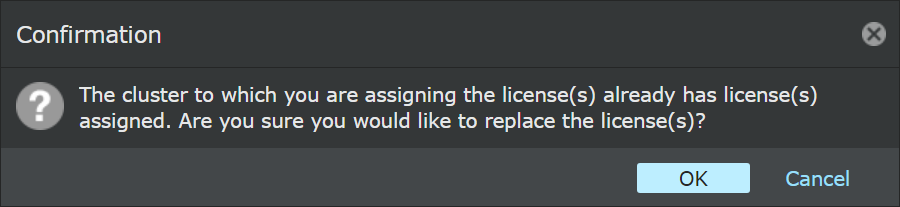
Later, an Informational dialog box is displayed. Click OK.
An Informational dialog box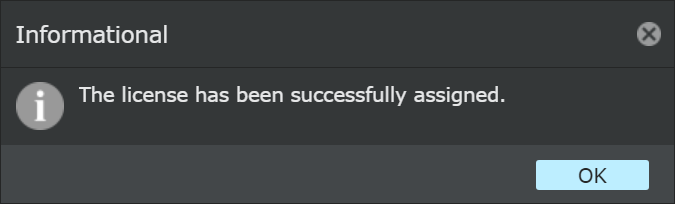
Scenario 7: Unassigning the license(s)
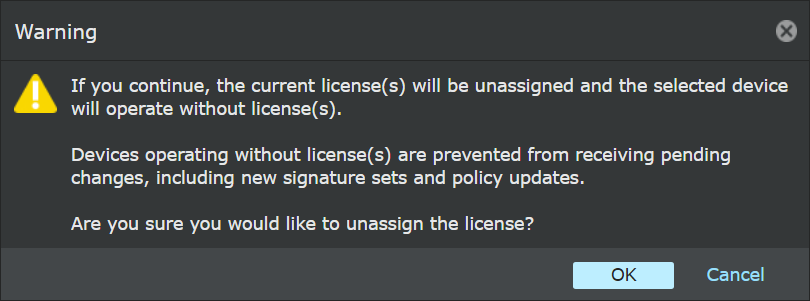
You can unassign multiple licenses for the Sensors in the Manager. When you unassign the license, the Manager will display a Warning message.
The Unassign is disabled under the following conditions:
When unassigned licenses are selected
When you combine the unassigned licenses and assigned licenses