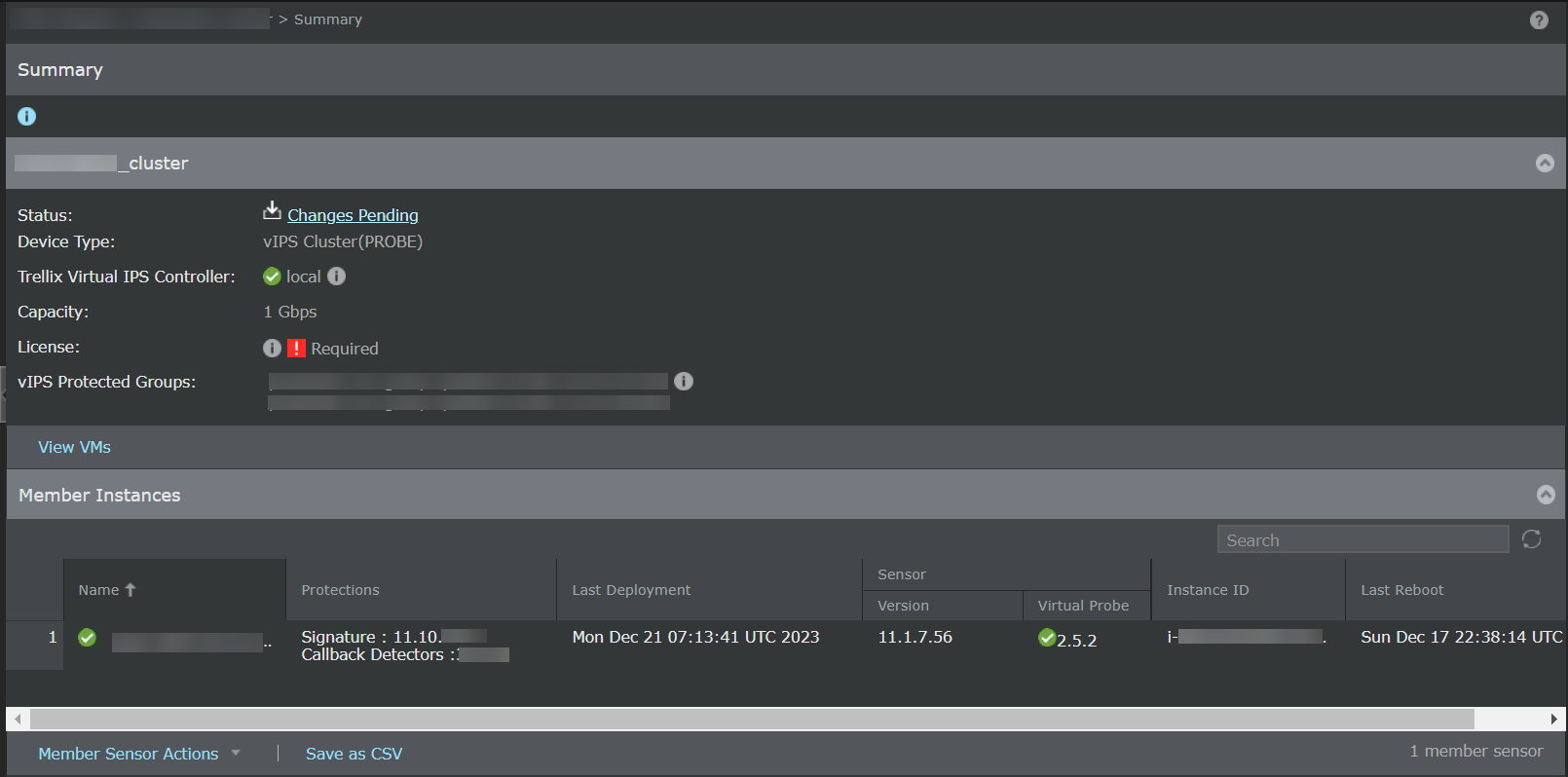
To view the summary details of a selected cluster, go to Devices → <Admin Domain Name> → Devices → <Cluster_Name> → Summary. The device Summary page is displayed.
Option | Definition |
|---|---|
Status | Displays whether there are pending changes to be deployed to the virtual security system or if it is up to date. Green indicates that the system is up to date and blue indicates pending changes to be deployed. |
Device Type | Displays the type of device. Example, Cluster (GWLB). |
Trellix Virtual IPS Controller | Displays the details of the controller with which the cluster and its member Sensors are associated.
|
Capacity | Displays the total capacity of license required for all member Sensors in the cluster. |
License | Displays the license status of the cluster. You can assign a license by clicking the The license status can be one of the following options:
|
vIPS Protected Groups | Displays the name of the vIPS Protected Group. |
Member Instances | |
Name | Displays the status and name of the instance. |
Protections | Displays the Software, Signature set, and Callback Detector versions of the Sensor. |
Last Deployment | The timestamp of previously deployed pending changes. |
GWLB Status | Displays the status of GWLB.
|
Sensor | Version - Displays the version of the Sensor. Virtual Probe - Displays the version of the probe.
|
Instance ID | Displays the ID of the instance. |
Last Reboot | Displays the time stamp of the last reboot performed. |


You can also perform the following actions:
To restart the Sensor, click Member Sensor Actions → Reboot.
To view the traffic statistics, click Member Sensor Actions → Traffic Statistics.
To run a diagnostic trace for the Sensor, click Member Sensor Actions → Run diagnostics.
To export the Sensor software information in the form of a .csv file, click Save as CSV.