If a SmartVision alert that involves a file transfer also triggers an network alert (an alert listed in the Alerts > Alerts > Alerts tab), the correlation is flagged in both alert lists:
In the SmartVision alerts list
A “Network Correlated” badge identifies a SmartVision alert correlated with a network alert.
Select Alerts > SmartVision.
In the SmartVision Alerts list, identify the network-correlated alert you want to investigate. This type of SmartVision alert is flagged by a “Network Correlated” badge:

To view the file’s MVX analysis results (malicious or benign), click “Associated File Analysis” in the Artifacts column:
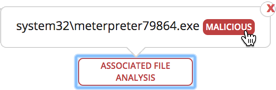
MVX analysis results are provided for each file involved in the SmartVision alert.
In the network alerts list
A “ SmartVision Correlated” badge identifies a network alert correlated with a SmartVision alert.
Select Alerts > Alerts > Alerts.
In the network alerts list, select the -correlated alert you want to investigate. This type of network alert is flagged by a “ SmartVision Correlated” badge in the Badges column:
To view the associated event, click the “ SmartVision Correlated” badge.