Follow these steps to configure an alert policy exception using the Web UI.
Note
This topic describes how to add an alert policy exception from the Settings > Alert Policy Exceptions page.
To add an alert policy exception for a specific alert, see Viewing alerts and events using the Web UI.
To add an alert policy exception for a specific IPS event, see "Details for an IPS Event Grouping" in the Network Security IPS Feature Guide.
Prerequisites
Admin or Operator access to the appliance.
Choose Settings > Alert Policy Exceptions.
Click Add Policy Exception.
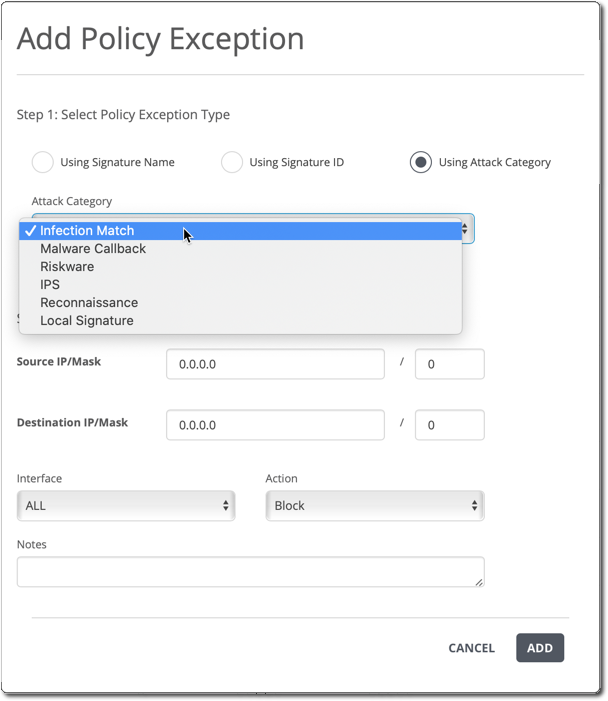
Specify the policy exception type:
Using Signature ID
To configure a policy exception for a single alert rule, select this option and enter the eight-digit ID of the alert rule In the Signature ID field.
Using Signature Name
To configure a policy exception for a vulnerability that encompasses multiple alert rules, select this option and enter the name of the vulnerability in the Signature Name field.
Note
To configure a policy exception that matches all signatures, select Using Signature Name and enter ALL in the Signature Name field.
Using Attack Category
To configure a policy exception for an attack category that encompasses multiple alert rules or vulnerabilities, select this option and use the Attack Category menu to choose the attack category.
(Optional) Specify a source, destination, or both:
To specify a source machine or subnet, use the Source IP/Mask field.
Leave the field empty to match any source address.
To specify a destination machine or subnet, use the Destination IP/Mask field.
Leave the field empty to match any destination address.
(Optional) Use the Interface drop-down to specify the interface: all monitoring port pairs, a single monitoring port pair, or the management interface.
Use the Action drop-down to specify the override action.
For more information, see Alert policy exception actions.
(Optional) Add a note that describes the policy exception.
Click Add.