Follow these steps to clone an alert policy exception using the Web UI.
Prerequisites
Admin or Operator access to the appliance.
Choose Settings > Alert Policy Exceptions.
For the exception you want to clone, click the operations icon (
 ) and choose Clone.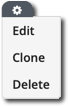
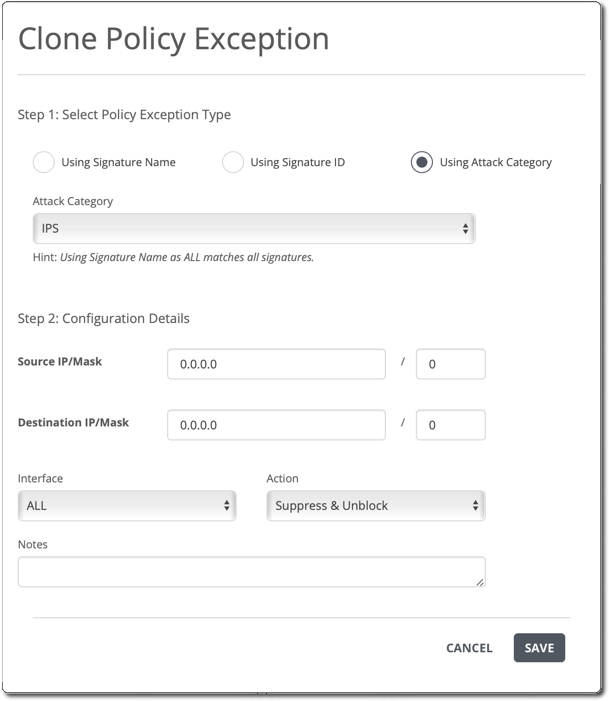
(Optional) Specify a different policy exception type:
Using Signature ID
In the Signature ID field, enter the eight-digit ID of the alert rule to which the policy exception is to be applied.
Using Signature Name
In the Signature Name field, enter the name of the vulnerability that encompasses all of the alert rules to which the policy exception is to be applied.
Note
To configure a policy exception that matches all signatures, select Using Signature Name and enter ALL in the Signature Name field.
Using Attack Category
In the Attack Category list, choose the category that encompasses all of the alert rules to which the policy exception is to be applied.
(Optional) Specify a different source, destination, or both:
To change the source machine or subnet, use the Source IP/Mask field.
Leave the field empty to match any source address.
To change the destination machine or subnet, use the Destination IP/Mask field.
Leave the field empty to match any destination address.
(Optional) Use the Interface drop-down to specify a different interface: all monitoring port pairs, a single monitoring port pair, or the management interface.
(Optional) Use the Action drop-down to specify a different override action.
For more information, see Alert policy exception actions.
If you changed one or more options, you can also change the note attached to the policy exception.
Click Save.